
-
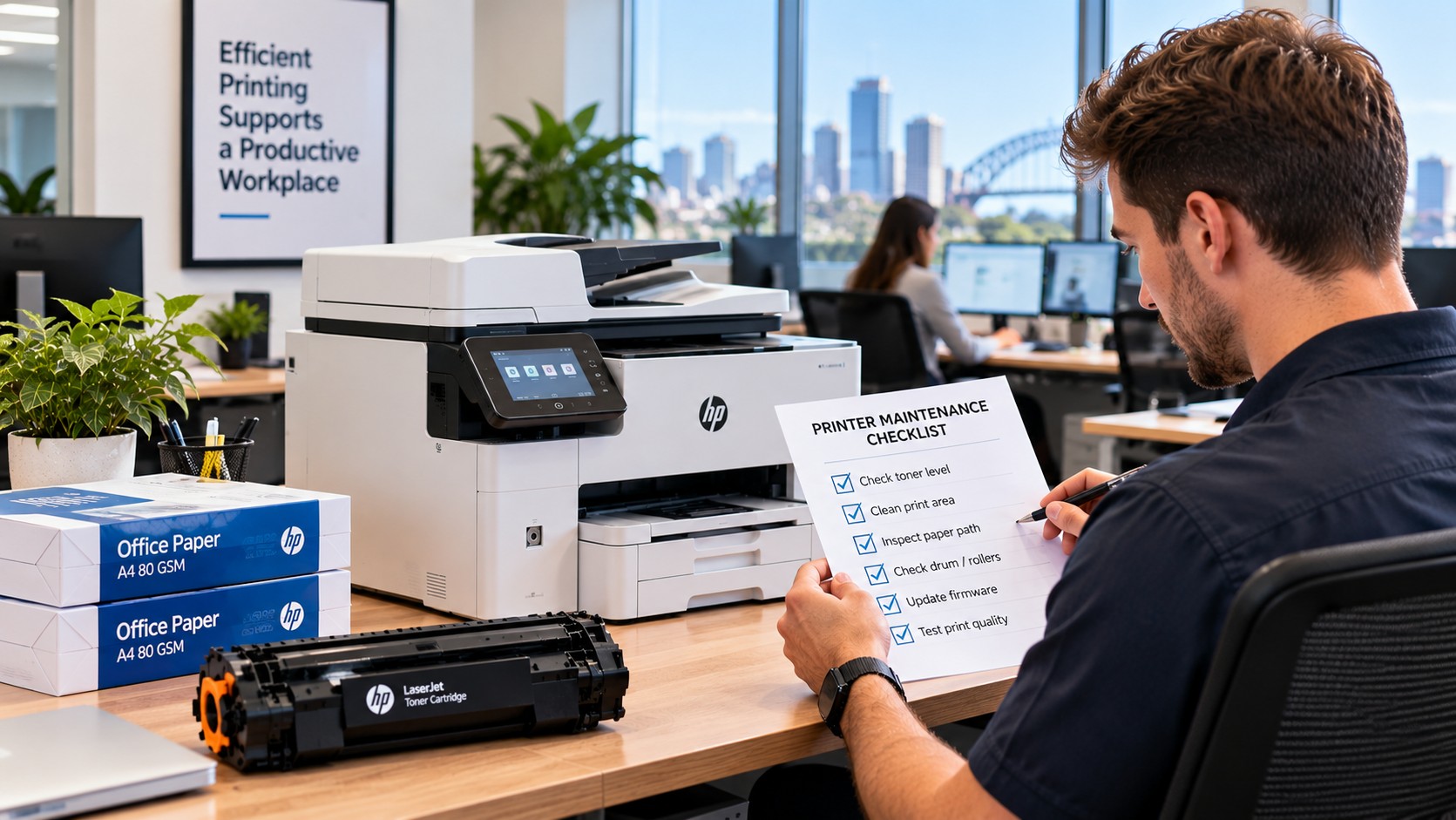
| October 12, 2026A printer can be one of those office essentials nobody thinks about until it stops working.A paper jam during a busy morning, poor print quality before an important meeting or an empty toner cartridge can quickly interrupt the workday. For businesses that rely on printed documents, a simple maintenance routine can help catch these problems earlier and keep equipment running more reliably.A good printer maintenance schedule for business should cover more than cleaning. It should include consumables, usage, print quality, warning messages, accessible components, service requirements and clear responsibility for following up problems. The right frequency will depend on the printer, how heavily it is used and the manufacturer's recommendations. The good news is that it doesn't need to be complicated. A practical checklist, updated regularly, can be enough for many Australian workplaces.Why a Maintenance Schedule MattersUnplanned printer problems cost more than the repair itself.When a machine stops working, staff may have to find another printer, delay paperwork or spend time trying to solve the problem. If the same fault keeps returning, those small interruptions can quickly become frustrating.A regular routine helps your team:Spot developing problems earlierKeep the right toner and other supplies availableMonitor heavily used machinesRecord recurring faultsKeep accessible areas cleanPlan professional servicingDecide when an older machine may no longer be worth repairingThe aim isn't to have someone constantly working on the printer. It's about giving your team a simple way to notice when something has changed.What Should Be Included in a Business Printer Maintenance Schedule?Every business will have slightly different requirements, but there are several useful items to include.1. Record the Printer and Its LocationStart by listing each machine, including:Make and modelLocationSerial number or asset numberMain department or usersApproximate workloadThis becomes particularly useful in offices with several printers.If a problem is reported, your team can immediately identify the machine instead of trying to work out which device is affected. Keeping this information alongside the correct consumable details can also help prevent the wrong cartridge being ordered.2. Keep Track of Toner, Ink and Other ConsumablesYour schedule should include the supplies each machine uses.Record:Toner or ink referenceCurrent stockDrum status, where applicableWaste-toner status, where applicableSpare cartridges availableTypical usageDon't wait until the printer stops before ordering a replacement.For an office that relies heavily on a particular machine, keeping a sensible amount of spare stock can prevent an otherwise avoidable interruption3. Monitor Page Count and UsagePage count is useful when deciding when equipment needs attention, particularly when servicing requirements are linked to manufacturer recommendations.Record the reading regularly rather than only checking it when something goes wrong.It's also worth looking at how the printer is being used, rather than relying on age alone. A machine handling large volumes every day will naturally need closer attention than one used occasionally.For printers with specific manufacturer service counters or maintenance-kit indicators, use those figures when planning servicing rather than creating your own replacement intervals. 4. Check the Paper PathPaper problems are among the easiest issues to notice.During routine checks, look for:Paper scrapsDust or debrisToner spillsDamaged paperAnything visibly obstructing accessible areasKeep the paper path clean according to the manufacturer's instructions.If the same jam keeps happening, don't simply clear it and carry on. A recurring problem may need technical attention.5. Look at Rollers, Vents and Accessible ComponentsStaff don't need to dismantle a printer as part of a normal office check.Instead, look for obvious signs of:Excessive dustDamageWearBlocked ventilationPaper-feed problemsIf paper isn't feeding properly or jams are becoming more frequent, make a note of the issue and arrange appropriate support.Internal components should be inspected or replaced according to the manufacturer's instructions or by a suitably qualified technician. 6. Check Error MessagesWarning messages shouldn't automatically be treated as a major fault, but repeated warnings shouldn't be ignored either.Record recurring codes or messages, including when they appeared and what the printer was doing at the time.For example:Paper feed error — occurred three times this month.That gives your IT team or technician much more useful information than simply reporting that the printer is "playing up".7. Check Print QualityA quick test print can reveal changes that aren't obvious from the printer's display.Look for:Faded areasStreaksSpotsUneven colourLinesOther changes from normal outputChanges in print quality can sometimes point towards consumable or component issues, so recording them can help identify a developing problem before it becomes a larger interruption.8. Keep Firmware Information Where It MattersFor networked printers, keeping a record of the current firmware version can be useful for IT teams.If a machine suddenly behaves differently after an update, knowing when the change occurred can help narrow down the cause.This doesn't mean every office needs to check firmware every day. A simple record that is updated when firmware changes can be enough for many workplaces. 9. Record When Professional Service Is DueSome printers have manufacturer-recommended maintenance intervals based on usage or specific maintenance counters.Add these requirements to your schedule rather than relying on memory.Higher-use equipment may require more attention than a lightly used machine, so your schedule should reflect the actual workload. How Often Should an Office Printer Be Checked?There isn't one timetable that works for every workplace.A useful starting point is to separate quick routine checks from more detailed reviews and professional servicing.Weekly checksFor a typical office, look at:Toner or ink levelsPaper supplyWarning messagesObvious jamsPrint qualityVisible debrisBusy machines may need these checks more frequently.Monthly checksOnce a month, review:Page countConsumable usagePrint qualityRecurring errorsAccessible paper-feed areasVentilationMaintenance recordsSpare consumablesThis is also a good opportunity to check whether any issue reported during the month has actually been resolved.Professional servicingProfessional servicing should follow the printer manufacturer's requirements and the condition of the equipment.Don't wait for complete failure if the machine is already showing repeated problems.Your schedule can include:Manufacturer service intervalsPage-count triggersMaintenance-kit requirementsKnown component replacement intervalsPrevious service datesThe original maintenance plan also recommends adjusting checks for environments such as dusty workplaces, humid conditions and continuous heavy use.Who Should Be Responsible?A maintenance schedule is only useful if someone actually keeps it up to date.Give one person or team clear responsibility.Depending on the organisation, that could be:Office managerAdministration teamIT departmentFacilities teamOperations managerExternal service providerThe person responsible doesn't necessarily need to carry out technical work.Their role can be to make sure checks happen, supplies are available and problems are passed to the right person.A simple shared spreadsheet can work perfectly well.Record:Date → Printer → Check → Problem → Action → Result → Next stepFor larger organisations, centralising this information can make it easier to see which machines are causing repeated problems.A Simple Office Printer Maintenance ChecklistIf you don't currently have a formal process, start with something simple.Regular checksPrinter model and location confirmedToner or ink level checkedCorrect spare cartridge availablePaper path checkedAccessible vents clearError messages reviewedPrint quality checkedPage count recordedFirmware information updated when requiredService due date checkedProblems recorded and assignedThis is enough to create a useful starting point without turning printer care into a major administrative task. Adjust the Routine to Your BusinessNot every workplace uses its printers in the same way.Small professional officesA simple checklist with regular consumable and condition checks may be enough.The priority should be keeping supplies available and dealing with recurring problems before they become disruptive.Schools and multi-user environmentsPrinters may be used by many people throughout the day, particularly during busy periods.Clear responsibility is important, as problems can otherwise go unnoticed until the machine is needed urgently. Healthcare and legal officesFor document-heavy environments where reliable printing is important, it makes sense to treat key machines as priority equipment.Keep service records up to date and make sure recurring faults are dealt with promptly. Larger and multi-site organisationsWhen a business has multiple devices or locations, manually keeping track of every cartridge, fault and service date can become difficult.A centralised approach or managed print arrangement may help coordinate supplies, servicing and equipment information rather than leaving each office to manage everything separately. When Should You Arrange Professional Printer Servicing?Some problems are suitable for basic office troubleshooting. Others aren't.It's time to consider professional help when:The same jam keeps returningError messages continue after basic troubleshootingPrint quality remains poorThe printer makes unusual noisesA mechanical problem is suspectedParts appear wornThe machine is becoming increasingly unreliableIf a problem keeps returning after you've checked the obvious causes, repeatedly trying the same fix usually isn't the best use of staff time.The original guidance recommends escalating persistent jams, noises, errors and quality problems to a technician rather than continuing with repeated DIY attempts.The Toner Group's also states that it provides nationwide technical support for machines experiencing wear or performance issues, including on-site solutions.Could Managed Print Make Things Easier?For businesses with several printers, multiple locations or limited internal IT resources, managed print can take some of the administration off the team's hands.Depending on the arrangement, this may include monitoring usage, managing consumables and coordinating servicing.The benefit isn't simply having someone else look after the printers. It's having a more organised system for keeping equipment, supplies and servicing under control.For a small office with one printer, that may be unnecessary. For a larger organisation, it can be worth considering.Common Maintenance Mistakes to AvoidEven a detailed checklist won't help if nobody follows it.Some common mistakes include:Creating a schedule but not assigning an ownerChecking toner while ignoring recurring faultsWaiting until a printer completely failsUsing the same routine for every machine regardless of workloadFailing to record recurring errorsOrdering the wrong consumablesIgnoring manufacturer service requirementsAttempting internal repairs without the appropriate knowledge or instructionsThe best schedule is not the longest one.It's the one your team can realistically follow.Key TakeawaysA practical printer maintenance schedule for business should cover the basics without becoming a burden.Make sure your process includes:Equipment and location detailsConsumable levels and correct part numbersUsage and page-count informationPaper-path checksAccessible components and ventilationWarning messages and error historyPrint-quality checksRelevant firmware recordsManufacturer service requirementsA clear person responsible for follow-upMost importantly, don't wait for a printer to completely fail before acting.When a fault keeps returning, get it assessed. When consumables are running low, reorder before they're needed. And when a machine is heavily used, make sure its servicing requirements reflect that workload.The result is a more reliable printing setup with fewer avoidable interruptions.If your business needs help with printer repairs, servicing, consumables or managed print, we can help you
-
| October 12, 2026When the office printer stops working, it rarely happens at a convenient time.Someone might be waiting for an invoice. A customer document needs printing. A team member is preparing for a meeting. Then the printer runs out of toner, starts jamming or suddenly refuses to print.For a busy office, even a small printer problem can interrupt several people's work.The good news is that many common issues can be avoided or dealt with before they become a major interruption. A little preparation, sensible printer maintenance and having the right supplies on hand can go a long way.Here are some practical ways to reduce printer downtime in a busy Australian office.What Causes Printer Downtime?Printer problems can come from several different sources. Sometimes it's simply a consumable running out. Other times, the cause may be paper, maintenance, connectivity or the way the printer is being used.Common causes include:Running out of toner or inkUsing the wrong cartridgePaper jamsPoor-quality or unsuitable paperLow-toner warnings being ignoredDirty or worn componentsNetwork or connection problemsDelayed maintenanceHeavy printing workloadsNo replacement supplies availableThe important thing is that some of these problems give you warning signs first. Recognising them early can prevent an inconvenient problem from becoming a complete stoppage.Keep a Spare Toner Cartridge for Important PrintersOne of the easiest ways to reduce printer downtime is to have a replacement ready before the current cartridge runs out.You don't necessarily need to stock large quantities of every cartridge in the office. Focus on the printers that are used most often or are particularly important to your daily operations.A simple system is:Current toner → Spare toner → ReorderWhen the spare cartridge is installed, reorder another one.This keeps your toner stock moving without tying up money in unnecessary supplies.It's also worth recording the exact cartridge number for each printer. Ordering based only on the printer brand or model can result in the wrong cartridge being purchased.Pay Attention to Changes in Print QualityA printer often gives you clues before a problem becomes serious.You might notice:Faded textLight or uneven areasStreaks across the pageMissing sectionsRepeated marksColours looking different from normalDon't automatically assume the printer itself has failed.A change in output can sometimes point to a cartridge that is running low or another consumable that needs attention. If you notice the problem early, you have more time to investigate it instead of discovering it when an urgent document needs to be printed.Keep Printer Maintenance SimpleOffice printer maintenance doesn't have to become another complicated task on someone's to-do list.The basics are often enough to keep things running smoothly:Keep the area around the printer cleanUse the correct paperRemove paper jams carefullyFollow the manufacturer's maintenance instructionsReplace consumables when requiredKeep vents and accessible areas clearTake recurring print problems seriouslyThe type of maintenance needed will depend on the printer.For example, laser printers may require attention to toner and imaging components, while inkjet printers can be more sensitive to dried ink and blocked nozzles when they aren't used regularly.The key is to follow the requirements of the particular printer rather than treating every machine in the office the same way.Store Toner and Paper ProperlyHaving spare supplies is only useful if they are stored properly.Keep toner cartridges somewhere clean and dry, away from excessive heat, moisture and direct sunlight. Avoid leaving boxes where they can easily be knocked around or damaged.Paper needs some attention too.Paper that has absorbed moisture can contribute to feeding problems and jams. Keep paper in a dry storage area and avoid placing it directly against damp walls or in areas where conditions change significantly.This is worth considering in Australian offices, where temperatures, humidity and air-conditioning can vary throughout the year.Make Sure Staff Know the BasicsNot every printer problem needs an IT technician.Staff should know a few simple things, such as:Which cartridge the printer usesWhere replacement toner or ink is storedHow to replace a cartridge correctlyHow to deal with a basic paper jamWhich paper should be usedWho to contact when an issue keeps happeningIt's also important to avoid forcing paper out of a jam or removing components without knowing what they do. A rushed attempt to fix a simple problem can sometimes create a bigger one.A short set of printer instructions kept near the machine can make everyday issues much easier to handle.Don't Ignore Printer Warning MessagesModern printers provide warnings for a reason, but not every warning means the printer needs to stop immediately.For example, a low-toner message may appear while the printer is still producing perfectly usable pages.That doesn't necessarily mean the warning is wrong. Laser printers estimate toner levels in different ways, and there may still be enough toner for additional printing.The sensible approach is to look at the message alongside the actual print quality.If the pages still look good, you may have some time. But it's a good point to make sure a replacement is available.Use the Correct CartridgeThe right cartridge can make a big difference to office printer reliability.Before ordering, confirm:The exact printer modelThe cartridge numberWhether it is black or colourThe required cartridge typeWhether a standard or high-yield version is neededDon't choose a cartridge simply because it looks similar to the one currently installed.Different cartridges can have very similar designs while being intended for completely different printers.This becomes especially important when an office has several printers from different manufacturers.Take Repeated Paper Jams SeriouslyAn occasional paper jam can happen in any office.Repeated jams are a different story.If the same printer keeps stopping, there may be an underlying issue worth investigating. Possible causes include:Incorrect paper sizePaper that has absorbed moistureOverfilled paper traysIncorrectly positioned paper guidesDebris inside the paper pathWorn rollersUnsuitable paperClearing the jam every time may get the printer working again, but it doesn't solve the reason the jam keeps happening.If the same problem continues, it is worth looking into the cause before it starts affecting the working day regularly.Identify Your Most Important PrintersNot every printer in an office needs the same level of attention.A machine used occasionally for internal documents isn't as critical as one that prints invoices, shipping documents, customer paperwork or other time-sensitive material.Identify the printers that would cause the biggest disruption if they stopped.For these machines, it makes sense to have:A spare toner cartridgeSuitable paperThe correct cartridge number recordedBasic troubleshooting information availableA clear process for reporting recurring problemsThis helps you put your time and budget where they will have the greatest impact.Make Sure the Printer Matches the WorkloadSometimes printer downtime is a sign that the machine simply isn't suited to the job.A printer designed for occasional use may struggle if it is handling large volumes of documents every day.If a printer regularly experiences faults, needs frequent consumable changes or struggles with the office's workload, it may be worth reviewing whether it is still the right machine.When choosing an office printer, consider more than the purchase price. Print volume, speed, reliability, consumable costs and maintenance requirements all matter.Keep a Simple Toner Stock RecordYou don't need a complicated inventory system to manage printer supplies.A simple spreadsheet can be enough.PrinterCartridge NumberSpare AvailableReorderOffice Printer 1Cartridge referenceYesWhen spare is usedOffice Printer 2Cartridge referenceNoNowAccounts PrinterCartridge referenceYesWhen spare is usedThe exact system doesn't matter as much as having a clear view of what you have.It should be easy to answer:Which cartridge does this printer use?Do we have a spare?When should we order another one?That alone can prevent the familiar situation where a printer runs out of toner and nobody knows whether a replacement has been ordered.What Should You Do When a Printer Starts Acting Up?When something goes wrong, start with the basics before replacing parts or consumables.Ask:Is there an error message?Is the printer completely unable to print?Has the print quality changed?Is there enough paper?Is the correct cartridge installed?Has this problem happened before?These simple questions can help you work out whether you're dealing with a consumable issue, a paper problem, a connection issue or something that needs further attention.If the same fault keeps returning, don't keep relying on the same temporary fix. Finding the cause can save much more time in the long run.Give Frequently Used Printers More AttentionThere isn't one maintenance schedule that works for every office printer.A machine printing hundreds of pages each week will naturally need more attention than one used occasionally.Instead of waiting for a complete failure, build a quick review into your normal office routine.Look for:Low toner levelsRepeated paper jamsChanges in print qualityDamaged or forgotten suppliesPrinters handling unusually high workloadsCartridges that need to be reorderedIt doesn't need to take long. A few minutes of attention can be much easier to manage than dealing with an unexpected printer failure when everyone is busy.Common Habits That Increase Printer DowntimeSome printer problems are made worse by everyday habits.Waiting Until Toner Is Completely EmptyIf there is no spare cartridge available, running a cartridge until it produces its final page can leave you stuck when you need the printer most.Ordering Without Confirming the Cartridge NumberA similar-looking cartridge isn't necessarily the correct one. Confirm the cartridge reference before ordering.Ignoring Early Print ProblemsFaded or streaky pages can be an early sign that something needs attention.Storing Supplies AnywhereHeat, moisture and poor storage conditions can affect paper and printer consumables.Repeatedly Treating the SymptomIf a printer keeps jamming, repeatedly clearing the same jam won't necessarily solve the underlying problem.Treating Every Printer the SameHigh-use printers usually deserve more preparation than machines that are rarely used.A Simple Way to Reduce Printer DowntimeYou don't need a complicated system to improve office printer reliability.Start with these basics:Keep spare toner for critical printersRecord cartridge numbersStore paper and consumables properlyPay attention to print-quality changesDeal with recurring paper jamsFollow suitable maintenance routinesMake sure staff know the basicsReview printers that are handling heavy workloadsSet a sensible reorder point for important cartridgesThese small steps can make everyday printing much more predictable.The Bottom LineReducing printer downtime isn't about trying to make a printer completely problem-free.It's about being prepared for the problems that are most likely to interrupt your day.Keep the right toner stock available, use the correct cartridges, look after your printers and pay attention when something starts behaving differently.For a busy Australian office, those simple habits can help turn printer problems from an unexpected disruption into something that's much easier to manage.
-
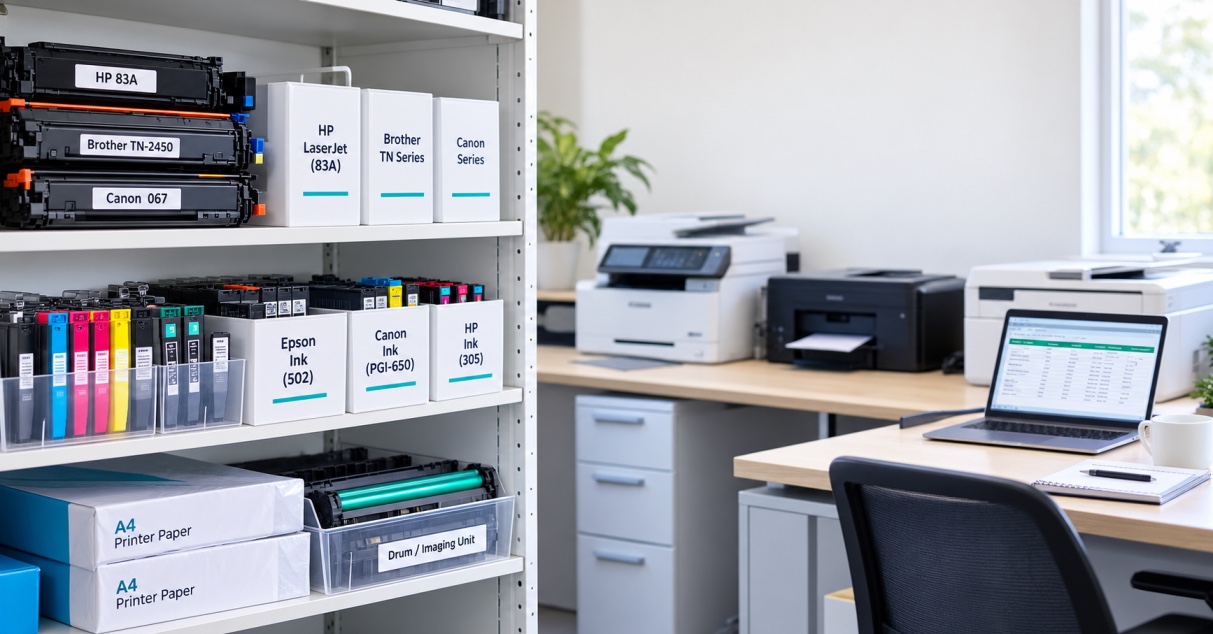
| October 12, 2026When an office runs several printers, ink and toner have a way of becoming a headache. One team has spare cartridges gathering dust in a cupboard, while another runs dry an hour before a big report is due.Usually the problem isn't a shortage. It's that nobody knows what's in stock, which cartridge fits which machine, or when to reorder. Good printer supply management in an office fixes that without adding much work. All it takes is a clear record of what you have, a simple ordering routine and a few steady habits.Here's how to set one up.1. List every printer in the officeStart by finding out which printers your business actually uses. Different departments often run different brands and models, from colour inkjets to basic monochrome lasers.Build one central register that captures:Brand and modelLocation or departmentCartridge reference numbersInk or tonerAny separate drum or imaging unitTypical print volumeThe person responsible for the machineThis register stops you from ordering a cartridge just because it looks right. Two cartridges from the same manufacturer can carry different reference numbers and still not fit the same printer.Tip: Keep the register in a shared spreadsheet that authorised staff can open when it's time to order.2. Match each printer to its exact suppliesNext, record the precise cartridge for every printer: black, colour and, for some lasers, the drum unit. A wrong order wastes budget and leaves the office waiting for the right part to arrive.Note whether you normally buy genuine or compatible cartridges. That choice depends on your printer's requirements, your budget and your purchasing policy.Avoid vague labels like "HP toner" or "Canon ink". They're too broad to prevent mistakes. If you're not sure which cartridge a machine takes, check the manual, the manufacturer's compatibility guide or a trusted supplier.3. Keep all your stock in one inventoryWhen several people order on their own, nobody knows how much the business already holds. A single cartridge inventory solves this. Track the following for each item:DetailWhy it mattersCartridge referencePrevents wrong ordersCompatible printersShows which machines can use itQuantity in stockMakes available supplies visibleMinimum stock levelSignals when to reorderSupplier and costSupports budgetingTypical delivery timeHelps you order before stock runs lowLast order dateGives a simple purchasing historyYou don't need specialist software. For a small or mid-sized office, a shared spreadsheet works well as long as someone keeps it current. Larger businesses with multiple sites or heavy printing may prefer dedicated inventory software.Whatever you choose, avoid scattered records that give different people different answers.4. Set a reorder point for each cartridgeThe easiest way to head off toner shortages is to decide in advance how low stock can fall before you order more. That threshold is your minimum stock level, or reorder point.One rule won't suit every item. A busy accounts team may burn through toner far faster than a machine used for the occasional internal memo. When choosing levels, think about:How quickly the cartridge gets usedHow many printers rely on itHow long delivery usually takesHow easy it is to findHow much the printer matters to daily operationsFor example, an office that goes through a particular toner quickly might reorder whenever two units remain, while a rarely used cartridge can have a lower trigger. Treat those numbers as illustrations only. Your own levels should come from real usage and supplier lead times.A simple place to start: Look through the last few months of purchases, spot the cartridges that run out most often and set their reorder points first.5. Agree on who handles toner orderingA dependable system needs a clear answer to one question: who places the order? Without one, people assume a colleague has handled it, or two people buy the same cartridge without realising.A straightforward routine looks like this:Check the inventory for items that have reached their reorder point.Confirm the details, including the cartridge reference and quantity.Check for open orders so nothing is bought twice.Get approval if your purchasing policy requires it.Place the order with an approved supplier and keep the confirmation.Mark it as pending in the spreadsheet.Record the delivery when it arrives.One person or a small purchasing team should own this routine. Everyone else can flag low supplies, but the final ordering decision should sit in one place.6. Review stock on a scheduleWaiting for a low-toner warning isn't a real strategy. The cartridge may still print well, but you've given yourself little time to find a replacement, and a delivery that takes several days could leave a key printer idle.A weekly check is a good starting point. Busy offices may want to look more often, and quieter ones can stretch it out. In each review:Compare what's on the shelf with what the spreadsheet saysLook at outstanding ordersFlag items close to their reorder pointNotice cartridges that haven't moved in a long timeConsider whether a project or busy season will push demand upOnce it becomes routine, supply management stops being a scramble and becomes a quick, routine task.7. Watch how each department uses suppliesA reception printer might handle a handful of pages a day, while accounts can print hundreds during month-end. Treat them the same and you'll overstock one cartridge and run short of another.Start with simple records of purchase and replacement dates. If your printers offer page counters or management reports, those add useful detail. Over time, you'll see:Which printers get the heaviest useWhich cartridges need frequent replacingWhich teams have seasonal peaksWhich items you tend to over-orderThere's no need to track every page. A broad sense of the patterns is enough to sharpen your reorder points and forecast demand.8. Store cartridges properlyGetting the order right only helps if the stock stays in good condition. Heat, damp, dust and direct sunlight can damage cartridges and packaging before you ever install them.Choose a clean, dry spot away from sunlight and big temperature swings. Leave cartridges in their original packaging until you need them, and follow the manufacturer's storage guidance.It also helps to make the storage area easy to read. Keep ink and toner on separate shelves, label shelves with reference numbers and space out look-alike products. Use older stock first, as long as it's still within its recommended storage period.Resist buying in bulk just for a discount. A lower unit price isn't a bargain if the cartridges sit unused for months or no longer suit your equipment.9. Look at cost per page, not just priceA cheap cartridge isn't always the cheaper one to run. To compare fairly, divide the price by the expected page yield.Cost per page = cartridge price ÷ expected page yieldIf a cartridge costs $100 and is rated for 2,000 pages, that's $0.05, or 5 cents, per page.Real results vary with page coverage, print settings and the condition of the printer, and colour printing involves several cartridges, each with its own cost. Your purchase history can also show whether one machine is consistently more expensive to run than another, which is useful when you review print settings or plan new equipment.The goal isn't the lowest price on the shelf. It's keeping printing dependable at a sensible overall cost.10. Leave room for delays and busy periodsEven a tidy office hits a sudden spike: a large project, end-of-month reporting or a surprise deadline. Delivery times can slip too, so ordering only when stock is almost gone leaves no margin.Build a small buffer for the items that matter most. Think about normal delivery time, how fast the cartridge gets used and what would happen if it ran out. You don't need extra stock of everything, just the supplies whose absence would cause real disruption.It's also smart to have a backup approved supplier for essential cartridges, especially if your office depends on a few key machines. Before a known busy period, check expected demand and open orders so you aren't buying in a panic.11. Make one person accountable for accuracyA shared spreadsheet is only useful when it's up to date. If people grab cartridges without logging them, the sheet shows stock that no longer exists. If deliveries arrive but aren't entered, it undercounts what you have.Give one person responsibility for keeping the records right. They should make sure that:Deliveries are loggedCartridges taken from storage are deductedDamaged or unsuitable items are notedPurchase orders are closed out on arrivalDiscrepancies are investigatedReorder levels are revisited when usage changesKeep the process light enough that staff can follow it without slowing down. A small office may only need one person. A larger organisation might have contacts in each department reporting to a central purchasing team.12. Revisit the system as things changeOffices change. You add printers, move teams, hire people or print more (or less) than before, and each shift can alter which cartridges you need and how fast you use them. Review the system now and then, and whenever something significant changes. A few questions help:Are the records still accurate?Are we ordering the right quantities?Which items keep running out?Is anything sitting untouched for months?Have prices or delivery times changed?Could combining orders simplify buying?Is everyone following the stock-recording routine?Make small improvements rather than rebuilding from scratch. If staff find the process too fiddly, simplify it.Common mistakes to avoidOrdering by brand alone. Always confirm the exact reference for the specific model.Holding the same quantity of everything. Match stock to usage, lead times and how critical each printer is.Relying on low-toner alerts. They're helpful, but they don't replace planning.Letting everyone order independently. This invites duplicates and conflicting records.Overbuying. Excess stock ties up cash and risks going obsolete.Skipping updates. Even a simple spreadsheet becomes useless if deliveries and withdrawals go unrecorded.The bottom lineA dependable printer supply system comes down to three things: knowing what you have, knowing what each printer needs and ordering before it gets urgent. Start with an accurate register of your machines, add a single inventory, set sensible reorder points and decide who owns purchasing and records. Regular reviews and basic usage tracking can follow as you go.It doesn't have to be complicated. A well-kept spreadsheet and a consistent habit can cut shortages, stop duplicate orders and keep printing on track.Need help finding the right cartridges for your office printers? The Toner Group supplies genuine and compatible printer cartridges and offers practical advice on choosing the right ones. Visit thetonergroup.com.au or call 1300 041 170.
-
| October 06, 2026 Running out of printer toner or ink can cause more disruption than most businesses expect. A printer may be essential for invoices, contracts, reports, forms, labels and other everyday documents, yet replacement cartridges are often only ordered when they are nearly empty.A sensible printer cartridge inventory management system helps prevent this. The goal isn't to fill a cupboard with spare cartridges. It's to keep enough stock to cover normal usage, supplier lead times and unexpected increases in printing.A practical starting point is:Stock requirement = average usage during supplier lead time + safety stockBy tracking printer usage, cartridge part numbers, delivery times and reorder points, businesses can keep the right supplies available without unnecessarily tying up money in excess stock.Why Printer Cartridge Stock Levels MatterFor a small office, running out of toner might mean a short interruption. For a school, healthcare provider, accounting practice, law firm or larger organisation, the impact can be greater because several people may depend on the same printer.Poor inventory management can result in:Printers sitting unused while waiting for suppliesUrgent cartridge ordersHigher delivery costsStaff spending time searching for the correct cartridgeUnnecessary duplicate purchasesToo many unused cartridges taking up storage spaceDifficulty understanding printing costsThe opposite problem is overstocking. Buying large quantities without considering actual usage can leave money tied up in printer consumables inventory, particularly when a business operates several printer models.Good inventory management creates a balance between availability and cost.How to Calculate a Sensible Printer Cartridge Stock LevelThe simplest way to establish a starting stock level is to look at three things:How many cartridges you normally useHow long replacement stock takes to arriveHow much additional stock you need as a safety bufferA basic calculation is:Average usage during lead time + safety stock = reorder requirementFor example, suppose an office normally uses four black toner cartridges per month and its supplier generally delivers within one week.The business can estimate its weekly usage, then keep enough stock to cover that expected consumption plus a small additional buffer.The exact buffer depends on how critical printing is to the organisation.A business that can comfortably wait a few days for a delivery may need less safety stock than a healthcare provider, school or print-intensive office where running out could interrupt important work.What Information Should You Track?Before deciding on your toner stock levels, record the following for each printer:Printer modelRecord the exact model and where the printer is located.Cartridge part numberThe part number is important because similar printer models can use different cartridges.Cartridge typeIdentify whether the printer uses ink cartridges, toner cartridges or another consumable.ColourFor colour printers, track black, cyan, magenta and yellow supplies separately where applicable.Average monthly usageReview your actual cartridge consumption rather than simply guessing.Supplier lead timeRecord how long your normal supplier takes to deliver.Cartridge preferenceNote whether the business normally purchases genuine manufacturer cartridges or compatible alternatives.Printer importanceA cartridge for a critical accounts or reception printer may deserve a larger buffer than one for an occasionally used printer.A Simple Example of Stock PlanningImagine a small professional office uses approximately:3 black toner cartridges per month1 colour set every two monthsSupplier delivery time of 3–5 business daysRather than keeping a large quantity of every cartridge, the business could establish a reorder point based on its actual consumption and delivery time.The important thing is not the exact number of cartridges sitting on the shelf. It's having a repeatable system that tells someone when to reorder.That makes cartridge ordering more predictable and reduces reliance on last-minute checks.Build a Simple Printer Consumables InventoryYou don't necessarily need specialist inventory software to manage printer supplies.For a small or medium-sized business, a spreadsheet can be enough.Your printer consumables inventory could include:ItemWhat to recordPrinterModel and locationCartridgeInk or tonerPart numberExact cartridge referenceColourBlack, cyan, magenta or yellowCurrent stockNumber currently availableMonthly usageAverage consumptionReorder pointLevel at which you place an orderSupplierPreferred supplierLead timeTypical delivery periodResponsible personPerson who manages stockThis can also be combined with an office consumables checklist covering printer paper, labels, envelopes and other regularly purchased supplies.Keep the Inventory UpdatedA stock list is only useful if it reflects what is actually in the cupboard.When a cartridge is used, update the quantity. When new stock arrives, record it. If a new printer replaces an old one, update the cartridge details immediately.For a small workplace, checking inventory once or twice a month may be enough. Higher-volume environments may need more frequent reviews.Use Printing Volume to Guide Your Stock LevelsDifferent businesses have very different printing requirements, so there is no universal number of cartridges every workplace should keep.A useful starting framework is:Printing demandSuggested approachLow volumeKeep a small backup supply for critical printersModerate volumeEstablish a clear reorder point and maintain 1–2 spare cartridges where appropriateHigh volumeMonitor consumption closely and maintain a larger safety bufferVery high / multi-site volumeConsider automated replenishment or managed printThese are planning guidelines rather than fixed stock requirements. Your actual stock level should reflect cartridge consumption, delivery times, storage space and how critical the printer is to your business.Small Offices and Professional PracticesA small office may have only a few printers with fairly predictable usage.Keeping a spare cartridge for a business-critical printer can provide useful protection against unexpected demand or delivery delays.For printers that are rarely used, holding several spare cartridges may simply create unnecessary inventory.Schools and Medium-Sized OfficesSchools and medium-sized businesses may have several printers used by different departments.Instead of applying the same stock level to every printer, identify the high-use devices first.For example:Administration printer — higher priorityFinance printer — higher priorityReception printer — moderate priorityOccasional-use printer — lower priorityThis approach helps allocate inventory where it is actually needed.Multi-Site and High-Volume BusinessesManaging cartridges becomes more complicated when an organisation has many printers across multiple locations.In this situation, businesses may benefit from managed print services.Managed print can help bring printer usage, device management and consumable replenishment into a more structured process. It can be particularly useful when manually tracking toner and ink across multiple sites becomes time-consuming.When Should You Reorder Printer Cartridges?A reorder point is the stock level at which you place your next cartridge order.A simple approach is:Reorder point = expected usage during delivery time + safety stockFor example, if your business normally consumes one cartridge during the supplier's delivery period, you could set your reorder point above one cartridge rather than waiting until the shelf is empty.This gives the new order time to arrive before the existing stock is exhausted.Your reorder point should be reviewed when:Printing volume increasesA new printer is introducedYour supplier's delivery time changesYour business enters a particularly busy periodYou change cartridge typesYour organisation adds another locationCommon Printer Cartridge Inventory Mistakes1. Waiting until the cartridge is emptyWaiting for a printer to display a low-toner warning before ordering can leave little room for delivery delays.Set a reorder point before stock reaches zero.2. Treating every printer the sameA high-volume multifunction printer may consume cartridges far faster than a printer used occasionally.Base stock levels on actual usage.3. Forgetting colour cartridgesColour printers may require several individual cartridges. Running out of one colour can affect colour printing even when other cartridges are still available.Track colour supplies individually where necessary.4. Ordering without checking the part numberPrinter models can have specific cartridge requirements. Always verify the cartridge reference before ordering.5. Keeping too much stockMore stock isn't automatically better.Excess inventory uses storage space and ties up purchasing budgets. Review actual consumption before increasing your buffer.6. Having no person responsible for stockIf everyone assumes someone else checks the supplies, nobody may notice that stock is running low.Assign responsibility for checking and ordering printer consumables.Choosing the Right Ink and TonerStock management only works when you have the correct cartridges available.When purchasing ink or toner, check:Printer make and modelCartridge part numberBlack or colour requirementExpected printing volumeGenuine or compatible cartridge preferenceSupplier availabilityDelivery timeframeFor businesses that regularly purchase printer supplies, keeping commonly used cartridges organised by printer model can make the ordering process much simpler.You can review The Toner Group ink and toner range to find cartridges suited to your printers and printing requirements.For businesses with more complex printing needs, managed print may also be worth considering instead of handling every consumable order manually.When Is It Time to Improve Your Inventory Process?Your current system may need attention if your business regularly experiences:Empty cartridges when documents need to be printedEmergency or rushed ordersLarge quantities of unused cartridgesStaff unsure which cartridge belongs to which printerDuplicate purchasesDifficulty tracking monthly cartridge usageMultiple locations with no central stock visibilityRising printing costs without a clear explanationThese problems don't necessarily mean you need sophisticated inventory software. Often, the first improvement is simply creating a reliable stock list and setting clear reorder points.For larger organisations, however, managed print can provide a more structured way to manage devices, usage and consumables.A Simple Monthly Printer Inventory RoutineA basic monthly review can keep your cartridge inventory under control.Step 1: Check current stockCount the cartridges currently available.Step 2: Compare usageLook at how many cartridges were used during the previous month.Step 3: Check reorder pointsIdentify cartridges that have reached or are approaching their reorder level.Step 4: Consider upcoming demandThink about known busy periods, new projects or seasonal increases in printing.Step 5: Place required ordersOrder only the cartridges needed to maintain your planned stock level.Step 6: Update your inventoryRecord the new stock when the delivery arrives.This process takes far less effort than dealing with repeated emergency orders and can make printer consumables easier to manage across the workplace.The Bottom LineEffective printer cartridge inventory management isn't about keeping the maximum possible amount of toner and ink in storage.It's about understanding how much your business actually uses, how quickly replacement cartridges arrive and how much safety stock you need.Start by recording every printer and its cartridge part number. Track monthly consumption, establish a reorder point and review your stock regularly.For a small office, a simple spreadsheet may be all you need. For larger organisations with multiple printers or locations, managed print can provide a more structured approach to replenishment.If you need replacement ink or toner, The Toner Group provides printer consumables for different workplace requirements, from individual cartridge purchases through to more structured supply and managed print options.
-
| October 05, 2026Running out of printer supplies is rarely convenient.It might happen just before an important meeting, when someone needs to print invoices, or when a team member is trying to get a document out the door. The printer itself may be working perfectly, but without the right cartridge or paper, there is not much it can do.That is why it helps to keep a small amount of essential office printer supplies on hand.You do not need a storeroom full of cartridges. A simple office printer consumables checklist can help you work out what you actually use, how much to keep and when it is time to reorder.What Are Printer Consumables?Printer consumables are the supplies that get used during normal printing and eventually need to be replaced.Depending on the equipment in your office, these may include:Toner cartridgesInk cartridgesPrinter paperDrum or imaging unitsWaste toner containersMaintenance kits or other printer-specific partsNot every printer uses all of these. An inkjet printer, for example, will need ink rather than toner, while some laser printers have separate drum units.The best stock list is therefore based on the printers you actually have.What Should an Office Keep in Stock?For most offices, the essentials are fairly straightforward.1. Toner CartridgesIf your office uses laser printers, toner is one of the main supplies worth keeping as a spare.A printer that is used every day can go through toner surprisingly quickly, particularly in a busy office.Keeping one spare cartridge available can give you some breathing room when the current one starts running low.When recording your toner stock, make a note of the exact cartridge number. Do not rely on the printer brand alone, as different models can use completely different cartridges.2. Ink CartridgesOffices using inkjet printers should keep the ink cartridges needed for their particular models.Depending on the printer, that could mean:Black inkCyanMagentaYellowCombined colour cartridgesSome printers use individual cartridges for each colour, while others combine several colours into one cartridge.It is also worth looking at your actual printing habits. If black documents make up most of your office printing, black ink may need replacing more often than the colour cartridges.3. Printer PaperPaper is easy to forget when discussing printer consumables, but it is just as important as the cartridge.Most offices will mainly use standard copy paper, but some may also need:Different paper sizesLetterheadHeavier paperColoured paperSpecial paper for particular documentsThere is no need to keep large quantities of paper that are rarely used. Focus on the sizes and types your team reaches for regularly.What About Printer Drums?Some laser printers have a separate drum or imaging unit.Unlike toner, a drum usually lasts much longer, so it does not need to be kept in the same quantities as regular cartridges.However, it is worth knowing whether your printers use separate drums and what cartridge or part number they require.If a particular printer is critical to your day-to-day work, having the correct replacement available can save time when the drum eventually needs changing.Do Offices Need Spare Waste Toner Containers?Some laser printers collect excess toner in a separate waste toner container.When it becomes full, the printer may display a maintenance message or stop operating until the container is replaced.Not every printer uses one, so there is no reason to stock them unless your equipment requires them.If your office does use them, include the correct replacement in your stock records so it does not get overlooked.What Are Maintenance Kits?Larger office printers and multifunction machines may eventually need maintenance parts such as rollers, fusers or other components.These are not everyday consumables, and most offices do not need to keep several sets in storage.Instead, find out whether your printer has a recommended maintenance interval and keep a note of when those parts are likely to be needed.For a high-use printer, knowing this in advance can make maintenance much easier to plan.How Much Toner or Ink Should You Keep?There is no magic number that works for every office.A small business printing a few hundred pages each month will have very different requirements from an office producing thousands of pages a week.A few things can help you decide.Look at Your Normal UsageThink about how quickly your team actually goes through cartridges.If a cartridge normally lasts several months, one spare may be plenty.If you are replacing cartridges every few weeks, keeping additional stock could make more sense.Consider Delivery TimesHow quickly can you get a replacement?If your supplier can deliver the next day, there may be little reason to keep a large supply.If a particular cartridge takes several days to arrive, having an extra one ready can prevent an unnecessary interruption.Prioritise Important PrintersNot every printer in an office is equally important.A printer used occasionally for internal documents probably does not need the same level of backup as one used for invoices, shipping labels or customer paperwork.Start with the printers that would cause the most disruption if they suddenly became unavailable.Do You Need a Spare Cartridge for Every Printer?Not necessarily.If an office has several printers, buying a spare cartridge for every device can quickly become expensive, particularly when some printers are rarely used.A better approach is to identify the equipment that is used most often and keep appropriate backup stock for those machines.For less frequently used printers, you may be able to order supplies when they are needed.How Can You Avoid Ordering the Wrong Cartridge?This is one of the simplest problems to prevent.Create a basic record showing:Printer modelCartridge numberCartridge typeCurrent quantityReorder levelSupplierThe exact cartridge number is particularly important.A printer brand or model name on its own may not be enough to identify the correct supply. Recording the cartridge reference makes reordering much easier and reduces the chance of ordering something that does not fit.Should You Use Genuine or Compatible Cartridges?Depending on your printer, you may have the option of using genuine cartridges or compatible alternatives.The important thing is to use a cartridge that is designed for the exact printer and cartridge reference.If your office already uses compatible cartridges successfully, recording the correct compatible cartridge number alongside the printer details can make future orders much simpler.There is also no need to change cartridge types unnecessarily. If something works reliably for your office, consistency can make stock management easier.How Should Printer Cartridges Be Stored?Good storage is simple but important.Keep spare cartridges:In their original packaging until neededIn a clean, dry locationAway from excessive heat and direct sunlightProtected from dust and physical damageStored according to the manufacturer's instructionsAvoid keeping cartridges loose in a cupboard where they can become damaged or forgotten.It also helps to keep printer supplies together in one clearly organised area rather than having cartridges spread across different desks and cupboards.When Should You Reorder Printer Supplies?The easiest approach is to set a simple reorder point.For example, your office might decide that when there is only one spare cartridge left, another should be ordered.That level can be higher for a busy printer and lower for one that is rarely used.You can also review your supplies once a month. This gives you a chance to see which cartridges are being used quickly and which ones are sitting untouched.Over time, your stock levels can be adjusted to match actual usage.Common Mistakes With Office Printer SuppliesKeeping too much stockBuying large quantities can take up storage space and tie up money in supplies that may not be needed for months.Keeping no backupWaiting until a cartridge is completely empty before ordering a replacement can bring printing to a standstill.Ordering by brand aloneThe printer manufacturer is not enough. Always confirm the exact cartridge reference.Forgetting printer-specific partsDrums, waste toner containers and maintenance components may not be replaced often, but they can still cause problems when they are suddenly needed.Not recording usageIf you do not know how quickly supplies are being used, it is difficult to set sensible stock levels.Storing cartridges poorlyHeat, moisture and physical damage can affect stored supplies, so a suitable storage area is worth having.A Simple Office Printer Consumables ChecklistHere is a practical starting point for most workplaces:Regular supplies☐ Toner cartridges☐ Ink cartridges☐ Standard printer paperPrinter-specific supplies☐ Drum or imaging units☐ Waste toner containers☐ Maintenance kitsStock information☐ Printer model recorded☐ Exact cartridge number recorded☐ Current quantity recorded☐ Reorder level established☐ Supplier details available☐ High-use printers identified☐ Supplies stored in one organised areaYou will not need every item on this list. The idea is to identify what your particular printers use and keep enough of the important supplies available.How Can an Office Manage Printer Consumables More Easily?You do not need complicated inventory software to keep printer supplies under control.A simple spreadsheet can be enough.Record the printer, cartridge number, current quantity and reorder point. Then update it when new stock arrives or a cartridge is used.This also gives you a clearer picture of your actual printing habits. If one cartridge is being replaced much more often than expected, it may be worth looking at what that printer is being used for and whether the print settings are appropriate.The Bottom LineKeeping printer supplies in stock is really about finding the right balance.You do not want cupboards full of cartridges that are rarely used, but you also do not want an important printer to stop working because nobody has a spare cartridge available.For most offices, a sensible office printer consumables checklist will include the toner or ink used regularly, paper and any printer-specific items such as drums or waste toner containers.Keep track of the exact cartridge numbers, understand how quickly your team uses them and set a simple reorder point.A little planning can save a lot of frustration when someone needs to print something urgently.
-
| October 01, 2026You’ve just changed the ink cartridge, printed a document and the colours still don't look right. Maybe red is coming out pink, blue looks purple, or photos have a strange colour cast.It’s frustrating, particularly when you've already replaced the cartridge and expected the problem to disappear.The good news is that printer colours wrong after replacing ink doesn't necessarily mean the printer is faulty. The new cartridge may not be the right one for your model, it may not be seated properly, or the issue could be related to ink flow, paper or your print settings.Before buying another cartridge or calling for a repair, there are a few straightforward things worth checking.Start With Your Printer ModelBefore troubleshooting the print itself, find the exact model of your printer.You’ll normally find the model number on the front, back or inside the printer. You can also find it through your computer's printer settings or the manufacturer's software.This small detail matters because cartridges are made for specific printer models. Two printers from the same brand can use completely different cartridges.For example, knowing that you have a Canon printer isn't enough. You need the exact model to find the cartridge designed for that machine.The same applies to HP, Brother, Epson and other major brands.If you're not sure which cartridge your printer takes, check the model before ordering anything. It can save you the hassle of receiving a cartridge that looks right but isn't suitable for your machine.Check the Number on the CartridgeOnce you've found your printer model, check the number printed on the old cartridge or its packaging.This is often referred to as the cartridge number, part number or OEM number.Don't rely on colour or appearance alone. Cartridges can look very similar even when they're designed for different printers.Before ordering, compare:Your exact printer modelThe cartridge numberBlack or colour cartridgeStandard or high-yield versionGenuine or compatible cartridgeIf you still have the old cartridge, keeping the packaging or taking a photo of the label can make future replacements much easier.It is also worth checking the cartridge manufacturer's compatibility information before placing an order.Could the New Cartridge Be the Problem?If the trouble started immediately after changing the cartridge, it's reasonable to check the cartridge first.Make sure it is:Designed for your exact printerInstalled in the correct slotProperly seatedFree from visible damageFully unpacked according to the manufacturer's instructionsSome cartridges have protective strips, seals or other packaging that need to be removed before use. The exact procedure varies, so follow the instructions supplied with the cartridge.Also check whether the printer recognises the new cartridge.If the printer is displaying a cartridge warning or isn't recognising it properly, deal with that issue before spending time changing other settings.Genuine vs Compatible Ink: Does It Matter?You'll often see both genuine and compatible cartridges when shopping for ink.A genuine cartridge is made by the printer manufacturer. A compatible cartridge is produced by another manufacturer for use with a particular printer or range.A quality compatible cartridge can be a practical option, particularly for households and businesses looking to manage printing costs. However, quality and compatibility can vary between products and suppliers.The important point is not simply whether the cartridge is genuine or compatible. It needs to be suitable for your particular printer.If you're buying compatible ink, check the product description carefully and make sure your exact model is listed.Check the Ink LevelsIf you've got a colour inkjet printer, don't only check the cartridge you have just replaced.Most colour printers use several ink colours. Depending on the model, these may include black, cyan, magenta and yellow.One low or poorly performing colour can affect the appearance of other colours on the page.For example, you might notice:Red looks pinkGreen looks unusualBlue has a purple tintPhotos look washed outSome colours disappearPrints have an obvious colour castCheck the levels shown by your printer and look at the actual print as well. Ink-level readings are estimates on many printers, so the printed result can provide useful information when you're working out what's going on.Run a Nozzle CheckIf you're using an inkjet printer, a nozzle check is one of the most useful tests you can run.It prints a small test pattern showing whether the different ink channels are working properly.If sections of the pattern are missing or broken, the printer may not be delivering one or more colours properly.This can happen when ink has dried around the printhead or when the printer hasn't been used for some time.Look under your printer's maintenance options for something such as Nozzle Check, Print Quality Check or Check Print Head Nozzles. The wording will depend on the brand and model.If the test pattern isn't complete, follow the manufacturer's recommended cleaning procedure.Don't keep running cleaning cycles unnecessarilyPrinthead cleaning uses ink.If the first cleaning cycle doesn't solve the problem, check the nozzle pattern again before running another one. Your printer's manual or manufacturer's support information should be the guide for how many cleaning cycles are appropriate.If repeated cleaning makes no difference, there may be another issue that needs attention.Have a Look at Your Print SettingsSometimes the ink isn't the culprit at all.Your printer settings can change the way colours appear on the page. This is particularly noticeable when printing photographs, graphics or other documents where colour matters.Check whether you've accidentally selected:Black and white or grayscaleDraft or Economy modeA different print qualityThe wrong paper typeManual colour adjustmentsApplication-specific colour settingsThe paper setting is easy to overlook.If you're printing on glossy photo paper but the printer is set for ordinary plain paper, the result may not look the way you expect.It's worth checking the print settings on your computer before assuming there's a problem with the cartridge.Test the Printer ItselfHere's a useful way to narrow down the problem.Print the printer's own test or configuration page, if your model provides one.Then compare it with the document that's giving you trouble.If the test page also looks wrongThe issue is more likely to be connected to the printer, cartridge, ink delivery or printhead.If the test page looks fineThe problem may be somewhere else, such as the application you're printing from, the document itself or its colour settings.For example, if a PDF looks wrong but the printer's test page is fine, try printing another document. This helps establish whether the problem is specific to one file.Check the Paper You're UsingPaper has more influence on print quality than many people realise.Ink behaves differently on ordinary office paper, coated paper and photo paper. That's why printers often provide different media settings.If you're getting unexpected results, check that the paper loaded in the printer matches the setting selected in the print dialogue.Also make sure the paper is clean, dry and stored properly.For everyday office documents, standard copy paper is usually fine. For photographs or graphics, using the appropriate paper and print-quality setting can make a noticeable difference.What If Only One Colour Is Wrong?If only one colour has changed, that's a useful clue.For instance, if everything that should be red now looks pink, check the colour cartridges and nozzle pattern rather than changing every cartridge in the printer.The same applies if blues, greens or other colours suddenly look different.A simple test page can show whether one ink channel is missing or inconsistent.This is much more useful than guessing and replacing several cartridges at once.When Should You Replace the Cartridge Again?If you've checked the model, cartridge number, installation and settings, and the problem remains, you may need to consider the cartridge itself.A replacement may be appropriate when:The cartridge is emptyIt is damaged or leakingThe printer can't recognise itA particular colour isn't being deliveredThe cartridge is confirmed to be unsuitableA known-good replacement resolves the problemBut don't automatically buy another cartridge just because the first one didn't solve the issue.If two correctly installed cartridges produce the same result, the problem could be elsewhere in the printer.That's particularly important for businesses that print regularly. Replacing consumables without finding the underlying cause can quickly become an unnecessary expense.Choosing the Right Ink for Your PrinterWhen you do need a replacement, start with the printer model rather than simply searching for “colour ink”.The Toner Group stocks ink cartridges for a range of popular printer brands and models, including genuine and compatible options.For example, a printer that uses a Canon CL-586 colour cartridge needs that specific cartridge family. A different Canon colour cartridge isn't automatically suitable just because it comes from the same manufacturer.You can also find higher-yield options for supported printers if you regularly print large volumes.The best choice depends on your printer, how much you print and whether you're looking for genuine or compatible supplies.Before ordering, always confirm that the cartridge is listed for your exact printer model.Need a Replacement Cartridge?If you've worked through the checks above and the cartridge is the likely cause, finding the correct replacement is the next step.The Toner Group's ink range covers individual colours, black cartridges, multipacks and different yield options across a range of printer brands.Rather than guessing which one you need, check your printer model and cartridge number first.Find the right ink cartridge for your printerIf you're still unsure, the model number and old cartridge number are the most useful details to have when looking for a replacement.The Bottom LineIf your printer colours are wrong after replacing ink, don't assume the printer has suddenly packed it in.Start with the basics: check the printer model, compare the cartridge number, make sure the cartridge is installed properly and confirm that the printer recognises it.Then move on to the ink levels, nozzle check, paper and printer settings.If the printer's own test page still has missing or unusual colours, the problem may be related to ink delivery, the printhead or another part of the machine.The key is to work through the checks one at a time. That way, you can find out whether you're dealing with an ink cartridge issue, a setting, a printhead problem or something that needs further attention—without spending money on cartridges you don't actually need.
Recent Posts
Oct 12, 2026
Oct 12, 2026
Oct 12, 2026