How to Install Canon Printer Cartridges and Use Compatible Ink
Replacing an empty printer cartridge should be straightforward, but installing the wrong one or missing an important step can cause printing problems. Knowing how to install Canon printer cartridges correctly helps prevent unnecessary errors, wasted ink and interruptions to your printing.
Another common question is whether compatible ink cartridges work in Canon printers. The answer is yes. Compatible cartridges are available for selected Canon models and can provide an alternative to genuine Canon ink. However, the cartridge number, printer model and chip compatibility must be checked before ordering.
Whether you use a Canon PIXMA printer at home or a MAXIFY printer in a small office, choosing the correct cartridge is essential.
This guide explains how to replace Canon ink cartridges, check compatibility, troubleshoot common problems and choose suitable replacement supplies for home and business printing.
How to Install Canon Printer Cartridges
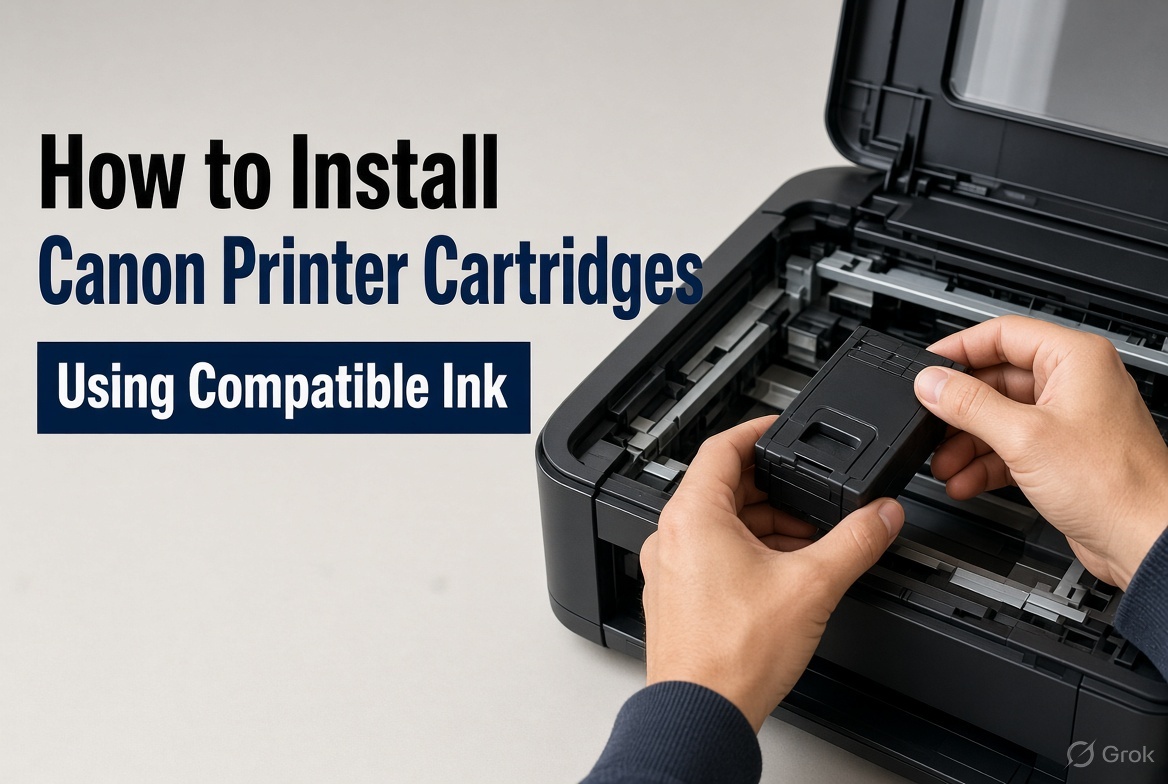
You can install Canon printer cartridges by opening the cartridge access area, removing the empty cartridge and fitting the correct replacement. The exact process depends on your printer model, but these steps apply to many Canon PIXMA inkjet printers.
Step 1: Switch on your Canon printer
Turn on the printer before replacing the cartridge. Many Canon PIXMA models automatically move the cartridge holder into an accessible position when the access cover is opened.
Wait until the holder stops moving before handling the cartridges. Never force it into position.
Step 2: Open the cartridge access cover
Open the cartridge access cover or scanning unit, depending on your model.
Locate the cartridge holder and allow it to settle. Some printers have a locking mechanism that must be released before removing a cartridge.
Step 3: Remove the empty cartridge
Identify the cartridge that needs replacing. Release it using the appropriate tab or locking mechanism and carefully remove it.
Avoid touching the electrical contacts, printhead nozzles or ink outlet areas. Handling these parts can affect cartridge performance.
Step 4: Prepare the replacement cartridge
Remove the new cartridge from its packaging. Take off the protective tape, plastic clips and seals specified in the installation instructions.
Check that no protective material remains around the ink outlet or electrical contacts. Do not touch the exposed contacts or printhead nozzles.
Step 5: Insert the new cartridge
Match the replacement cartridge to the correct holder. For printers using separate ink tanks, each cartridge must go into its corresponding colour position.
For models using black and colour FINE cartridges, install each cartridge in its designated holder.
Push gently until the cartridge locks into place. If it does not fit, stop and check the cartridge number and orientation. Never force it into the holder.
Step 6: Close the printer cover
Close the access cover or scanning unit. The printer may take a short time to recognise the replacement and initialise the ink system.
Follow any instructions displayed on the printer screen.
Step 7: Print a test page
Print a test page or nozzle check pattern to confirm that the replacement is working.
Look for missing colours, faded text, white lines or uneven printing. If the output is poor, follow Canon's recommended nozzle-check and cleaning procedure.
Avoid running repeated deep-cleaning cycles unnecessarily because they consume additional ink.
Can You Use Compatible Ink Cartridges in Canon Printers?
Yes, compatible ink cartridges can be used in selected Canon printers, provided they are designed for the exact printer model and required cartridge number.
Compatible cartridges are manufactured by independent companies as alternatives to genuine Canon ink. They are commonly considered by homeowners, students and businesses looking to manage regular printing expenses.
However, not every cartridge labelled as compatible with Canon will work in every Canon printer.
Before purchasing, check:
- Your exact Canon printer model.
- The required cartridge number.
- Whether you need black or colour ink.
- Whether a standard or XL cartridge is suitable.
- Chip compatibility, where applicable.
- Relevant firmware requirements.
A cartridge may look similar to another model's cartridge but still have different electrical contacts, chip technology or ink specifications.
Genuine vs Compatible Canon Ink Cartridges
Genuine cartridges are manufactured under the Canon brand, while compatible cartridges are produced by independent manufacturers for supported printer models.
| Feature | Genuine Canon | Compatible |
| Manufacturer | Canon | Independent manufacturer |
| Design | Original manufacturer design | Designed for supported models |
| Ink formulation | Canon specifications | Varies by manufacturer |
| Recognition | Designed for supported models | Depends on chip compatibility |
| Print quality | Designed to Canon specifications | Varies by product quality |
| Purchase price | Generally higher | Often lower |
Compatible cartridges can offer a lower upfront price and provide a practical option for everyday documents. However, quality, colour reproduction, page yield and printer recognition can vary between manufacturers.
Choose a supplier that clearly identifies supported printer models and provides product support.
Does Compatible Ink Damage Canon Printers?
Using a compatible cartridge does not automatically damage a Canon printer. However, unsuitable, poorly manufactured or incompatible ink can cause problems such as leakage, blocked nozzles, poor colour reproduction and cartridge recognition errors.
Canon's warranty conditions exclude certain damage caused by unsuitable ink or toner and supplies that do not conform to its specifications. This does not mean that every problem occurring after compatible ink is installed is automatically caused by that cartridge.
Australian Consumer Law also provides consumer guarantees that cannot simply be removed by a manufacturer's warranty statement.
For further information, read Canon Australia's warranty conditions and the ACCC's consumer guarantees guidance.
How to Check Which Canon Ink Cartridge Your Printer Needs
The safest way to identify the correct replacement is to check your printer's full model number and confirm the corresponding cartridge number.
You can usually find the model number on:
- The front or top of the printer.
- The identification sticker on the back or underside.
- The printer settings or maintenance menu.
- Your original purchase documentation.
Once you have the model number, check Canon's official ink selection guide.
Example: Canon PIXMA TS3465 Ink
If you own a Canon PIXMA TS3465, check the black and colour cartridge numbers specified for the Australian model before ordering.
Searching for Canon PIXMA TS3465 ink is more useful than searching for a general black ink cartridge.
Do not assume that cartridges used by a similar-looking PIXMA printer will fit your machine.
The same approach applies to Canon MG, TS, TR and MX series printers.
Practical tip: Keep a note of your printer model and cartridge numbers. This makes future replacements quicker and reduces the risk of ordering the wrong product.
How to Fix a Canon Printer Cartridge Not Recognised Error
A Canon printer cartridge not recognised error can occur because of incorrect installation, dirty electrical contacts, an incompatible cartridge or a faulty chip.
Before replacing the cartridge again, work through these checks.
1. Check the cartridge number. Make sure it is designed for your exact printer model.
2. Check the protective packaging. Remove all protective tape and packaging specified for removal.
3. Reinstall the cartridge. Remove it using the correct release mechanism and reinstall it until it locks into place.
4. Inspect the electrical contacts. Look for visible dirt or damage. Avoid touching the contacts, scraping them or using household cleaning chemicals.
5. Restart the printer. Follow the manufacturer's recommended restart procedure and check whether the error remains.
6. Contact the supplier. If the printer still does not recognise the replacement, the cartridge or its chip may be faulty or incompatible.
Why Is My Canon Printer Printing Blank Pages?
Blank pages after cartridge replacement may indicate incorrect installation, protective tape left attached, blocked printhead nozzles or a faulty cartridge.
Check the cartridge installation and run a nozzle check before performing further cleaning.
If the problem continues, follow the manufacturer's troubleshooting instructions.
Canon Ink Cartridges vs Canon Toner Cartridges
Canon ink cartridges are designed for inkjet printers, while Canon toner cartridges are designed for laser printers. They use different printing technologies and cannot be used interchangeably.
| Feature | Canon Inkjet Printers | Canon Laser Printers |
| Consumable | Liquid ink | Toner powder |
| Cartridge | Ink cartridge or tank | Toner cartridge |
| Technology | Ink droplets | Electrostatic imaging |
| Common use | Home and colour printing | Office and document printing |
| Maintenance | Printhead and nozzle care | Toner and imaging system maintenance |
Canon PIXMA and MAXIFY inkjet printers use liquid ink. Supported Canon imageCLASS laser printers use toner.
What About Canon Toner Cartridge 051 and CART337?
Canon toner cartridge 051 and CART337 are toner product identifiers associated with particular laser printer families.
If you are searching for Canon toner cartridge 051 or Canon CART337 toner, check your exact printer model before purchasing.
You can explore available options through The Toner Group's Canon toner range.
The same compatibility rules apply when looking for Canon toner in Melbourne or Brisbane. Your location does not change which cartridge your printer requires.
What to Check Before Buying Compatible Canon Ink
Before buying Canon printer ink cartridges, verify the printer model, cartridge number, chip requirements, supplier support and expected printing usage.
Use this checklist:
| What to check | Why it matters |
| Printer model | Confirms the cartridge is designed for your machine |
| Cartridge number | Prevents ordering the wrong consumable |
| Colour or black | Ensures you select the correct replacement |
| Standard or XL | Helps match your printing requirements |
| Chip compatibility | Helps prevent recognition problems |
| Ink quality | Affects text and colour output |
| Page yield | Helps compare printing costs |
| Returns policy | Clarifies what happens if the cartridge is defective |
Compare Cost Per Page
The cheapest cartridge is not always the most economical.
Cost per page = Cartridge price ÷ Estimated page yield
For example, a hypothetical cartridge costing $25 with an estimated yield of 300 pages has an indicative cost of approximately 8.3 cents per page.
A $35 cartridge with an estimated yield of 500 pages has an indicative cost of 7 cents per page.
Actual yields vary depending on document coverage, print settings, maintenance cycles and printer condition.
For businesses printing invoices, reports and customer documents regularly, this calculation can be more useful than comparing purchase prices alone.
How to Maintain Your Canon Printer
Regular maintenance helps maintain print quality, reduce avoidable faults and keep your printer ready for everyday use.
Follow these practical habits:
- Check ink levels before important print jobs.
- Run a nozzle check when print quality deteriorates.
- Use the manufacturer's recommended cleaning process.
- Keep the printer in a clean, dry environment.
- Use paper suitable for your printer.
- Avoid touching cartridge contacts and nozzles.
- Replace empty cartridges promptly.
- Check for visible paper dust and obstructions.
- Keep printer software appropriately updated.
- Store unopened cartridges according to their packaging instructions.
For businesses with several office printers, planned printer servicing and managed print services can help monitor consumable usage and reduce unexpected interruptions.
Frequently Asked Questions About Canon Printer Cartridges
1. How do I install Canon printer cartridges?
Switch on your printer, open the cartridge access cover and wait for the holder to stop moving. Remove the empty cartridge, prepare the replacement and insert it into the correct position. Close the cover and print a test page. Follow your model's instructions.
2. Can you use compatible ink cartridges in Canon printers?
Yes. Compatible cartridges are available for selected Canon printers. The cartridge must match your exact printer model and required cartridge number. Check chip compatibility before purchasing.
3. Are compatible Canon ink cartridges worth buying?
They can be a practical alternative for everyday document printing. However, quality, recognition and reliability vary between manufacturers. Choose a product with clear compatibility information.
4. Will compatible ink damage my Canon printer?
Not necessarily. A suitable compatible cartridge does not automatically damage a printer. However, poorly manufactured, leaking or unsuitable ink can cause printing problems.
5. Why is my Canon printer not recognising a new cartridge?
Common causes include an incorrect cartridge number, incomplete installation, protective tape left attached, dirty electrical contacts or an incompatible chip. Check these issues before assuming the cartridge is faulty.
6. How do I know which ink cartridge my Canon printer needs?
Find the complete printer model number on the machine or its identification label. Check Canon's official ink selection guide and confirm the required cartridge numbers before ordering.
7. Why is my Canon printer printing blank pages after replacing ink?
Possible causes include incorrect installation, protective packaging left attached, blocked printhead nozzles or a faulty cartridge. Check the installation and run a nozzle check before performing further cleaning.
8. Does installing compatible ink affect my Canon printer warranty?
Using a compatible cartridge does not automatically cancel all warranty coverage or Australian Consumer Law rights. However, manufacturer warranty conditions may exclude damage caused by unsuitable supplies. Check the relevant terms and keep your purchase records.
Conclusion: Choose the Right Canon Printer Cartridges
Installing Canon printer cartridges correctly is straightforward when you know your printer model, use the correct cartridge number and follow the manufacturer's replacement instructions.
Compatible ink cartridges can also be a useful alternative for selected Canon printers. The key is to check compatibility, cartridge quality and supplier support before ordering.
For home users, the right cartridge helps keep everyday printing simple. For businesses, suitable consumables can help manage printing expenses and reduce avoidable interruptions.
The Toner Group supplies Canon ink and toner options, including compatible cartridges for supported models, for Australian customers looking for practical printing supplies.
Before ordering, confirm your printer model and cartridge number so you get the right replacement the first time.
Need help identifying the right cartridge? Explore Canon printer cartridges at The Toner Group or contact our team for assistance.