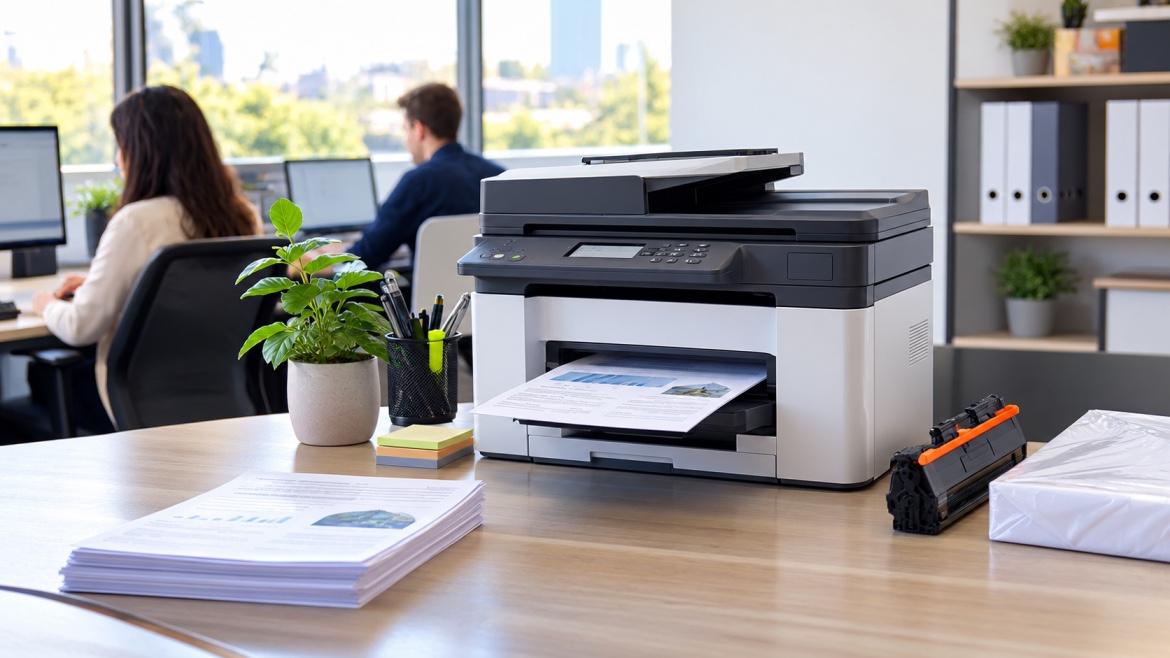

Faded pages are one of those printer problems that can be surprisingly frustrating. You expect crisp black text or strong colours, but instead you get light grey writing, washed-out images or streaks across the page.
The good news is that printer printing faded pages is usually not a mystery. Common causes include low ink or toner, incorrect print settings, clogged printhead nozzles, a poorly seated cartridge, unsuitable paper or a worn printer component.
Before you buy a replacement cartridge, a few quick checks can often identify the problem. Here’s what to look for and when replacing the cartridge actually makes sense.
If the problem does turn out to be your cartridge, start by checking the right [ink cartridges] category for your printer.
Check Your Ink or Toner Level First
The simplest place to start is the ink or toner level.
Check the printer's display, control panel or the printer software on your computer. If the cartridge is genuinely running low, reduced print density can result in lighter text and faded colours.
However, don't treat the percentage shown on the screen as a perfect measurement.
Printer estimates can sometimes be inaccurate, particularly after cartridges have been replaced, refilled or used heavily. A printer showing plenty of ink doesn't necessarily mean that ink is reaching the paper properly.
Look at the actual printed page as well.
If the fading has appeared gradually and affects the relevant colour consistently, a low cartridge is worth investigating. If the cartridge is new or the problem affects only certain areas of the page, there may be another cause.
For laser printers, check the toner cartridge rather than looking for an "ink" problem. Toner is a dry powder, and the way it is transferred and fused onto paper is different from an inkjet printing process.
Common Reasons Printers Produce Faded Pages
Not every faded print means you need a new cartridge.
A printer can produce washed-out output because of its settings, cartridge installation, printhead condition, paper or internal components. Taking a few minutes to troubleshoot the problem can prevent you from replacing a perfectly usable cartridge.
Draft, Economy or Toner-Save Mode Is Enabled
Many printers have settings designed to reduce ink or toner consumption.
These can include:
- Draft or Fast printing
- EconoMode
- Toner Save
- Ink Save
- Low-density or reduced-quality settings
These modes can intentionally use less consumable material, which may make text or graphics appear lighter.
For everyday documents, check that your printer is set to Normal, Standard or an equivalent quality setting. If you're printing photographs or important colour documents, a higher-quality setting may produce better results, although it can use more ink.
Also check the settings in the application you're printing from. Microsoft Word, Adobe Acrobat and other software can sometimes use different print preferences from the printer's default settings.
Inkjet Printhead Nozzles Are Clogged
If you're using an inkjet printer and haven't printed for several weeks, dried ink can contribute to blocked or partially blocked nozzles.
Instead of putting down a complete line of ink, an affected nozzle may produce little or no ink. The result can be:
- Horizontal white lines
- Faded colours
- Missing sections of text
- Uneven photographs
- Streaky graphics
Use the printer's built-in nozzle check first. If the pattern shows missing lines, run the manufacturer's recommended cleaning cycle.
Avoid repeatedly running deep-cleaning cycles without checking the result. They can consume a noticeable amount of ink, so it's better to test between cleaning cycles rather than continually running them.
The Cartridge Isn't Seated Correctly
A newly installed cartridge can still cause faded printing if it hasn't been installed properly.
Remove and reinstall it according to the printer manufacturer's instructions. Make sure it clicks securely into position.
Also check that any protective tape, pull-tab, vent seal or shipping material that should be removed during installation has actually been removed.
This is particularly important with a brand-new cartridge. If it produces faded output immediately after installation, don't assume the printer suddenly needs servicing. Check the installation and cartridge compatibility first.
Paper Can Affect Print Quality
Paper isn't always the first thing people consider when troubleshooting faded printing, but it can affect the final result.
For inkjet printers, paper that's unsuitable for the printer or designed for a different type of printing can affect how ink spreads and dries.
For laser printers, use paper that meets the printer's specifications, particularly when printing on heavier media.
Paper should also be stored in a reasonably dry environment. Damp or poorly stored paper can contribute to inconsistent printing and paper-handling problems.
Try printing the same document on fresh, standard printer paper. If the result improves, the paper may have been contributing to the problem.
A Laser Printer Component May Be Worn
Laser printers have several components involved in producing a printed image, including the toner cartridge, imaging drum, transfer system and fuser.
If a laser printer continues producing faded pages with a known-good toner cartridge, the problem may be elsewhere.
A worn drum can contribute to light or streaky output, while transfer or fuser problems can produce other forms of inconsistent printing. The exact symptoms vary between printer models.
That's why repeatedly buying toner isn't always the right solution.
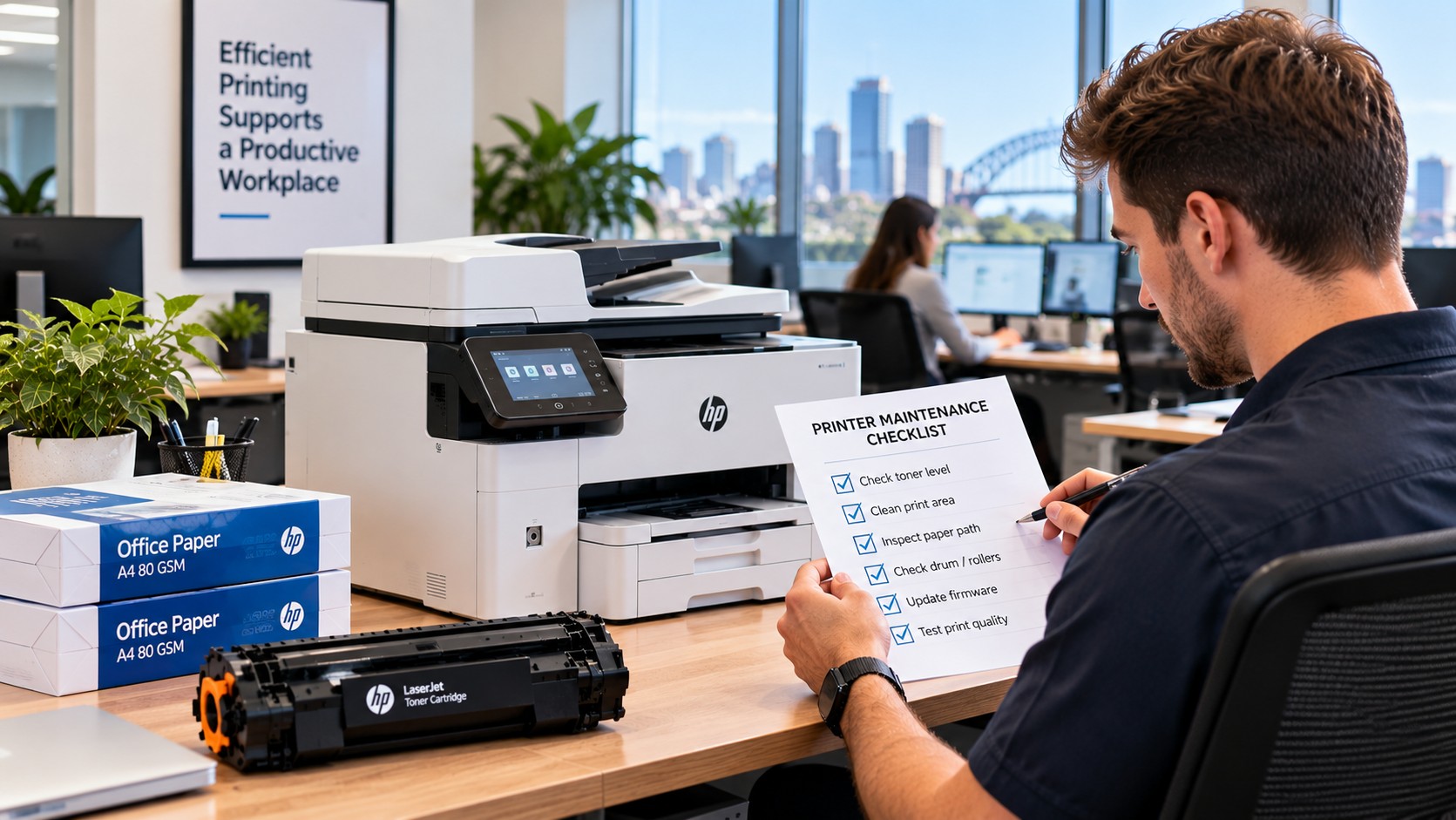
Quick Fixes to Try Before Replacing the Cartridge
If your printer is printing faded pages, work through these checks in order.
1. Check the ink or toner level.
Look at both the printer's reported level and the actual print quality.
2. Check the print settings.
Turn off Draft, Economy or Toner Save mode and select Normal or Standard quality.
3. Run a nozzle check if you're using an inkjet.
This can show whether individual colours or printhead nozzles are missing.
4. Run the manufacturer's cleaning cycle if required.
Don't keep repeating deep cleans if there is no improvement.
5. Reseat the cartridge.
Remove and reinstall it carefully, following the printer's instructions.
6. Try fresh standard paper.
This helps rule out a paper-related issue.
7. Print a test or configuration page.
If the printer's own test page is also faded, the problem is less likely to be caused by your particular document or application.
Five minutes of troubleshooting can save you from ordering a cartridge you didn't actually need.
If you do need a replacement, look for [ink cartridges by printer brand] or use a [find your cartridge] tool to confirm compatibility before ordering.
When Is It Time to Replace the Cartridge?
A replacement cartridge becomes the logical next step when the printer continues producing poor output after you've ruled out settings, installation and basic maintenance.
Signs that the cartridge may genuinely need replacing include:
- The cartridge is genuinely low or empty
- A full test page is consistently faded
- Cleaning or nozzle checks don't resolve an inkjet problem
- The cartridge has been stored for a long period
- A particular colour remains weak despite normal settings
- The cartridge is damaged or defective
- A known-good cartridge immediately improves the print quality
For inkjet printers, replacing the affected colour doesn't necessarily mean replacing every cartridge. If only cyan is producing weak output, for example, investigate that cartridge and its corresponding printhead channel first.
The situation is slightly different with laser printers. If a new toner cartridge produces the same faded result as the old one, investigate the printer itself rather than immediately buying another toner cartridge.
A worn drum, transfer issue or fuser problem could be responsible.
What If a New Cartridge Still Prints Faded?
This is an important distinction.
If your printer was producing good-quality documents previously and suddenly becomes faded after installing a new cartridge, check the cartridge installation and compatibility first.
Make sure you've purchased the correct cartridge for the exact printer model. Printer families can use different cartridges even when the machines look very similar.
If the cartridge is correctly installed and the problem remains, test the printer's built-in test page. If possible, comparing the result with another known-good cartridge can also help identify whether the problem is consumable-related.
For a laser printer, persistent fading with a known-good toner cartridge points towards other parts of the print system.
That is when professional printer servicing or manufacturer support may be more appropriate than buying another cartridge.
Get the Right Cartridge, Sorted the First Time
When your printer is printing faded pages, replacing the cartridge may be the answer — but it shouldn't automatically be the first answer.
Start with the basics: check the consumable level, review your print settings, inspect the cartridge installation, run the appropriate printer test and consider the paper you're using.
If you're using an inkjet and the problem continues, investigate the printhead and nozzle condition. If you're using a laser printer, consider whether the drum, transfer system or fuser could be contributing to the problem.
Once you've confirmed that the cartridge is the issue, make sure you choose one that is compatible with your exact printer model.
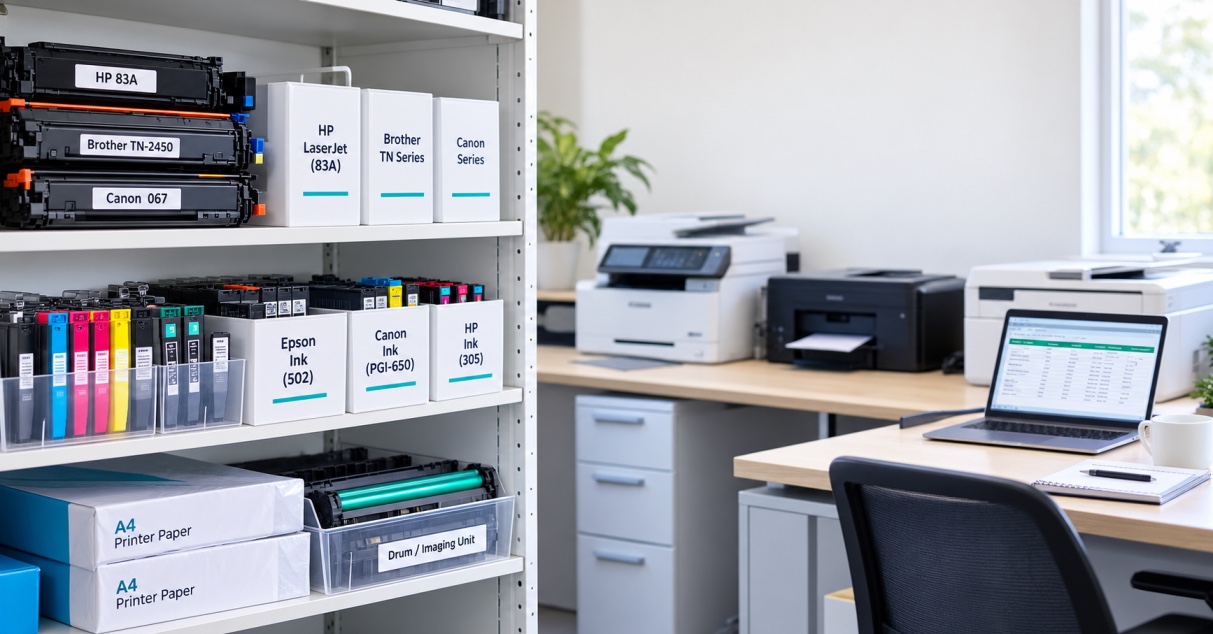
You can browse [ink cartridges], check [toner cartridges] if you're using a laser printer, use a [find your cartridge] tool to confirm compatibility, or contact The Toner Group if you're unsure which consumable or replacement option you need.
The goal isn't simply to replace a cartridge. It's to identify the actual cause of the fading and get your printer producing clean, readable pages again.
FAQs
Why is my printer printing light even with a full cartridge?
A full cartridge doesn't always mean that ink or toner is reaching the page correctly. Check print-quality settings, cartridge installation, printhead nozzles and paper. On laser printers, a worn drum or another internal component can also cause faded output.
Does cleaning the printhead fix faded printing?
It can if blocked or partially blocked inkjet nozzles are causing the problem. Start with a nozzle check and use the printer's recommended cleaning cycle. Avoid repeatedly running deep cleaning cycles without checking whether print quality has improved.
Can bad paper cause faded prints?
Yes. Paper that is unsuitable, damp or poorly stored can affect how ink or toner behaves on the page. Testing with fresh, standard paper is a simple way to rule this out.
Is faded printing a sign I need a new printer?
Not necessarily. Faded printing is often caused by a cartridge, settings or maintenance issue. On laser printers, a worn drum, transfer system or fuser may also be responsible. Diagnose the cause before replacing the entire printer.
How do I know if it's the cartridge or the printer itself?
Check the printer's test page, cartridge installation and print settings first. If a known-good cartridge produces normal output, the original cartridge is the likely problem. If multiple cartridges produce the same fault, investigate the printer itself.
Does Draft Mode cause permanently faded printing?
Draft or Economy Mode can produce lighter output because the printer is designed to use less ink or toner. It doesn't normally mean the printer or cartridge has been permanently damaged. Returning to a normal print-quality setting should restore the intended print density.