
You send a document to the printer, the job appears to go through normally, and then the page comes out completely blank.
It is one of those printer problems that can be surprisingly frustrating. The printer may sound like it is working, there may be no obvious error message, and yet you end up with a stack of empty sheets instead of the document you actually needed.
If your printer is printing blank pages, the cause could be something simple, such as an empty cartridge or blocked printhead. In other cases, the problem may be related to the printer settings, cartridge installation, software or the printer itself.
The good news is that you can check several things yourself before assuming the printer needs replacing.
Why Is My Printer Printing Blank Pages?
There isn't one single reason a printer produces blank pages.
The most common causes include:
- Empty or very low ink or toner
- An incorrectly installed cartridge
- A blocked or dried printhead
- Protective tape still attached to a new cartridge
- Incorrect printer settings
- A software or driver problem
- Paper or print-quality settings causing unexpected results
- A faulty cartridge
- A printer hardware problem
The right solution depends partly on whether you are using an inkjet or laser printer.
If the printer has suddenly started producing blank pages, start with the simple checks before moving on to more involved troubleshooting.
1. Check the Ink or Toner Cartridge
One of the first things to check is the cartridge.
If an ink cartridge is empty, the printer may feed paper through normally without putting enough ink onto the page. With a laser printer, an empty or incorrectly installed toner cartridge can cause a similar problem.
Check the printer's ink or toner levels if your model provides that information.
Keep in mind that the level shown by the printer isn't always a perfect indication of how much usable ink or toner remains. If you've been printing regularly and the problem appeared after a cartridge was nearly empty, replacing it may solve the issue.
If you've recently installed a new cartridge and immediately started getting blank pages, don't assume the printer itself has failed. The cartridge installation is worth checking first.
2. Make Sure the Cartridge Is Installed Properly
A cartridge needs to make proper contact with the printer for it to work correctly.
Open the cartridge compartment and check that each cartridge is seated correctly.
Depending on your printer, you may need to remove the cartridge and reinstall it until it clicks or sits firmly in place.
Also check that you have installed the cartridges in the correct positions.
For colour printers, it is easy to overlook a cartridge that has been placed incorrectly, particularly if several cartridges have similar shapes.
If the printer was recently moved, serviced or had cartridges replaced, this check becomes even more worthwhile.
3. Did You Remove the Protective Tape?
This is an easy one to miss when installing a new cartridge.
Many new ink and toner cartridges have protective packaging, seals or strips that need to be removed before the cartridge can operate correctly.
If that protective material is still attached, ink or toner may not be able to reach the appropriate part of the printer.
If your printer is printing blank pages immediately after installing a new cartridge, take the cartridge out and check the manufacturer's installation instructions.
Don't remove anything that isn't intended to be removed. The cartridge should be prepared exactly as specified for your printer.
4. Run a Printhead Cleaning Cycle
If you have an inkjet printer, a blocked printhead can cause blank pages or pages with very little ink.
This can happen when a printer hasn't been used for a while. Ink can dry around the printhead and interfere with normal printing.
Most inkjet printers have a built-in cleaning function that can be accessed through the printer's control panel or computer software.
Look for options such as:
Maintenance → Printhead Cleaning
or
Tools → Clean Printhead
The exact wording varies between printer models.
After running the cleaning cycle, print a test page or nozzle check.
Don't repeatedly run cleaning cycles without a reason. They use ink, so if one or two cleaning attempts don't improve the problem, it may be better to investigate the cartridge, printer settings or hardware instead.
5. Print a Test or Diagnostic Page
A printer's own test page can help you work out whether the problem is with the printer or the document you're trying to print.
If the printer can produce a proper internal test page but your documents are coming out blank, the problem may be related to your computer, application, driver or document.
If the printer's own test page is also completely blank, the problem is more likely to involve the ink, toner, cartridge or printer hardware.
This is a useful troubleshooting step because it helps narrow down the problem instead of changing several things at once.
6. Check Your Printer Settings
Sometimes the printer isn't actually broken. A setting may be causing the unexpected result.
Check which printer is selected before printing.
This is particularly important if your computer has access to multiple printers. You may think you're sending a document to your usual printer when the computer is actually using another device or a different printer driver.
Also check:
- Paper size
- Print quality
- Colour or black-and-white settings
- Selected printer
- Page range
- Print preview
- Any special printing options
If the document looks normal in print preview but the physical page is blank, that can provide another clue that the problem is happening between the computer and printer rather than within the document itself.
7. Try Printing a Different Document
Before changing printer settings, try printing something completely different.
For example, print a simple text document or a test image.
If the second document prints correctly, the original file may be the problem.
A damaged document, unusual formatting, unsupported fonts or an application-specific issue can sometimes result in unexpected printing behaviour.
If every document produces blank pages, the issue is more likely to be related to the printer, cartridge, driver or connection.
This simple test can save you from spending time troubleshooting the wrong part of the setup.
8. Restart the Printer and Computer
It sounds basic, but restarting both devices is still worth trying.
Turn the printer off properly, wait a short while and then turn it back on.
If you're printing from a computer, restart that as well.
Temporary communication problems between the printer and computer can sometimes cause unusual printing behaviour.
If the printer is connected over Wi-Fi, check that it is still connected to the correct network.
For a USB connection, make sure the cable is securely connected.
A restart won't fix a faulty cartridge or blocked printhead, but it can clear temporary software or communication problems.
9. Check the Printer Driver
If your printer can print its own test page but produces blank pages when you print from your computer, the printer driver is worth checking.
A driver allows the computer and printer to communicate correctly.
An outdated, corrupted or incorrect driver can sometimes cause printing problems.
Check that your computer has the correct driver for your exact printer model.
If the issue started after a computer update or software change, this is particularly worth investigating.
Before downloading a driver, make sure you select the correct printer model and operating system.
10. Consider Whether the Cartridge Itself Is the Problem
Sometimes the issue really is the cartridge.
A cartridge can be faulty even if it is new.
If you've tried the usual installation and printer maintenance steps and the page is still blank, check whether the cartridge is recognised correctly by the printer.
For an inkjet printer, also check whether the ink is actually flowing.
For a laser printer, make sure the toner cartridge is correctly installed and that any required protective packaging has been removed.
If the printer reports a cartridge error, follow the instructions shown by the manufacturer rather than repeatedly removing and reinstalling the cartridge.
If you suspect the cartridge is faulty, check the supplier's warranty or return conditions before throwing it away.
Inkjet vs Laser Printer: Does It Matter?
Yes.
The troubleshooting process can be slightly different depending on the type of printer you have.
Inkjet printers
Blank pages from an inkjet printer are often associated with:
- Empty ink cartridges
- Blocked printheads
- Dried ink
- Incorrect cartridge installation
- Protective seals not removed
- Cartridge recognition problems
If the printer has been sitting unused for a long time, a blocked printhead is particularly worth checking.
Laser printers
Laser printers use toner rather than liquid ink.
If a laser printer is producing blank pages, possible causes include:
- Empty toner
- Incorrectly installed toner cartridge
- Protective strip not removed
- Cartridge recognition issue
- Imaging or printer hardware problem
This is why it helps to identify whether you have an inkjet or laser printer before starting troubleshooting.
What If Only Some Pages Are Blank?
A printer doesn't necessarily have to produce completely blank pages for there to be a problem.
You might find that one page prints normally while another comes out empty.
If that happens, look at the document itself.
Check whether the text or images are actually visible in print preview. You should also try printing another file to see whether the problem follows the document or happens with everything you print.
If only one particular file produces blank pages, the printer may be working correctly.
If every document produces the same result, focus your troubleshooting on the printer, cartridge, driver and connection.
When Should You Replace the Cartridge?
Replacing the cartridge makes sense when it is genuinely empty or when you've established that the cartridge is the likely cause of the problem.
However, don't immediately buy a new cartridge just because the printer has produced one blank page.
Try the basic checks first.
If the cartridge is showing as empty, has been used heavily or the printer is reporting a cartridge-related warning, replacement may be the next sensible step.
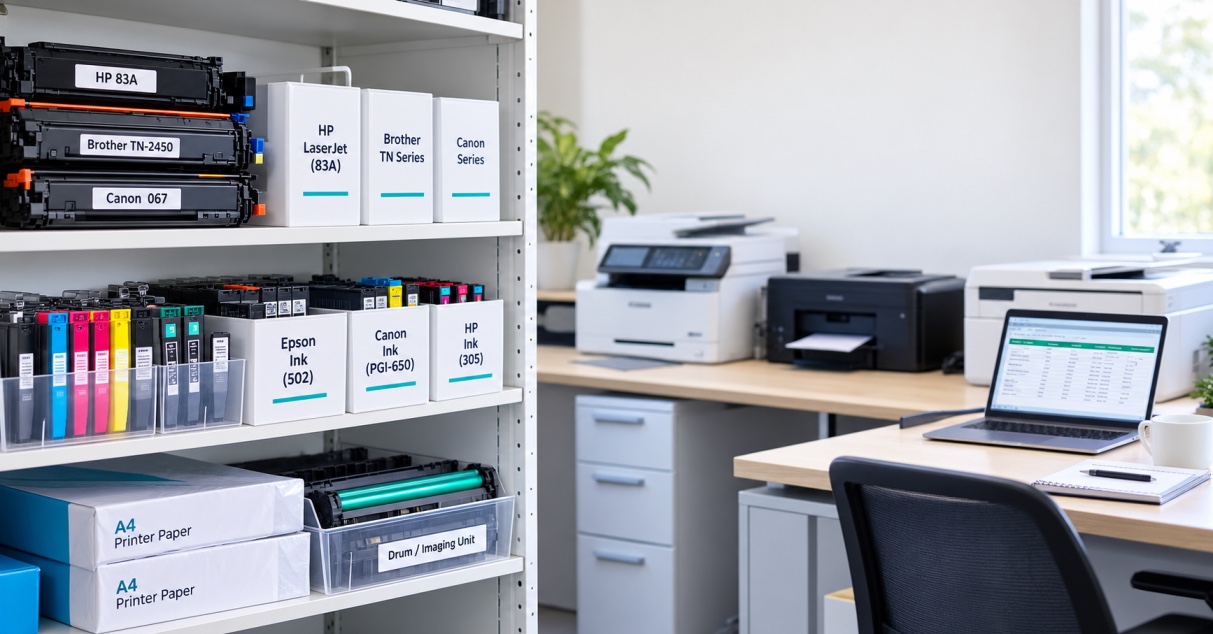
When buying a replacement, check the exact printer model and cartridge number rather than choosing a cartridge based only on the printer brand.
This is especially important when buying printer supplies online because several cartridges can look similar while being designed for completely different printers.
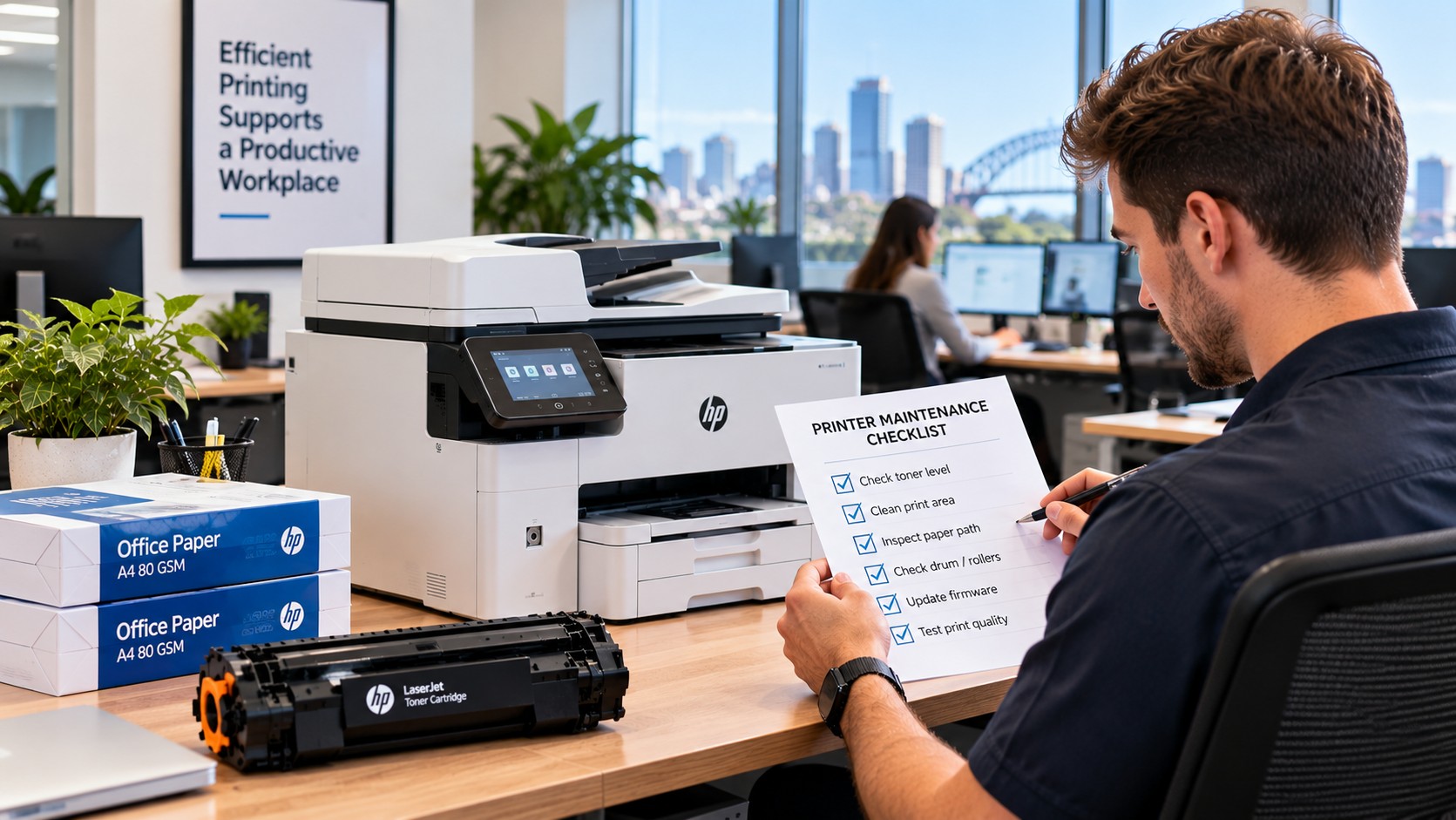
A Quick Printer Troubleshooting Checklist
If your printer is printing blank pages, work through this list:
1. Check the ink or toner level.
Is the cartridge empty or nearly empty?
2. Check the cartridge installation.
Make sure it is seated correctly.
3. Check for protective packaging.
If the cartridge is new, confirm that all required seals or strips have been removed.
4. Run a test page.
This helps determine whether the problem is with the printer or your document.
5. Clean the printhead.
For inkjet printers, run the manufacturer's cleaning or nozzle-check procedure if necessary.
6. Try another document.
This can identify whether one particular file is causing the problem.
7. Check printer settings.
Make sure you're printing to the correct printer with the appropriate settings.
8. Restart everything.
Restart the printer and computer and try again.
9. Check the driver.
Make sure the correct driver is installed for your printer.
10. Consider the cartridge or hardware.
If nothing has worked, the cartridge or printer itself may need further attention.
When Is It Time to Get Professional Help?
If you've worked through the basic checks and the printer is still producing blank pages, there may be a hardware issue.
This is more likely if:
- The printer's internal test page is blank
- A known-good cartridge doesn't solve the issue
- The printer is showing a hardware error
- The printer has recently been damaged or moved
- Cleaning and maintenance procedures haven't helped
At that point, continuing to change cartridges may not solve the problem.
For an older printer, it is worth considering the cost of repair against the age and condition of the machine before spending money on additional parts or supplies.
How to Avoid Blank Pages in the Future
A little routine maintenance can help prevent some common printing problems.
If you use an inkjet printer, regular use can help reduce the chance of ink drying in the printhead.
Keep spare cartridges stored appropriately and in their original packaging until they're needed.
When replacing cartridges, follow the manufacturer's installation instructions rather than forcing anything into place.
It's also useful to keep a note of your printer model and cartridge number somewhere easy to find. That makes future cartridge orders much simpler.
For businesses, having the correct replacement cartridge available before the existing one runs completely empty can also prevent unnecessary interruptions.
Final Thoughts
A printer producing blank pages doesn't necessarily mean the printer has reached the end of its life.
In many cases, the cause can be something relatively simple: an empty cartridge, incorrect installation, a blocked printhead, a software issue or a printer setting.
Start with the easiest checks first.
Confirm the ink or toner, check the cartridge installation, run a test page and try printing another document. If you're using an inkjet printer, a printhead cleaning cycle may also help.
If the problem continues, move on to the printer driver, connection and cartridge itself.
And before buying a replacement cartridge, always check the exact printer model and cartridge number.
A few minutes of printer troubleshooting can often tell you whether you're dealing with an ink cartridge problem, a software issue or something that needs professional attention.
Frequently Asked Questions
Why is my printer printing blank pages even though the cartridge is full?
A full cartridge doesn't always mean ink or toner is reaching the page correctly. Check the cartridge installation and, for inkjet printers, try a nozzle check or printhead cleaning cycle.
Why is my printer printing blank pages after changing the cartridge?
Check that the new cartridge is installed correctly and that any required protective seal or strip has been removed. Also make sure the cartridge is the correct one for your printer.
Can a blocked printhead cause blank pages?
Yes. A blocked or dried printhead can prevent ink from reaching the paper properly. This is more common with inkjet printers that haven't been used for some time.
Why does my printer print some pages but leave others blank?
Try printing a different document. If only one file produces blank pages, the issue may be related to that document or application rather than the printer itself.
Can printer settings cause blank pages?
They can contribute to unexpected printing results. Check the selected printer, print preview, page range and other relevant print settings before assuming there is a hardware problem.
Should I replace my ink cartridge if my printer is printing blank pages?
Not necessarily. First check the ink level, cartridge installation, printer settings and printhead. If the cartridge is empty, faulty or not being recognised correctly, replacement may be necessary.
What should I do if my laser printer is printing blank pages?
Check the toner level and make sure the toner cartridge is installed correctly. If the problem continues, print a printer test page and check for cartridge, imaging or hardware-related issues.
How can I avoid ordering the wrong replacement cartridge?
Find your exact printer model and check the cartridge number on the existing cartridge or printer documentation. Match both details before placing an order.
When should I contact a printer technician?
If you've checked the cartridge, settings, test page, driver and basic maintenance steps and the printer still produces blank pages, the problem may require professional diagnosis.