
Showing results for:
Category: Printer Troubleshooting
Clear Filter
-
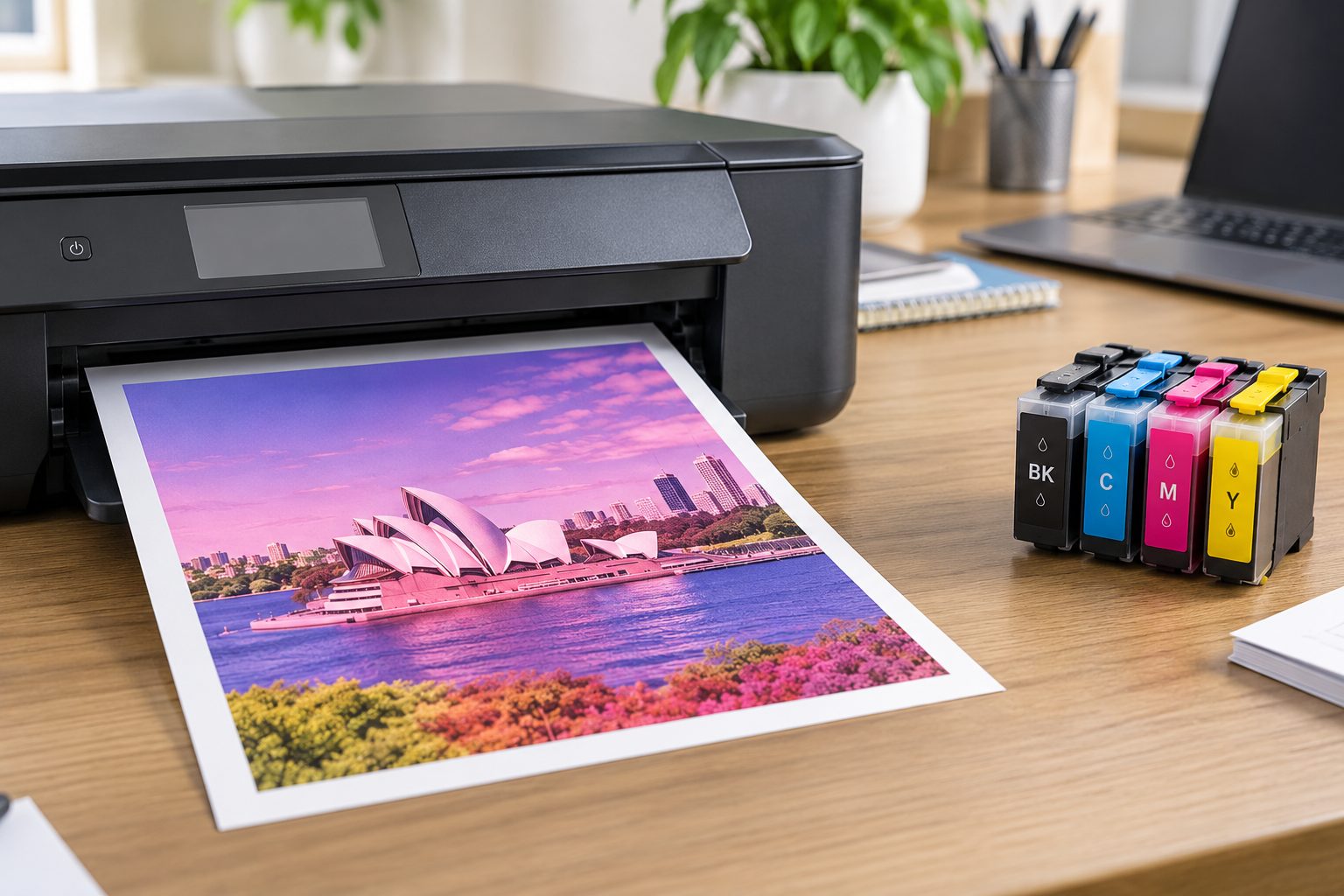
| October 01, 2026You’ve just changed the ink cartridge, printed a document and the colours still don't look right. Maybe red is coming out pink, blue looks purple, or photos have a strange colour cast.It’s frustrating, particularly when you've already replaced the cartridge and expected the problem to disappear.The good news is that printer colours wrong after replacing ink doesn't necessarily mean the printer is faulty. The new cartridge may not be the right one for your model, it may not be seated properly, or the issue could be related to ink flow, paper or your print settings.Before buying another cartridge or calling for a repair, there are a few straightforward things worth checking.Start With Your Printer ModelBefore troubleshooting the print itself, find the exact model of your printer.You’ll normally find the model number on the front, back or inside the printer. You can also find it through your computer's printer settings or the manufacturer's software.This small detail matters because cartridges are made for specific printer models. Two printers from the same brand can use completely different cartridges.For example, knowing that you have a Canon printer isn't enough. You need the exact model to find the cartridge designed for that machine.The same applies to HP, Brother, Epson and other major brands.If you're not sure which cartridge your printer takes, check the model before ordering anything. It can save you the hassle of receiving a cartridge that looks right but isn't suitable for your machine.Check the Number on the CartridgeOnce you've found your printer model, check the number printed on the old cartridge or its packaging.This is often referred to as the cartridge number, part number or OEM number.Don't rely on colour or appearance alone. Cartridges can look very similar even when they're designed for different printers.Before ordering, compare:Your exact printer modelThe cartridge numberBlack or colour cartridgeStandard or high-yield versionGenuine or compatible cartridgeIf you still have the old cartridge, keeping the packaging or taking a photo of the label can make future replacements much easier.It is also worth checking the cartridge manufacturer's compatibility information before placing an order.Could the New Cartridge Be the Problem?If the trouble started immediately after changing the cartridge, it's reasonable to check the cartridge first.Make sure it is:Designed for your exact printerInstalled in the correct slotProperly seatedFree from visible damageFully unpacked according to the manufacturer's instructionsSome cartridges have protective strips, seals or other packaging that need to be removed before use. The exact procedure varies, so follow the instructions supplied with the cartridge.Also check whether the printer recognises the new cartridge.If the printer is displaying a cartridge warning or isn't recognising it properly, deal with that issue before spending time changing other settings.Genuine vs Compatible Ink: Does It Matter?You'll often see both genuine and compatible cartridges when shopping for ink.A genuine cartridge is made by the printer manufacturer. A compatible cartridge is produced by another manufacturer for use with a particular printer or range.A quality compatible cartridge can be a practical option, particularly for households and businesses looking to manage printing costs. However, quality and compatibility can vary between products and suppliers.The important point is not simply whether the cartridge is genuine or compatible. It needs to be suitable for your particular printer.If you're buying compatible ink, check the product description carefully and make sure your exact model is listed.Check the Ink LevelsIf you've got a colour inkjet printer, don't only check the cartridge you have just replaced.Most colour printers use several ink colours. Depending on the model, these may include black, cyan, magenta and yellow.One low or poorly performing colour can affect the appearance of other colours on the page.For example, you might notice:Red looks pinkGreen looks unusualBlue has a purple tintPhotos look washed outSome colours disappearPrints have an obvious colour castCheck the levels shown by your printer and look at the actual print as well. Ink-level readings are estimates on many printers, so the printed result can provide useful information when you're working out what's going on.Run a Nozzle CheckIf you're using an inkjet printer, a nozzle check is one of the most useful tests you can run.It prints a small test pattern showing whether the different ink channels are working properly.If sections of the pattern are missing or broken, the printer may not be delivering one or more colours properly.This can happen when ink has dried around the printhead or when the printer hasn't been used for some time.Look under your printer's maintenance options for something such as Nozzle Check, Print Quality Check or Check Print Head Nozzles. The wording will depend on the brand and model.If the test pattern isn't complete, follow the manufacturer's recommended cleaning procedure.Don't keep running cleaning cycles unnecessarilyPrinthead cleaning uses ink.If the first cleaning cycle doesn't solve the problem, check the nozzle pattern again before running another one. Your printer's manual or manufacturer's support information should be the guide for how many cleaning cycles are appropriate.If repeated cleaning makes no difference, there may be another issue that needs attention.Have a Look at Your Print SettingsSometimes the ink isn't the culprit at all.Your printer settings can change the way colours appear on the page. This is particularly noticeable when printing photographs, graphics or other documents where colour matters.Check whether you've accidentally selected:Black and white or grayscaleDraft or Economy modeA different print qualityThe wrong paper typeManual colour adjustmentsApplication-specific colour settingsThe paper setting is easy to overlook.If you're printing on glossy photo paper but the printer is set for ordinary plain paper, the result may not look the way you expect.It's worth checking the print settings on your computer before assuming there's a problem with the cartridge.Test the Printer ItselfHere's a useful way to narrow down the problem.Print the printer's own test or configuration page, if your model provides one.Then compare it with the document that's giving you trouble.If the test page also looks wrongThe issue is more likely to be connected to the printer, cartridge, ink delivery or printhead.If the test page looks fineThe problem may be somewhere else, such as the application you're printing from, the document itself or its colour settings.For example, if a PDF looks wrong but the printer's test page is fine, try printing another document. This helps establish whether the problem is specific to one file.Check the Paper You're UsingPaper has more influence on print quality than many people realise.Ink behaves differently on ordinary office paper, coated paper and photo paper. That's why printers often provide different media settings.If you're getting unexpected results, check that the paper loaded in the printer matches the setting selected in the print dialogue.Also make sure the paper is clean, dry and stored properly.For everyday office documents, standard copy paper is usually fine. For photographs or graphics, using the appropriate paper and print-quality setting can make a noticeable difference.What If Only One Colour Is Wrong?If only one colour has changed, that's a useful clue.For instance, if everything that should be red now looks pink, check the colour cartridges and nozzle pattern rather than changing every cartridge in the printer.The same applies if blues, greens or other colours suddenly look different.A simple test page can show whether one ink channel is missing or inconsistent.This is much more useful than guessing and replacing several cartridges at once.When Should You Replace the Cartridge Again?If you've checked the model, cartridge number, installation and settings, and the problem remains, you may need to consider the cartridge itself.A replacement may be appropriate when:The cartridge is emptyIt is damaged or leakingThe printer can't recognise itA particular colour isn't being deliveredThe cartridge is confirmed to be unsuitableA known-good replacement resolves the problemBut don't automatically buy another cartridge just because the first one didn't solve the issue.If two correctly installed cartridges produce the same result, the problem could be elsewhere in the printer.That's particularly important for businesses that print regularly. Replacing consumables without finding the underlying cause can quickly become an unnecessary expense.Choosing the Right Ink for Your PrinterWhen you do need a replacement, start with the printer model rather than simply searching for “colour ink”.The Toner Group stocks ink cartridges for a range of popular printer brands and models, including genuine and compatible options.For example, a printer that uses a Canon CL-586 colour cartridge needs that specific cartridge family. A different Canon colour cartridge isn't automatically suitable just because it comes from the same manufacturer.You can also find higher-yield options for supported printers if you regularly print large volumes.The best choice depends on your printer, how much you print and whether you're looking for genuine or compatible supplies.Before ordering, always confirm that the cartridge is listed for your exact printer model.Need a Replacement Cartridge?If you've worked through the checks above and the cartridge is the likely cause, finding the correct replacement is the next step.The Toner Group's ink range covers individual colours, black cartridges, multipacks and different yield options across a range of printer brands.Rather than guessing which one you need, check your printer model and cartridge number first.Find the right ink cartridge for your printerIf you're still unsure, the model number and old cartridge number are the most useful details to have when looking for a replacement.The Bottom LineIf your printer colours are wrong after replacing ink, don't assume the printer has suddenly packed it in.Start with the basics: check the printer model, compare the cartridge number, make sure the cartridge is installed properly and confirm that the printer recognises it.Then move on to the ink levels, nozzle check, paper and printer settings.If the printer's own test page still has missing or unusual colours, the problem may be related to ink delivery, the printhead or another part of the machine.The key is to work through the checks one at a time. That way, you can find out whether you're dealing with an ink cartridge issue, a setting, a printhead problem or something that needs further attention—without spending money on cartridges you don't actually need.
-
| September 25, 2026If your printer suddenly starts spitting out setup pages, alignment sheets or test prints, it can be frustrating — especially when you only wanted to print a few documents.Some of these pages are completely normal. Printers may print them during initial setup, cartridge replacement, alignment, calibration or troubleshooting. The problem is when your printer keeps producing pages you don't actually need.The good news is that you can often reduce this printer wasting paper during setup and test prints issue by checking a few settings and understanding what the printer is trying to do. It is also worth checking your ink or toner, as poor print quality can lead to unnecessary reprints.Where Do Printer Setup and Test Pages Come From?Printer setup pages can appear when you first install a printer, connect it to a computer or network, replace a cartridge or change certain settings.Depending on the printer, you might see several different types of pages.Common pages your printer may produceSetup pages: Printed during initial installation or configuration.Alignment pages: Used to align print heads or cartridges.Test prints: Help check whether the printer is producing text, lines and colours correctly.Nozzle checks: Common on inkjet printers when checking ink delivery.Calibration pages: Used to adjust print output after certain maintenance procedures.Configuration reports: May show printer, network or device settings.Diagnostic pages: Help identify a printing or hardware problem.These pages aren't necessarily a sign that something is wrong.For example, printing one alignment page after installing a new ink cartridge can be perfectly normal. But if the printer prints the same type of page every time you switch it on, that's worth looking into.Different printer brands and models handle setup and maintenance differently, so the exact setting will depend on your printer.How Can You Stop or Reduce Printer Setup Pages?The first thing to do is work out why the printer is printing the page.Don't just keep cancelling the print job. If the printer is automatically generating the page, you need to find the setting or process causing it.Start by checking the printer's control panel or the manufacturer's printer software on your computer.Look for options relating to:Test pagesAlignmentCalibrationMaintenanceReportsDiagnosticsAutomatic printingSome printers allow certain automatic reports or maintenance pages to be changed. Others may require you to complete a setup or alignment process before normal printing resumes.Find Out these details before printing another page1. Check your exact printer modelThe model number is important. Instructions for an Epson inkjet won't necessarily apply to a Brother laser printer or an HP multifunction printer.Check the model number on the printer itself or in your computer's printer settings.2. Make Sure the printer settingsLook through the printer menu and software for test, alignment, maintenance or report settings.If you're unsure what a setting does, check the manufacturer's instructions before changing it.3. Ask whether calibration is actually neededPrinter calibration has a purpose, but you don't necessarily need to run it every time you use the printer.If your documents are coming out clearly and the printer is working normally, repeatedly running calibration or test prints can simply create more waste.4. Check the paper settingsPaper waste isn't always caused by a faulty printer.Check that the selected paper size and type match the paper loaded in the tray. Incorrect settings can sometimes result in failed jobs, unexpected output or reprints.5. Check your ink or tonerIf the printer is producing faded text, missing sections, streaks or uneven coverage, check the cartridge before repeatedly printing test pages.Make sure the cartridge is:The correct modelProperly installedSuitable for your printerRecognised by the printerNot empty or excessively lowUsing the correct ink or toner cartridge can help avoid print-quality problems that result in having to print the same document again.When Is a Test Print or Printer Calibration Actually Useful?Test prints aren't automatically a waste of paper.They can be very useful when you're trying to find out why a printer isn't producing documents properly.The trick is knowing when to run one and when to stop.After installing a new cartridgeSome printers use an alignment page, nozzle check or test print after a new cartridge is installed.This helps the printer check or adjust the way it produces the page.If the manufacturer's instructions call for an alignment or test page, it's generally worth doing it. Once the printer is working properly, though, there's no reason to keep printing additional pages.When print quality suddenly changesA test print can help you identify problems such as:Faded textMissing linesStreaksSmudgingUneven coveragePoor colour alignmentIncorrect coloursRepeated marks on the pageA single diagnostic page can tell you much more than repeatedly printing the same document and hoping it looks better.After fixing a printer problemIf you've cleaned an inkjet print head, replaced a cartridge or changed a printer setting, a test print can confirm whether the problem has been fixed.Check the first result before running another one.If the print looks good, you're done.If it doesn't, use the result to work out the next step rather than simply printing another five pages.For more complicated issues, a proper printer troubleshooting process is more useful than repeatedly sending test jobs to the printer.Can Ink or Toner Problems Lead to Paper Waste?Yes — usually indirectly.Ink and toner don't normally make a printer waste paper by themselves. However, poor cartridge performance can lead to poor-quality documents, which means you may have to print them again.For example, imagine printing a 20-page report only to discover that several pages have faded text or missing sections. You may end up printing the whole report again.That's unnecessary paper and toner use.Before replacing a cartridge, check:Your printer modelThe cartridge numberCartridge compatibilityInstallationPrinter error messagesWhether the cartridge is recognised correctlyFor workplaces that print invoices, reports, forms and other documents throughout the day, getting the correct cartridge can make everyday printing much less frustrating.The Toner Group supplies both genuine and compatible ink and toner cartridges for a range of printer brands and models, so it's worth checking the cartridge number rather than simply choosing one that looks similar.How Can Offices Reduce Printer Paper Waste?A few unnecessary test pages at home might not seem like a big deal.In an office, school, medical practice, accounting firm or other busy workplace, though, repeated test prints and reprints can add up over time.A few simple habits can help.Keep your printer settings consistentMake sure the default paper size, print quality and paper tray settings are suitable for the documents you normally print.Constantly changing settings can make troubleshooting harder.Don't run diagnostics unless you need themTest pages and calibration prints have a purpose.They shouldn't become part of your normal printing routine when the printer is already working properly.If you're getting clear, consistent prints, there is generally no reason to keep running diagnostic pages.Keep an eye on cartridge performanceIf print quality suddenly drops, investigate the cause before printing the document again and again.A cartridge may be running low, incorrectly installed or unsuitable for the printer.Fixing the underlying issue is usually more sensible than accepting repeated reprints as part of the job.Follow a basic maintenance routinePrinters don't need constant attention, but they do benefit from sensible maintenance.Depending on the printer, this may include keeping the paper path clean, following recommended print-head maintenance and replacing consumables when required.If a printer continues producing unexpected pages or develops a recurring fault, professional printer maintenance may be a better option than repeatedly trying random settings.Should You Buy Genuine or Compatible Ink and Toner?Both genuine and compatible cartridges can be suitable options, depending on your printer and what you need from it.Genuine cartridges are made by the printer manufacturer.Compatible cartridges are made by another manufacturer and designed for use with particular printer models.The important thing is to check compatibility before buying.Don't choose a cartridge simply because it looks similar to the one currently in your printer. Cartridge numbers matter.This is particularly important when you're trying to reduce waste. A cartridge that isn't suitable for your printer can create recognition or print-quality problems, potentially leading to more troubleshooting and reprints.For regular home and workplace printing, The Toner Group offers a range of genuine and compatible ink and toner cartridges across different printer brands.What Should You Do If Your Printer Keeps Printing Test Pages?If your printer won't stop producing setup or test pages, work through these checks:Find the exact printer model.Identify what type of page is being printed.Check the printer's control panel and software.Look for automatic test, alignment, calibration or report settings.Check the paper size and tray settings.Check the ink or toner cartridge.Run one appropriate test page if troubleshooting requires it.Find the result before printing another page.Follow the manufacturer's troubleshooting instructions.Consider professional servicing if the problem continues.This approach can save a surprising amount of paper compared with repeatedly cancelling pages or printing the same document to see whether the problem disappears.Final ThoughtsIf your printer is wasting paper during setup and test prints, don't assume that every extra page means the printer is faulty.Setup pages, alignment sheets, nozzle checks and calibration prints can all have a legitimate purpose. The problem is when they're being produced repeatedly without a clear reason.Start by identifying what type of page the printer is producing. Then check the relevant settings, paper configuration and ink or toner.If the printer is working normally, there's no need to keep running test prints. If print quality has changed, use a test page as a diagnostic tool and check the result before printing anything else.And if you're regularly reprinting documents because of faded text, streaks or missing sections, don't overlook the cartridge. The right ink or toner for your printer can help avoid unnecessary reprints and keep everyday printing running smoothly.If you need a replacement, check the exact cartridge number and printer compatibility before ordering. It's a simple step that can save paper, time and unnecessary hassle.
-
| September 23, 2026A printer starts printing faded pages. You replace the cartridge, but the problem is still there. Or perhaps the printer says “cartridge not recognised”, even though you have just installed a new one.So, is the problem the cartridge, the toner, or the printer itself?The easiest way to work it out is to troubleshoot in stages. Start with the printer model and cartridge number, then check the cartridge installation and print quality before assuming the printer has a hardware fault. A faded or streaky print, for example, can come from low toner or ink, incorrect settings, a poorly seated cartridge, a blocked printhead, or a worn printer component.This guide walks through the checks you can do before ordering another cartridge or arranging a printer repair.Where to Find Your Printer Model (and Why It Matters)Before buying a replacement cartridge, find the exact printer model.You will usually find it:On the front or top of the printerOn a label at the back or underneathInside the printer coverIn the printer's settings or information menuIn the manufacturer's printer softwareOn the original box or manualThe model number matters because printer cartridges are not universal. Even printers from the same brand can use completely different ink or toner cartridges.For example, two HP printers may look similar but require different cartridge numbers. HP's own compatibility information lists specific cartridge numbers against individual printer models, and cartridge numbers can also vary by market.This is why searching for something broad like “HP toner” is not enough. Your exact printer model gives you a much more reliable starting point.If you are unsure which cartridge your printer uses, The Toner Group's Ink & Toner Finder lets you narrow the search by brand, printer family and model.Find the Cartridge NumberOnce you know the printer model, find the cartridge number.The cartridge number may also be called an OEM code, cartridge code, part number or model number. It identifies the specific consumable designed for a particular printer or printer family.You can often find the code on:The existing cartridgeThe cartridge boxThe printer manualThe inside of the cartridge compartmentThe printer's software or settingsThe manufacturer's documentationIf you still have the old cartridge, checking its label is often the quickest option.You might see codes such as HP 305A, Brother TN-760 or Canon PG-645. These numbers are much more useful when searching for a replacement than simply knowing the printer brand.Check these details before orderingBefore you place an order, compare these five things:Printer model — Does the cartridge specifically list your printer?Cartridge number — Does the code match?Colour — Black, cyan, magenta, yellow or a colour pack?Page yield — Standard, XL or high-yield?Cartridge type — Genuine or compatible?It only takes a moment to check these details, but it can save you from receiving a cartridge that does not work with your printer.It is also important to understand the difference between ink and toner. Ink cartridges are used in inkjet printers, while toner cartridges are used in laser printers. They are different consumables and cannot simply be swapped between printer types.For regular office printing, it is worth considering page yield as well as the purchase price. A higher-yield cartridge may make more sense for a business that prints hundreds or thousands of pages than repeatedly buying lower-yield cartridges.The right choice depends on your printer, print volume and budget rather than simply choosing the cheapest cartridge.Find Out Cartridge Compatibility Before BuyingFinding a cartridge that looks right is not enough.Before ordering, match the product against your exact printer model and cartridge number. Do not rely on the cartridge shape, colour or packaging alone. Different cartridges can look similar while being designed for different machines.Printer manufacturers themselves provide compatibility lists because cartridge numbers are specific to supported printer models. Brother, for example, advises checking the cartridge model number against the machine's consumables information when a “Wrong Toner” message appears.There are a few other checks worth making.Check whether the cartridge is seated correctlyIf you have just installed a new cartridge and the printer immediately reports an error, remove it and reinstall it carefully according to the manufacturer's instructions.Make sure it is positioned correctly and fully seated.For colour printers, also check that each cartridge is in the correct slot.A cartridge that has not been installed correctly can cause printing problems even when the cartridge itself is suitable for the printer.Find the protective packagingNew cartridges may have protective strips, seals or packaging that need to be removed during installation.If a printer starts producing blank pages immediately after a cartridge replacement, check the installation instructions before assuming the printer has failed. Leaving protective material in place can prevent the ink or toner from working properly.Make sure the error messageThe wording on the printer display can provide a useful clue.Messages such as:Cartridge not recognisedWrong cartridgeReplace tonerCartridge problemNo tonerInk cartridge missingcan point towards a cartridge, compatibility or installation issue.However, an error message does not always mean the cartridge itself is faulty. Depending on the printer, firmware, chip, contacts or another component may also be involved.Some printer models also use cartridge authentication or security systems, so compatibility can depend on more than whether the cartridge physically fits. HP, for example, documents printer models where cartridges using a non-HP chip may not function or may stop functioning after certain printer updates.Look at the actual print qualityThe printed page can tell you a lot.Faded text or images:Check the ink or toner level, print settings and cartridge installation first. On a laser printer, a worn drum, transfer system or fuser can also contribute to poor output.Streaks or uneven printing:The cartridge may be running low or have a problem, but other printer components can also cause streaking.Blank pages:Check the cartridge, installation and protective seals. On an inkjet, a blocked or dried printhead can also be responsible.Toner rubbing off the page:This can indicate a problem beyond simply the amount of toner in the cartridge and may require further printer troubleshooting.The key point is simple: don't automatically buy another cartridge just because the printer is producing poor-quality pages.How to Tell If the Printer Itself Is the ProblemIf you have confirmed the correct cartridge, installed it properly and the problem continues, start looking at the printer.For an inkjet printer, possible causes can include:Blocked printhead nozzlesDried inkPrint settingsPaper issuesSoftware or driver problemsPrinter hardware faultsFor a laser printer, other components can contribute to poor print quality, including the drum, imaging system, transfer system or fuser. The exact cause depends on the printer model and the symptom.One useful test is to print the printer's own test or configuration page.If the printer's internal test page has the same problem, the issue is more likely to be within the printer, cartridge or consumable system rather than the document or application you are printing from.Also consider what changed immediately before the fault appeared.For example:Did you install a new cartridge?Did you move the printer?Did the printer sit unused for several weeks?Did a firmware or software update occur?Did the problem gradually get worse?Does every document have the same issue?These details can help narrow down the cause.When Should You Replace the Cartridge?Replacing the cartridge makes sense when you have reasonable evidence that the consumable is the problem.For example, you may see a low-ink or low-toner warning alongside increasingly poor print quality. A cartridge may also need replacing when it has reached the end of its usable life and is no longer producing acceptable output.But replacing the cartridge is not always the answer.If you install a known-compatible replacement and the same fault continues, repeatedly buying cartridges is unlikely to solve the underlying issue.This is particularly important for offices and businesses where a printer problem can interrupt invoices, reports, forms, labels or other day-to-day documents.Genuine or Compatible Cartridge: Which Should You Choose?Once you know the cartridge number, you may have a choice between a genuine manufacturer cartridge and a compatible cartridge.A genuine cartridge is made by the printer manufacturer.A compatible cartridge is produced by another manufacturer and designed for use with particular printer models.Neither choice should be made simply on price. Consider:Compatibility with your exact printerPrint volumeExpected page yieldPrint quality requirementsUpfront costCost per pageYour preference for genuine or compatible consumablesThe Toner Group supplies both genuine and compatible printer consumables, allowing customers to compare options based on their printer and printing requirements.For a home user printing occasionally, the priorities may be different from those of a busy accounting firm, medical practice or office printing hundreds of documents each week.A Simple Printer Troubleshooting ChecklistBefore ordering a replacement cartridge, work through this list:Identify the exact printer model.Find the cartridge number.Check whether the cartridge matches the printer.Check the ink or toner level.Reseat the cartridge carefully.Check that protective strips or seals have been removed.Check the printer's error message.Review print-quality settings.Print a test or configuration page.If the problem continues, investigate the printer itself.This approach can prevent a common mistake: replacing the cartridge when the actual fault is somewhere else.When Is It Time to Get a Printer Repair?Basic printer troubleshooting is useful for simple cartridge, connection and print-quality problems. But persistent faults may need technical attention.Consider professional help when:The printer repeatedly displays hardware errorsNew compatible cartridges do not resolve the issueThe printer makes unusual mechanical noisesPaper jams keep returningPrint quality remains poor with a known-good cartridgeThe printer stops during jobsInternal components appear damagedThe machine is important to your business and downtime is becoming costlyThe Toner Group says it provides technical support and printer technicians across Australia for machines showing wear or performance issues.For businesses that rely heavily on printing, diagnosing the problem properly can be more practical than continuing to replace consumables without knowing what is actually failing.The Bottom LineWhen you have a printer cartridge or printer problem, start with identification rather than immediately buying a replacement.Find your exact printer model, check the cartridge number, confirm compatibility and inspect the cartridge installation. Then look at the actual print quality and run a printer test page.If the problem disappears after replacing a correctly matched cartridge, the consumable was likely involved. If the same fault continues with a suitable replacement, the printer or another component may need attention.The goal is not simply to replace a cartridge. It is to find the actual cause of the printer fault before spending money on something you may not need.If you need a replacement, The Toner Group's Ink & Toner Finder can help you search by printer model or cartridge number. If you are still unsure, the team can be contacted for help with cartridge compatibility and product enquiries.
-
| September 22, 2026Have you ever seen “Replace Toner” appear on your laser printer, even though it is still printing perfectly well?It can be confusing. If the pages are coming out clear, you might wonder why the printer is telling you to change the cartridge.In most cases, the message doesn't mean the toner is completely empty.Laser printers often estimate how much toner remains rather than measuring the exact amount inside the cartridge. The warning may appear early so you have time to arrange a replacement before the cartridge stops producing good-quality pages.So, if your laser printer says replace toner but still prints, there's usually a simple explanation.What Does “Replace Toner” Mean?A replace toner message generally means the printer believes the cartridge is approaching the end of its expected life.There may still be toner left inside.Depending on the printer, the message can be triggered by:An estimated low toner levelA page countInformation stored on the cartridge chipA toner sensorThe printer's estimate of cartridge usageThe exact method depends on the manufacturer and model.The warning is often there to give you some notice rather than telling you that printing must stop immediately.Why Does the Printer Still Print After the Warning?The cartridge may still contain usable toner.A laser printer's toner-level estimate isn't always a precise measurement of what's physically left in the cartridge. The printer may decide that the cartridge is nearing the end of its expected life before all of the toner has been used.That's why you can sometimes continue printing after the warning appears.You may still get several good pages, particularly if you're printing simple text documents.However, the remaining toner won't necessarily last for a predictable number of pages.Does a “Replace Toner” Message Mean the Cartridge Is Empty?No.This is one of the most common misunderstandings.A toner cartridge can be considered low or near the end of its service life while still containing some usable toner.As it gets closer to the end, you may start noticing:Faded textLight areas on the pageUneven black coverageWhite streaksGraphics becoming lighterInconsistent printing from page to pageIf the warning appears but your pages still look normal, you may not need to install a new cartridge immediately.How Does a Laser Printer Know Toner Is Low?Different printers use different systems to estimate toner levels.Some cartridges have an electronic chip that communicates information to the printer. Others may rely on page counts, sensors or internal calculations.This means the displayed toner level isn't always a direct measurement of the amount of toner remaining.For example, a printer may determine that a cartridge has reached its expected usage limit even though there is still some toner inside.This is also why two cartridges used in different ways can behave differently.Should You Replace the Toner as Soon as the Message Appears?Not necessarily.If the printer is still producing clean, readable pages and you don't have an urgent job coming up, you may be able to continue using the cartridge.But it's still a good idea to have a replacement ready.The warning is telling you that the current cartridge is getting close to the end of its expected life. Waiting until the last possible page can be inconvenient, especially if you use the printer for work, school or business documents.A practical approach is to keep printing while the quality remains good, but prepare the replacement at the same time.What If Print Quality Is Still Good?There's usually no need to panic.If your documents are coming out sharp and evenly printed, the cartridge may still have useful life remaining.Continue to keep an eye on the pages you produce.If the output remains consistent, you may be able to get more use from the cartridge.However, don't rely on those remaining pages for an important print job. A cartridge that is approaching the end of its expected life can become less reliable as you continue printing.What If the Pages Start Looking Faded?This is a stronger indication that the cartridge may actually be running low.You might notice that text looks lighter than usual, large black areas aren't as solid, or parts of the page appear uneven.If these changes appear alongside a low toner warning, replacing the cartridge is a sensible next step.Before doing so, consider whether the problem is consistent across the entire page.If only one small area is affected, there could be another cause.Can You Shake a Toner Cartridge to Get More Pages?You may have heard that gently moving a toner cartridge can temporarily improve faded printing.In some cartridge designs, redistributing the remaining toner can help the cartridge produce usable pages for a little longer.However, this is only a temporary measure and isn't suitable for every cartridge.If the cartridge is already close to the end of its life, any improvement may be short-lived.Always follow the manufacturer's instructions for handling and removing the cartridge.Why Does the Warning Sometimes Appear Early?An early warning can actually be useful.Imagine you're printing a 50-page report and the cartridge suddenly stops producing usable pages halfway through.Having advance notice gives you time to arrange a replacement.The printer may also be working from an estimated cartridge yield rather than directly measuring every remaining particle of toner.Your actual usage can vary depending on what you print.Simple text pages generally use less toner than pages containing large graphics, heavy text or extensive areas of black.Does Page Yield Affect Toner Usage?Yes.A cartridge's page yield gives you an estimate of how many pages it is designed to produce under specified testing conditions.It isn't a guarantee that every user will get exactly that number.Someone who mainly prints short text documents may use toner differently from someone who regularly prints graphics, presentations or documents with heavy black coverage.This is why page yield is best treated as a useful guide when comparing cartridges rather than an exact countdown.Can You Ignore the Replace Toner Message?It's better not to ignore it completely.If the pages are still clear, you may be able to continue printing for a while.But the warning means the printer believes the cartridge is approaching its replacement point.If you continue until the cartridge becomes unusable, you could suddenly find yourself unable to complete an important job.The simplest approach is to keep using the cartridge while the output remains acceptable and have a suitable replacement ready.What If the Printer Stops Printing Even Though Toner Remains?Some printers may stop recognising a cartridge as usable once its cartridge status reaches the manufacturer's replacement point.This can happen even when you can physically see or reasonably expect that some toner remains.The printer may be responding to information from the cartridge chip, page count or another detection system.That doesn't automatically mean the printer is faulty.If this happens, refer to the instructions for your specific printer and cartridge rather than assuming that adding more toner will solve the problem.What If a New Toner Cartridge Still Shows the Warning?If you've installed a new cartridge and the same message remains, the issue may be related to cartridge recognition rather than toner level.Start by confirming that:The cartridge matches your exact printer modelIt has been installed correctlyAny protective packaging or seals have been removed as instructedThe printer recognises the new cartridgeThere are no additional error messagesIf everything appears correct but the warning remains, the cartridge may not be communicating properly with the printer.Could the Cartridge Chip Be the Problem?It can be.Many modern toner cartridges use an electronic chip to communicate cartridge information to the printer.If the printer doesn't recognise that information correctly, it may display a toner warning even when the cartridge is new.Possible reasons include:The cartridge isn't installed correctlyThe chip isn't being recognisedThe cartridge is intended for a different modelA cartridge component has been damagedThere is a compatibility issueThis is why buying a cartridge based only on the printer brand isn't enough.The exact printer model and cartridge reference are important.Can a Compatible Toner Trigger a Warning?A compatible cartridge isn't automatically a problem.A compatible toner is designed for a particular printer or group of printer models, but it still needs to work correctly with the printer's cartridge-recognition system.If the cartridge isn't recognised properly, a warning may appear.The important thing is to choose a cartridge that is specifically matched to your printer model and the correct cartridge reference.How to Troubleshoot a Low Toner WarningIf your laser printer says replace toner but still prints, try working through these steps.1. Look at the print qualityAre the pages still sharp, dark and evenly printed?If they are, the cartridge may still have usable life.2. Read the exact printer messageSome printers provide additional information about the cartridge status.The wording can help you understand whether the printer is reporting low toner, a cartridge error or something else.3. Confirm the cartridge numberMake sure the replacement you're considering matches your exact printer model and cartridge reference.4. Look at the cartridge installationIf you've recently installed a cartridge, make sure it is seated correctly according to the manufacturer's instructions.5. Watch for changes in outputIf text becomes increasingly light or coverage becomes uneven, the cartridge may genuinely be reaching the end of its life.6. Keep a replacement availableIf the warning has appeared and you print regularly, having the correct cartridge ready can save you from an unexpected interruption.Common Mistakes When a Printer Says Replace TonerReplacing the cartridge immediatelyA warning doesn't always mean the cartridge is completely empty.Assuming the warning is inaccurateThe printer may be giving you an early warning based on its toner-monitoring system.Waiting until the cartridge completely failsYou may get more pages from the cartridge, but waiting until it stops completely can be inconvenient.Buying toner based only on the printer brandThe same manufacturer can use many different cartridge references.Assuming every warning means a printer faultSometimes the message is simply the printer reporting that the cartridge is approaching the end of its expected life.When Should You Actually Replace the Toner?There isn't one exact point that applies to every printer.A practical guide is:Warning + good print quality:You may be able to continue printing.Warning + fading or streaking:The cartridge may be nearing the end of its useful life.New cartridge + warning remains:Look at installation, recognition and compatibility.Poor print quality without a toner warning:The problem may have another cause.If you have an important printing job coming up, replacing the cartridge a little earlier may also make sense simply to avoid an interruption.The Bottom LineSo, why does a laser printer say “Replace Toner” when it still prints?Usually, the printer is warning you that the cartridge is approaching the end of its estimated life. There may still be enough toner left to produce additional pages, even though the replacement message has already appeared.If the pages are still clear and consistent, you may not need to change the cartridge immediately.At the same time, don't ignore the warning completely. Keep an eye on print quality and have the correct replacement ready, particularly if you rely on the printer for regular work or important documents.If a new cartridge still produces the same warning, the issue may be related to cartridge recognition, installation or compatibility rather than the amount of toner inside.In short, a replace-toner message doesn't always mean “stop printing now.” It usually means “start preparing for the next cartridge.”
-
| September 02, 2026Seeing streaks, faded lines or uneven colours on your printed documents can be frustrating, especially when you need a clean copy for work, school or an important form. The good news is that printer printing streaks doesn't always mean your printer needs replacing. Issues such as clogged print heads, low ink or toner, cartridge problems, unsuitable paper and incorrect print settings can all affect print quality. Before buying a new printer, try these simple printer troubleshooting steps to identify the problem and get your prints looking better again.Why Is My Printer Printing Streaks or Uneven Lines?There are several reasons why a printer may suddenly start producing streaky prints or uneven lines. The cause can depend on whether you have an inkjet or laser printer, how often you use it and the condition of the cartridge and other printing components.A common cause with inkjet printers is a clogged or dirty print head. When ink dries around the nozzles, some areas of the page may receive less ink than others. This can result in white lines, faded sections or inconsistent colours.Low or uneven ink or toner can also affect your results. A cartridge that is nearly empty may not produce consistent coverage across the page. In some cases, the cartridge itself may be old, damaged or incorrectly installed, which can also lead to poor print quality.Your printer settings are worth checking too. If the printer is set to a draft or economy mode, it may use less ink or toner, making documents appear lighter than expected. Selecting the wrong paper type can also affect how ink is absorbed or how the printer applies toner.Paper itself can sometimes be the problem. Damp, curled or poor-quality paper may not feed through the printer correctly or may affect the final appearance of your prints. This can be particularly noticeable in home offices where paper has been stored for a long time.Finally, printers that haven't been used for an extended period can develop problems, particularly inkjet models. Ink can dry inside the print system, while older printers may also develop worn rollers, drums or other components.Finding the cause before replacing anything can save you money and prevent you from replacing a perfectly usable printer or cartridge.How to Fix Streaky Printer PrintsOnce you've identified that your printer is producing streaks or uneven prints, work through the following checks from easiest to more involved. In many cases, a few simple adjustments can make a noticeable difference.Start With These Quick ChecksBefore cleaning the printer or replacing a cartridge, run through these basic checks:Check the ink or toner level. If the cartridge is running low, replace it with a suitable cartridge for your printer.Reload the paper. Remove the paper from the tray and load it again, making sure it is sitting squarely against the paper guides.Try fresh printer paper. Use clean, dry paper that is suitable for your printer.Check the paper type setting. Make sure the printer settings match the paper you're using. For example, glossy or heavier paper may require a different setting from standard copy paper.Increase the print quality. If you're currently using Draft or Economy mode, try Standard or High Quality and print another page.Print a test or diagnostic page. This can help you determine whether the issue is related to the document you're printing or the printer itself.If the test page looks normal but your original document doesn't, check the application's print settings as well. Sometimes the problem isn't with the printer at all.Try Print Head CleaningIf you have an inkjet printer and are seeing missing lines, faded areas or inconsistent colours, print head cleaning may help.Most inkjet printers have a built-in cleaning function that pushes ink through the print head nozzles to clear minor blockages. You can usually access it through the printer's control panel or your computer's printer settings.Start by running one cleaning cycle and then print a nozzle-check or test page. Look at the result to see whether the missing sections or streaks have improved.If the problem remains, you may be able to run another cleaning cycle, but follow the manufacturer's recommendations rather than repeatedly running the process. Cleaning uses additional ink, so performing several cycles unnecessarily can use a significant amount of your cartridge.If cleaning doesn't improve the test page after the recommended attempts, the print head may require further attention or the problem could be related to another component.Check or Replace the CartridgeA cartridge can sometimes be the reason behind uneven or streaky printing.An old cartridge may not perform as consistently as a fresh one, while a damaged or leaking cartridge can cause smudges, lines or uneven coverage. It's also worth checking that the cartridge is seated correctly and that any protective packaging or seals have been removed before installation.If your printer uses separate colour cartridges, check each one individually. A single low or faulty colour cartridge can make photos, graphics and colour documents look noticeably different.When replacing a cartridge, make sure you choose one that is compatible with your exact printer model. Depending on your printer, you may have a choice between genuine manufacturer cartridges and compatible alternatives.If you're looking for a replacement, you can browse compatible printer cartridges and toner options from The Toner Group to find consumables suited to a range of printers and printing requirements.When Printer Troubleshooting Doesn't Fix the ProblemSometimes basic printer troubleshooting won't solve persistent streaking. If you've checked the settings, paper and cartridge and the problem continues, there may be an issue with the printer's hardware or another consumable component.For example, laser printers use components such as drums and imaging units to transfer toner onto the page. A worn or damaged drum can cause repeated marks, lines or spots that appear in the same position on multiple pages.Inkjet printers can also develop print head problems that aren't resolved through normal cleaning. Worn rollers or other internal components may cause feeding or alignment issues that affect the finished print.Look out for these signs:Streaks remain after the recommended cleaning process.The same sections are consistently missing from test pages.Toner is smudging or leaving repeated marks on the page.Lines, spots or marks appear in the same place on every print.Print quality remains poor after installing a suitable new cartridge.The printer is older and has started developing several different problems.At this point, it may be worth trying another suitable cartridge if you suspect the existing one is faulty. If a new cartridge doesn't make a difference, professional servicing may be the better option.You should also consider the printer's age and overall condition. If repairs are becoming frequent or the cost of servicing and replacement consumables is approaching the price of a new printer, replacing the machine may make more financial sense.Still Getting Streaky or Uneven Prints?The right cartridge or toner can make a noticeable difference to everyday print quality. Before replacing your printer, check whether the issue could be resolved with a suitable replacement consumable.The Toner Group supplies ink and toner cartridges for a wide range of printers, including options designed to suit different printing needs and budgets.Explore Printer Toner & Cartridges →
-
| September 01, 2026 Faded pages are one of those printer problems that can be surprisingly frustrating. You expect crisp black text or strong colours, but instead you get light grey writing, washed-out images or streaks across the page.The good news is that printer printing faded pages is usually not a mystery. Common causes include low ink or toner, incorrect print settings, clogged printhead nozzles, a poorly seated cartridge, unsuitable paper or a worn printer component.Before you buy a replacement cartridge, a few quick checks can often identify the problem. Here’s what to look for and when replacing the cartridge actually makes sense.If the problem does turn out to be your cartridge, start by checking the right [ink cartridges] category for your printer.Check Your Ink or Toner Level FirstThe simplest place to start is the ink or toner level.Check the printer's display, control panel or the printer software on your computer. If the cartridge is genuinely running low, reduced print density can result in lighter text and faded colours.However, don't treat the percentage shown on the screen as a perfect measurement.Printer estimates can sometimes be inaccurate, particularly after cartridges have been replaced, refilled or used heavily. A printer showing plenty of ink doesn't necessarily mean that ink is reaching the paper properly.Look at the actual printed page as well.If the fading has appeared gradually and affects the relevant colour consistently, a low cartridge is worth investigating. If the cartridge is new or the problem affects only certain areas of the page, there may be another cause.For laser printers, check the toner cartridge rather than looking for an "ink" problem. Toner is a dry powder, and the way it is transferred and fused onto paper is different from an inkjet printing process.Common Reasons Printers Produce Faded PagesNot every faded print means you need a new cartridge.A printer can produce washed-out output because of its settings, cartridge installation, printhead condition, paper or internal components. Taking a few minutes to troubleshoot the problem can prevent you from replacing a perfectly usable cartridge.Draft, Economy or Toner-Save Mode Is EnabledMany printers have settings designed to reduce ink or toner consumption.These can include:Draft or Fast printingEconoModeToner SaveInk SaveLow-density or reduced-quality settingsThese modes can intentionally use less consumable material, which may make text or graphics appear lighter.For everyday documents, check that your printer is set to Normal, Standard or an equivalent quality setting. If you're printing photographs or important colour documents, a higher-quality setting may produce better results, although it can use more ink.Also check the settings in the application you're printing from. Microsoft Word, Adobe Acrobat and other software can sometimes use different print preferences from the printer's default settings.Inkjet Printhead Nozzles Are CloggedIf you're using an inkjet printer and haven't printed for several weeks, dried ink can contribute to blocked or partially blocked nozzles.Instead of putting down a complete line of ink, an affected nozzle may produce little or no ink. The result can be:Horizontal white linesFaded coloursMissing sections of textUneven photographsStreaky graphicsUse the printer's built-in nozzle check first. If the pattern shows missing lines, run the manufacturer's recommended cleaning cycle.Avoid repeatedly running deep-cleaning cycles without checking the result. They can consume a noticeable amount of ink, so it's better to test between cleaning cycles rather than continually running them.The Cartridge Isn't Seated CorrectlyA newly installed cartridge can still cause faded printing if it hasn't been installed properly.Remove and reinstall it according to the printer manufacturer's instructions. Make sure it clicks securely into position.Also check that any protective tape, pull-tab, vent seal or shipping material that should be removed during installation has actually been removed.This is particularly important with a brand-new cartridge. If it produces faded output immediately after installation, don't assume the printer suddenly needs servicing. Check the installation and cartridge compatibility first.Paper Can Affect Print QualityPaper isn't always the first thing people consider when troubleshooting faded printing, but it can affect the final result.For inkjet printers, paper that's unsuitable for the printer or designed for a different type of printing can affect how ink spreads and dries.For laser printers, use paper that meets the printer's specifications, particularly when printing on heavier media.Paper should also be stored in a reasonably dry environment. Damp or poorly stored paper can contribute to inconsistent printing and paper-handling problems.Try printing the same document on fresh, standard printer paper. If the result improves, the paper may have been contributing to the problem.A Laser Printer Component May Be WornLaser printers have several components involved in producing a printed image, including the toner cartridge, imaging drum, transfer system and fuser.If a laser printer continues producing faded pages with a known-good toner cartridge, the problem may be elsewhere.A worn drum can contribute to light or streaky output, while transfer or fuser problems can produce other forms of inconsistent printing. The exact symptoms vary between printer models.That's why repeatedly buying toner isn't always the right solution.Quick Fixes to Try Before Replacing the CartridgeIf your printer is printing faded pages, work through these checks in order.1. Check the ink or toner level.Look at both the printer's reported level and the actual print quality.2. Check the print settings.Turn off Draft, Economy or Toner Save mode and select Normal or Standard quality.3. Run a nozzle check if you're using an inkjet.This can show whether individual colours or printhead nozzles are missing.4. Run the manufacturer's cleaning cycle if required.Don't keep repeating deep cleans if there is no improvement.5. Reseat the cartridge.Remove and reinstall it carefully, following the printer's instructions.6. Try fresh standard paper.This helps rule out a paper-related issue.7. Print a test or configuration page.If the printer's own test page is also faded, the problem is less likely to be caused by your particular document or application.Five minutes of troubleshooting can save you from ordering a cartridge you didn't actually need.If you do need a replacement, look for [ink cartridges by printer brand] or use a [find your cartridge] tool to confirm compatibility before ordering.When Is It Time to Replace the Cartridge?A replacement cartridge becomes the logical next step when the printer continues producing poor output after you've ruled out settings, installation and basic maintenance.Signs that the cartridge may genuinely need replacing include:The cartridge is genuinely low or emptyA full test page is consistently fadedCleaning or nozzle checks don't resolve an inkjet problemThe cartridge has been stored for a long periodA particular colour remains weak despite normal settingsThe cartridge is damaged or defectiveA known-good cartridge immediately improves the print qualityFor inkjet printers, replacing the affected colour doesn't necessarily mean replacing every cartridge. If only cyan is producing weak output, for example, investigate that cartridge and its corresponding printhead channel first.The situation is slightly different with laser printers. If a new toner cartridge produces the same faded result as the old one, investigate the printer itself rather than immediately buying another toner cartridge.A worn drum, transfer issue or fuser problem could be responsible.What If a New Cartridge Still Prints Faded?This is an important distinction.If your printer was producing good-quality documents previously and suddenly becomes faded after installing a new cartridge, check the cartridge installation and compatibility first.Make sure you've purchased the correct cartridge for the exact printer model. Printer families can use different cartridges even when the machines look very similar.If the cartridge is correctly installed and the problem remains, test the printer's built-in test page. If possible, comparing the result with another known-good cartridge can also help identify whether the problem is consumable-related.For a laser printer, persistent fading with a known-good toner cartridge points towards other parts of the print system.That is when professional printer servicing or manufacturer support may be more appropriate than buying another cartridge.Get the Right Cartridge, Sorted the First TimeWhen your printer is printing faded pages, replacing the cartridge may be the answer — but it shouldn't automatically be the first answer.Start with the basics: check the consumable level, review your print settings, inspect the cartridge installation, run the appropriate printer test and consider the paper you're using.If you're using an inkjet and the problem continues, investigate the printhead and nozzle condition. If you're using a laser printer, consider whether the drum, transfer system or fuser could be contributing to the problem.Once you've confirmed that the cartridge is the issue, make sure you choose one that is compatible with your exact printer model.You can browse [ink cartridges], check [toner cartridges] if you're using a laser printer, use a [find your cartridge] tool to confirm compatibility, or contact The Toner Group if you're unsure which consumable or replacement option you need.The goal isn't simply to replace a cartridge. It's to identify the actual cause of the fading and get your printer producing clean, readable pages again. FAQsWhy is my printer printing light even with a full cartridge?A full cartridge doesn't always mean that ink or toner is reaching the page correctly. Check print-quality settings, cartridge installation, printhead nozzles and paper. On laser printers, a worn drum or another internal component can also cause faded output.Does cleaning the printhead fix faded printing?It can if blocked or partially blocked inkjet nozzles are causing the problem. Start with a nozzle check and use the printer's recommended cleaning cycle. Avoid repeatedly running deep cleaning cycles without checking whether print quality has improved.Can bad paper cause faded prints?Yes. Paper that is unsuitable, damp or poorly stored can affect how ink or toner behaves on the page. Testing with fresh, standard paper is a simple way to rule this out.Is faded printing a sign I need a new printer?Not necessarily. Faded printing is often caused by a cartridge, settings or maintenance issue. On laser printers, a worn drum, transfer system or fuser may also be responsible. Diagnose the cause before replacing the entire printer.How do I know if it's the cartridge or the printer itself?Check the printer's test page, cartridge installation and print settings first. If a known-good cartridge produces normal output, the original cartridge is the likely problem. If multiple cartridges produce the same fault, investigate the printer itself.Does Draft Mode cause permanently faded printing?Draft or Economy Mode can produce lighter output because the printer is designed to use less ink or toner. It doesn't normally mean the printer or cartridge has been permanently damaged. Returning to a normal print-quality setting should restore the intended print density.
Recent Posts
Oct 01, 2026
Sep 30, 2026
Sep 29, 2026