A printer starts printing faded pages. You replace the cartridge, but the problem is still there. Or perhaps the printer says “cartridge not recognised”, even though you have just installed a new one.
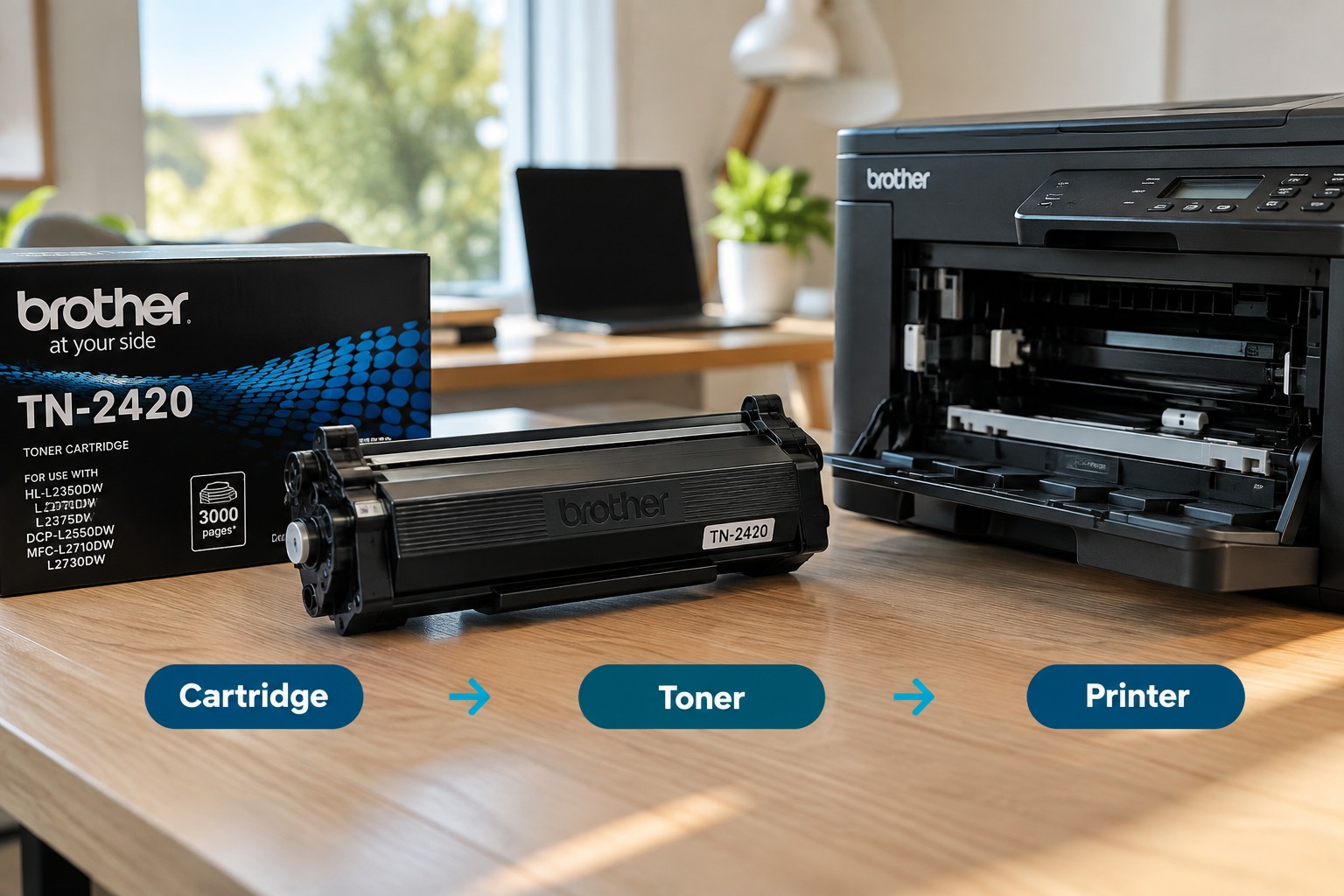
So, is the problem the cartridge, the toner, or the printer itself?
The easiest way to work it out is to troubleshoot in stages. Start with the printer model and cartridge number, then check the cartridge installation and print quality before assuming the printer has a hardware fault. A faded or streaky print, for example, can come from low toner or ink, incorrect settings, a poorly seated cartridge, a blocked printhead, or a worn printer component.
This guide walks through the checks you can do before ordering another cartridge or arranging a printer repair.
Where to Find Your Printer Model (and Why It Matters)
Before buying a replacement cartridge, find the exact printer model.
You will usually find it:
- On the front or top of the printer
- On a label at the back or underneath
- Inside the printer cover
- In the printer's settings or information menu
- In the manufacturer's printer software
- On the original box or manual
The model number matters because printer cartridges are not universal. Even printers from the same brand can use completely different ink or toner cartridges.
For example, two HP printers may look similar but require different cartridge numbers. HP's own compatibility information lists specific cartridge numbers against individual printer models, and cartridge numbers can also vary by market.
This is why searching for something broad like “HP toner” is not enough. Your exact printer model gives you a much more reliable starting point.
If you are unsure which cartridge your printer uses, The Toner Group's Ink & Toner Finder lets you narrow the search by brand, printer family and model.
Find the Cartridge Number
Once you know the printer model, find the cartridge number.
The cartridge number may also be called an OEM code, cartridge code, part number or model number. It identifies the specific consumable designed for a particular printer or printer family.
You can often find the code on:
- The existing cartridge
- The cartridge box
- The printer manual
- The inside of the cartridge compartment
- The printer's software or settings
- The manufacturer's documentation
If you still have the old cartridge, checking its label is often the quickest option.
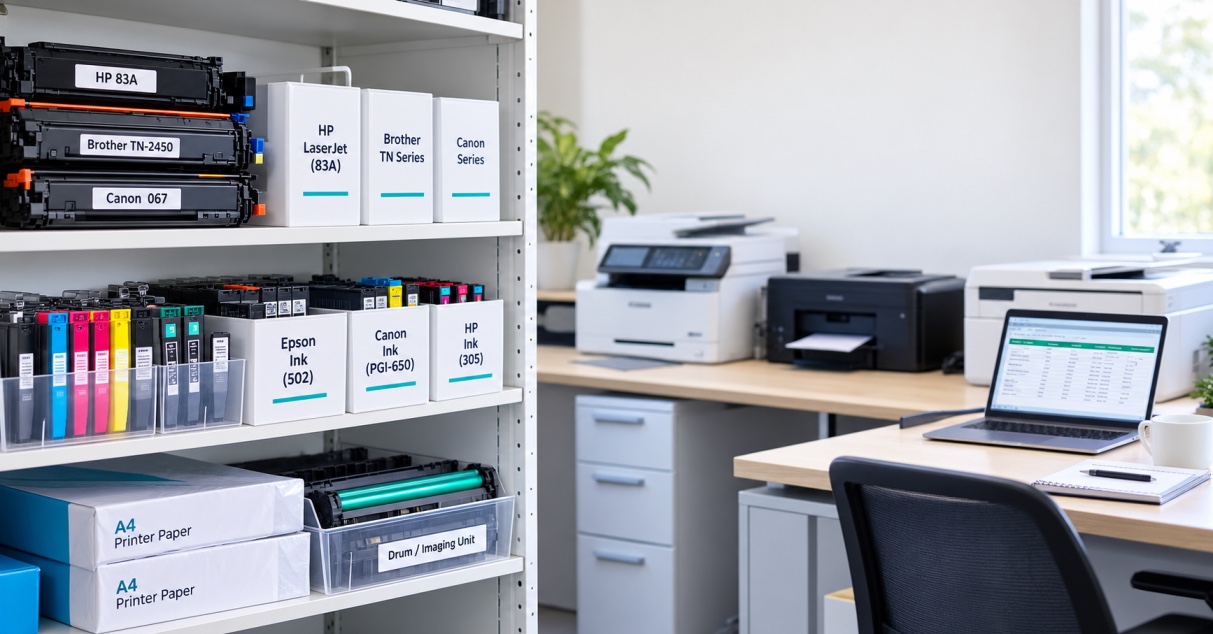
You might see codes such as HP 305A, Brother TN-760 or Canon PG-645. These numbers are much more useful when searching for a replacement than simply knowing the printer brand.
Check these details before ordering
Before you place an order, compare these five things:
- Printer model — Does the cartridge specifically list your printer?
- Cartridge number — Does the code match?
- Colour — Black, cyan, magenta, yellow or a colour pack?
- Page yield — Standard, XL or high-yield?
- Cartridge type — Genuine or compatible?
It only takes a moment to check these details, but it can save you from receiving a cartridge that does not work with your printer.
It is also important to understand the difference between ink and toner. Ink cartridges are used in inkjet printers, while toner cartridges are used in laser printers. They are different consumables and cannot simply be swapped between printer types.
For regular office printing, it is worth considering page yield as well as the purchase price. A higher-yield cartridge may make more sense for a business that prints hundreds or thousands of pages than repeatedly buying lower-yield cartridges.
The right choice depends on your printer, print volume and budget rather than simply choosing the cheapest cartridge.
Find Out Cartridge Compatibility Before Buying
Finding a cartridge that looks right is not enough.
Before ordering, match the product against your exact printer model and cartridge number. Do not rely on the cartridge shape, colour or packaging alone. Different cartridges can look similar while being designed for different machines.
Printer manufacturers themselves provide compatibility lists because cartridge numbers are specific to supported printer models. Brother, for example, advises checking the cartridge model number against the machine's consumables information when a “Wrong Toner” message appears.
There are a few other checks worth making.
Check whether the cartridge is seated correctly
If you have just installed a new cartridge and the printer immediately reports an error, remove it and reinstall it carefully according to the manufacturer's instructions.
Make sure it is positioned correctly and fully seated.
For colour printers, also check that each cartridge is in the correct slot.
A cartridge that has not been installed correctly can cause printing problems even when the cartridge itself is suitable for the printer.
Find the protective packaging
New cartridges may have protective strips, seals or packaging that need to be removed during installation.
If a printer starts producing blank pages immediately after a cartridge replacement, check the installation instructions before assuming the printer has failed. Leaving protective material in place can prevent the ink or toner from working properly.
Make sure the error message
The wording on the printer display can provide a useful clue.
Messages such as:
- Cartridge not recognised
- Wrong cartridge
- Replace toner
- Cartridge problem
- No toner
- Ink cartridge missing
can point towards a cartridge, compatibility or installation issue.
However, an error message does not always mean the cartridge itself is faulty. Depending on the printer, firmware, chip, contacts or another component may also be involved.
Some printer models also use cartridge authentication or security systems, so compatibility can depend on more than whether the cartridge physically fits. HP, for example, documents printer models where cartridges using a non-HP chip may not function or may stop functioning after certain printer updates.
Look at the actual print quality
The printed page can tell you a lot.
Faded text or images:
Check the ink or toner level, print settings and cartridge installation first. On a laser printer, a worn drum, transfer system or fuser can also contribute to poor output.
Streaks or uneven printing:
The cartridge may be running low or have a problem, but other printer components can also cause streaking.
Blank pages:
Check the cartridge, installation and protective seals. On an inkjet, a blocked or dried printhead can also be responsible.
Toner rubbing off the page:
This can indicate a problem beyond simply the amount of toner in the cartridge and may require further printer troubleshooting.
The key point is simple: don't automatically buy another cartridge just because the printer is producing poor-quality pages.
How to Tell If the Printer Itself Is the Problem
If you have confirmed the correct cartridge, installed it properly and the problem continues, start looking at the printer.
For an inkjet printer, possible causes can include:
- Blocked printhead nozzles
- Dried ink
- Print settings
- Paper issues
- Software or driver problems
- Printer hardware faults
For a laser printer, other components can contribute to poor print quality, including the drum, imaging system, transfer system or fuser. The exact cause depends on the printer model and the symptom.
One useful test is to print the printer's own test or configuration page.
If the printer's internal test page has the same problem, the issue is more likely to be within the printer, cartridge or consumable system rather than the document or application you are printing from.
Also consider what changed immediately before the fault appeared.
For example:
- Did you install a new cartridge?
- Did you move the printer?
- Did the printer sit unused for several weeks?
- Did a firmware or software update occur?
- Did the problem gradually get worse?
- Does every document have the same issue?
These details can help narrow down the cause.
When Should You Replace the Cartridge?
Replacing the cartridge makes sense when you have reasonable evidence that the consumable is the problem.
For example, you may see a low-ink or low-toner warning alongside increasingly poor print quality. A cartridge may also need replacing when it has reached the end of its usable life and is no longer producing acceptable output.
But replacing the cartridge is not always the answer.
If you install a known-compatible replacement and the same fault continues, repeatedly buying cartridges is unlikely to solve the underlying issue.
This is particularly important for offices and businesses where a printer problem can interrupt invoices, reports, forms, labels or other day-to-day documents.
Genuine or Compatible Cartridge: Which Should You Choose?
Once you know the cartridge number, you may have a choice between a genuine manufacturer cartridge and a compatible cartridge.
A genuine cartridge is made by the printer manufacturer.
A compatible cartridge is produced by another manufacturer and designed for use with particular printer models.
Neither choice should be made simply on price. Consider:
- Compatibility with your exact printer
- Print volume
- Expected page yield
- Print quality requirements
- Upfront cost
- Cost per page
- Your preference for genuine or compatible consumables
The Toner Group supplies both genuine and compatible printer consumables, allowing customers to compare options based on their printer and printing requirements.
For a home user printing occasionally, the priorities may be different from those of a busy accounting firm, medical practice or office printing hundreds of documents each week.
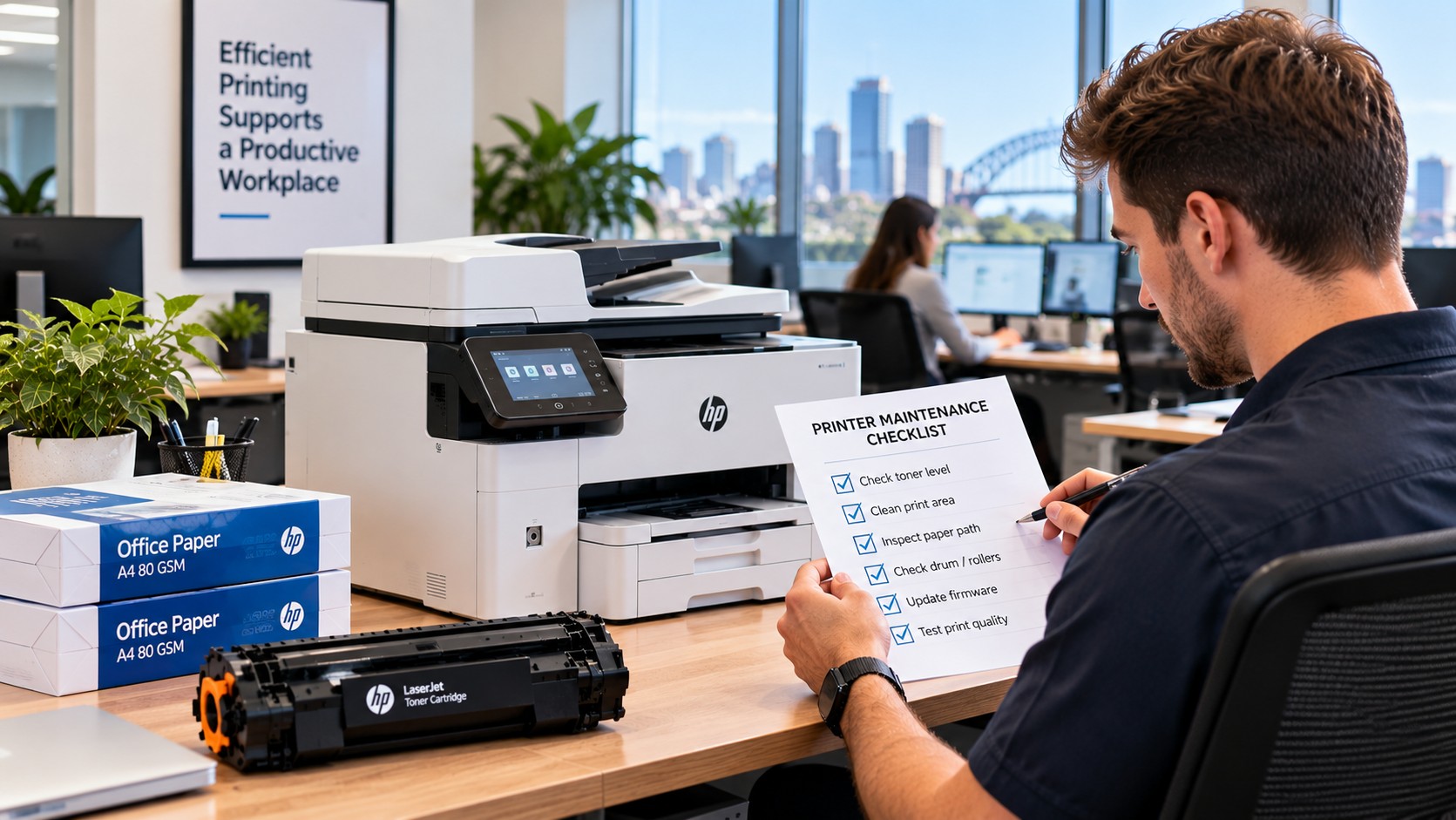
A Simple Printer Troubleshooting Checklist
Before ordering a replacement cartridge, work through this list:
- Identify the exact printer model.
- Find the cartridge number.
- Check whether the cartridge matches the printer.
- Check the ink or toner level.
- Reseat the cartridge carefully.
- Check that protective strips or seals have been removed.
- Check the printer's error message.
- Review print-quality settings.
- Print a test or configuration page.
- If the problem continues, investigate the printer itself.
This approach can prevent a common mistake: replacing the cartridge when the actual fault is somewhere else.
When Is It Time to Get a Printer Repair?
Basic printer troubleshooting is useful for simple cartridge, connection and print-quality problems. But persistent faults may need technical attention.
Consider professional help when:
- The printer repeatedly displays hardware errors
- New compatible cartridges do not resolve the issue
- The printer makes unusual mechanical noises
- Paper jams keep returning
- Print quality remains poor with a known-good cartridge
- The printer stops during jobs
- Internal components appear damaged
- The machine is important to your business and downtime is becoming costly
The Toner Group says it provides technical support and printer technicians across Australia for machines showing wear or performance issues.
For businesses that rely heavily on printing, diagnosing the problem properly can be more practical than continuing to replace consumables without knowing what is actually failing.
The Bottom Line
When you have a printer cartridge or printer problem, start with identification rather than immediately buying a replacement.
Find your exact printer model, check the cartridge number, confirm compatibility and inspect the cartridge installation. Then look at the actual print quality and run a printer test page.
If the problem disappears after replacing a correctly matched cartridge, the consumable was likely involved. If the same fault continues with a suitable replacement, the printer or another component may need attention.
The goal is not simply to replace a cartridge. It is to find the actual cause of the printer fault before spending money on something you may not need.
If you need a replacement, The Toner Group's Ink & Toner Finder can help you search by printer model or cartridge number. If you are still unsure, the team can be contacted for help with cartridge compatibility and product enquiries.