If your printer suddenly starts spitting out setup pages, alignment sheets or test prints, it can be frustrating — especially when you only wanted to print a few documents.
Some of these pages are completely normal. Printers may print them during initial setup, cartridge replacement, alignment, calibration or troubleshooting. The problem is when your printer keeps producing pages you don't actually need.
The good news is that you can often reduce this printer wasting paper during setup and test prints issue by checking a few settings and understanding what the printer is trying to do. It is also worth checking your ink or toner, as poor print quality can lead to unnecessary reprints.
Where Do Printer Setup and Test Pages Come From?
Printer setup pages can appear when you first install a printer, connect it to a computer or network, replace a cartridge or change certain settings.
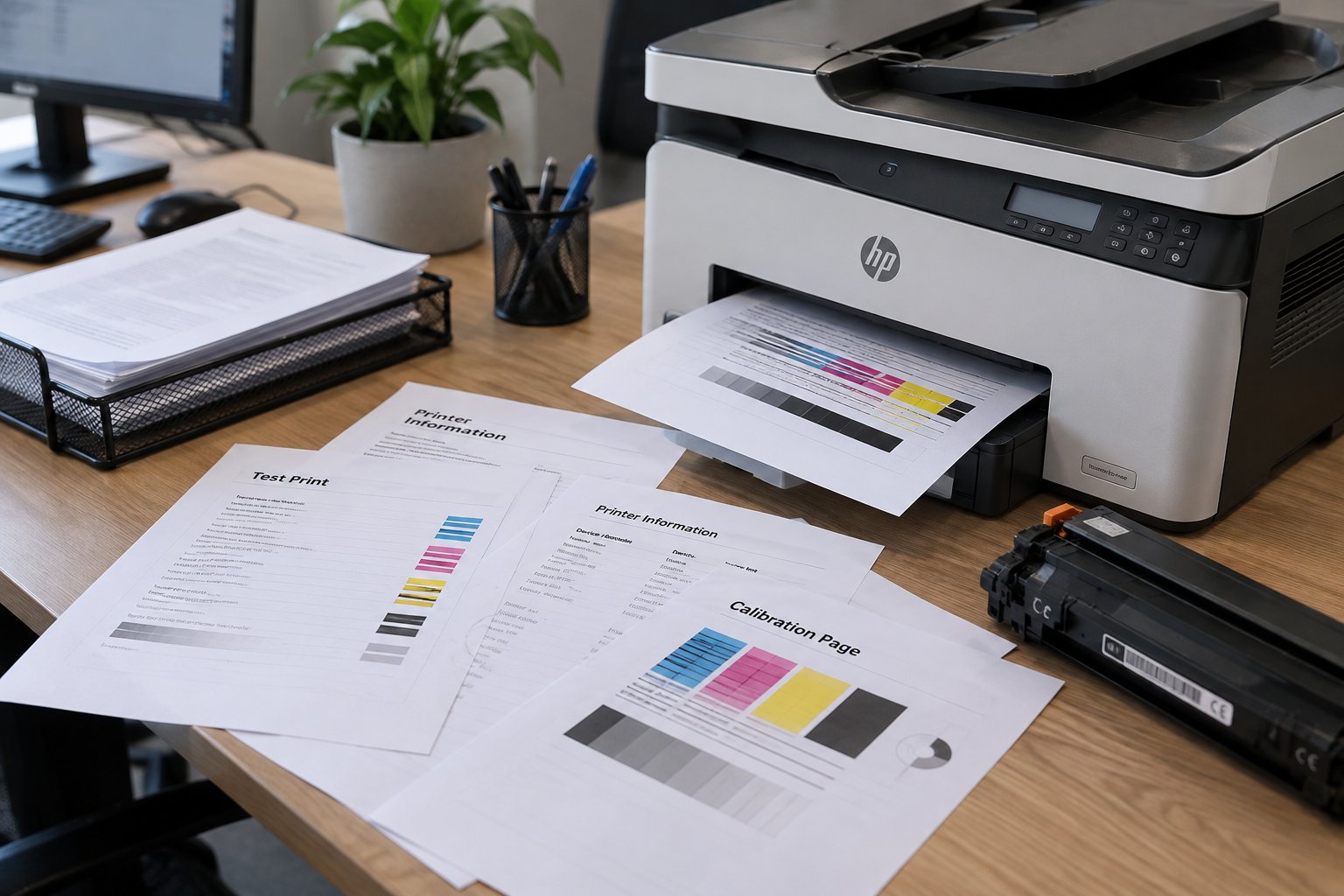
Depending on the printer, you might see several different types of pages.
Common pages your printer may produce
- Setup pages: Printed during initial installation or configuration.
- Alignment pages: Used to align print heads or cartridges.
- Test prints: Help check whether the printer is producing text, lines and colours correctly.
- Nozzle checks: Common on inkjet printers when checking ink delivery.
- Calibration pages: Used to adjust print output after certain maintenance procedures.
- Configuration reports: May show printer, network or device settings.
- Diagnostic pages: Help identify a printing or hardware problem.
These pages aren't necessarily a sign that something is wrong.
For example, printing one alignment page after installing a new ink cartridge can be perfectly normal. But if the printer prints the same type of page every time you switch it on, that's worth looking into.
Different printer brands and models handle setup and maintenance differently, so the exact setting will depend on your printer.
How Can You Stop or Reduce Printer Setup Pages?
The first thing to do is work out why the printer is printing the page.
Don't just keep cancelling the print job. If the printer is automatically generating the page, you need to find the setting or process causing it.
Start by checking the printer's control panel or the manufacturer's printer software on your computer.
Look for options relating to:
- Test pages
- Alignment
- Calibration
- Maintenance
- Reports
- Diagnostics
- Automatic printing
Some printers allow certain automatic reports or maintenance pages to be changed. Others may require you to complete a setup or alignment process before normal printing resumes.
Find Out these details before printing another page
1. Check your exact printer model
The model number is important. Instructions for an Epson inkjet won't necessarily apply to a Brother laser printer or an HP multifunction printer.
Check the model number on the printer itself or in your computer's printer settings.
2. Make Sure the printer settings
Look through the printer menu and software for test, alignment, maintenance or report settings.
If you're unsure what a setting does, check the manufacturer's instructions before changing it.
3. Ask whether calibration is actually needed
Printer calibration has a purpose, but you don't necessarily need to run it every time you use the printer.
If your documents are coming out clearly and the printer is working normally, repeatedly running calibration or test prints can simply create more waste.
4. Check the paper settings
Paper waste isn't always caused by a faulty printer.
Check that the selected paper size and type match the paper loaded in the tray. Incorrect settings can sometimes result in failed jobs, unexpected output or reprints.
5. Check your ink or toner
If the printer is producing faded text, missing sections, streaks or uneven coverage, check the cartridge before repeatedly printing test pages.
Make sure the cartridge is:
- The correct model
- Properly installed
- Suitable for your printer
- Recognised by the printer
- Not empty or excessively low
Using the correct ink or toner cartridge can help avoid print-quality problems that result in having to print the same document again.
When Is a Test Print or Printer Calibration Actually Useful?
Test prints aren't automatically a waste of paper.
They can be very useful when you're trying to find out why a printer isn't producing documents properly.
The trick is knowing when to run one and when to stop.
After installing a new cartridge
Some printers use an alignment page, nozzle check or test print after a new cartridge is installed.
This helps the printer check or adjust the way it produces the page.
If the manufacturer's instructions call for an alignment or test page, it's generally worth doing it. Once the printer is working properly, though, there's no reason to keep printing additional pages.
When print quality suddenly changes
A test print can help you identify problems such as:
- Faded text
- Missing lines
- Streaks
- Smudging
- Uneven coverage
- Poor colour alignment
- Incorrect colours
- Repeated marks on the page
A single diagnostic page can tell you much more than repeatedly printing the same document and hoping it looks better.
After fixing a printer problem
If you've cleaned an inkjet print head, replaced a cartridge or changed a printer setting, a test print can confirm whether the problem has been fixed.
Check the first result before running another one.
If the print looks good, you're done.
If it doesn't, use the result to work out the next step rather than simply printing another five pages.
For more complicated issues, a proper printer troubleshooting process is more useful than repeatedly sending test jobs to the printer.
Can Ink or Toner Problems Lead to Paper Waste?
Yes — usually indirectly.
Ink and toner don't normally make a printer waste paper by themselves. However, poor cartridge performance can lead to poor-quality documents, which means you may have to print them again.
For example, imagine printing a 20-page report only to discover that several pages have faded text or missing sections. You may end up printing the whole report again.
That's unnecessary paper and toner use.
Before replacing a cartridge, check:
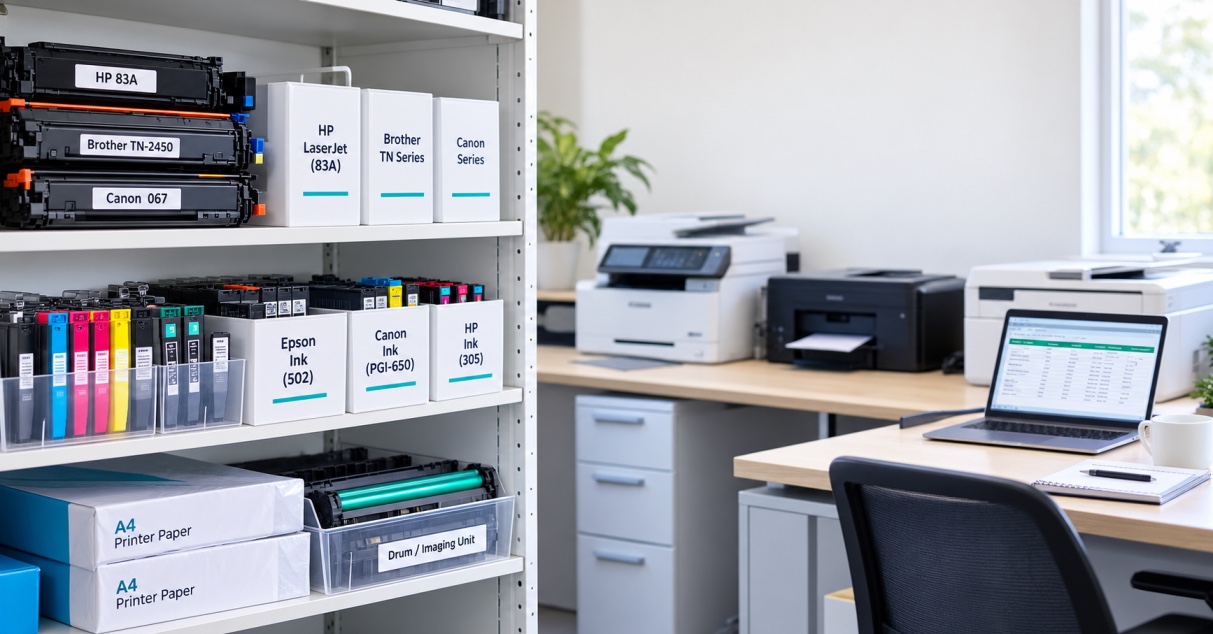
- Your printer model
- The cartridge number
- Cartridge compatibility
- Installation
- Printer error messages
- Whether the cartridge is recognised correctly
For workplaces that print invoices, reports, forms and other documents throughout the day, getting the correct cartridge can make everyday printing much less frustrating.
The Toner Group supplies both genuine and compatible ink and toner cartridges for a range of printer brands and models, so it's worth checking the cartridge number rather than simply choosing one that looks similar.
How Can Offices Reduce Printer Paper Waste?
A few unnecessary test pages at home might not seem like a big deal.
In an office, school, medical practice, accounting firm or other busy workplace, though, repeated test prints and reprints can add up over time.
A few simple habits can help.
Keep your printer settings consistent
Make sure the default paper size, print quality and paper tray settings are suitable for the documents you normally print.
Constantly changing settings can make troubleshooting harder.
Don't run diagnostics unless you need them
Test pages and calibration prints have a purpose.
They shouldn't become part of your normal printing routine when the printer is already working properly.
If you're getting clear, consistent prints, there is generally no reason to keep running diagnostic pages.
Keep an eye on cartridge performance
If print quality suddenly drops, investigate the cause before printing the document again and again.
A cartridge may be running low, incorrectly installed or unsuitable for the printer.
Fixing the underlying issue is usually more sensible than accepting repeated reprints as part of the job.
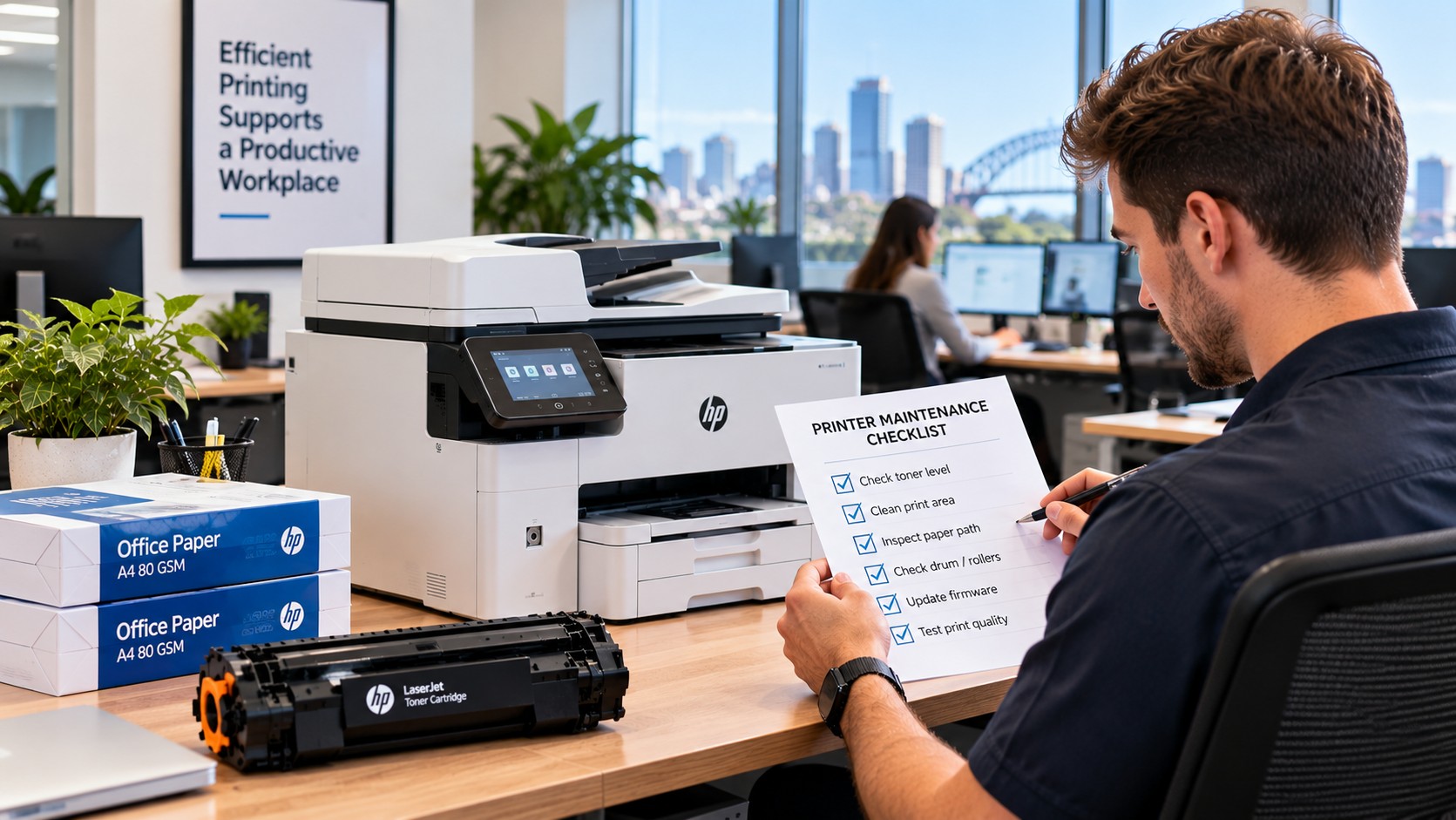
Follow a basic maintenance routine
Printers don't need constant attention, but they do benefit from sensible maintenance.
Depending on the printer, this may include keeping the paper path clean, following recommended print-head maintenance and replacing consumables when required.
If a printer continues producing unexpected pages or develops a recurring fault, professional printer maintenance may be a better option than repeatedly trying random settings.
Should You Buy Genuine or Compatible Ink and Toner?
Both genuine and compatible cartridges can be suitable options, depending on your printer and what you need from it.
Genuine cartridges are made by the printer manufacturer.
Compatible cartridges are made by another manufacturer and designed for use with particular printer models.
The important thing is to check compatibility before buying.
Don't choose a cartridge simply because it looks similar to the one currently in your printer. Cartridge numbers matter.
This is particularly important when you're trying to reduce waste. A cartridge that isn't suitable for your printer can create recognition or print-quality problems, potentially leading to more troubleshooting and reprints.
For regular home and workplace printing, The Toner Group offers a range of genuine and compatible ink and toner cartridges across different printer brands.
What Should You Do If Your Printer Keeps Printing Test Pages?
If your printer won't stop producing setup or test pages, work through these checks:
- Find the exact printer model.
- Identify what type of page is being printed.
- Check the printer's control panel and software.
- Look for automatic test, alignment, calibration or report settings.
- Check the paper size and tray settings.
- Check the ink or toner cartridge.
- Run one appropriate test page if troubleshooting requires it.
- Find the result before printing another page.
- Follow the manufacturer's troubleshooting instructions.
- Consider professional servicing if the problem continues.
This approach can save a surprising amount of paper compared with repeatedly cancelling pages or printing the same document to see whether the problem disappears.
Final Thoughts
If your printer is wasting paper during setup and test prints, don't assume that every extra page means the printer is faulty.
Setup pages, alignment sheets, nozzle checks and calibration prints can all have a legitimate purpose. The problem is when they're being produced repeatedly without a clear reason.
Start by identifying what type of page the printer is producing. Then check the relevant settings, paper configuration and ink or toner.
If the printer is working normally, there's no need to keep running test prints. If print quality has changed, use a test page as a diagnostic tool and check the result before printing anything else.
And if you're regularly reprinting documents because of faded text, streaks or missing sections, don't overlook the cartridge. The right ink or toner for your printer can help avoid unnecessary reprints and keep everyday printing running smoothly.
If you need a replacement, check the exact cartridge number and printer compatibility before ordering. It's a simple step that can save paper, time and unnecessary hassle.