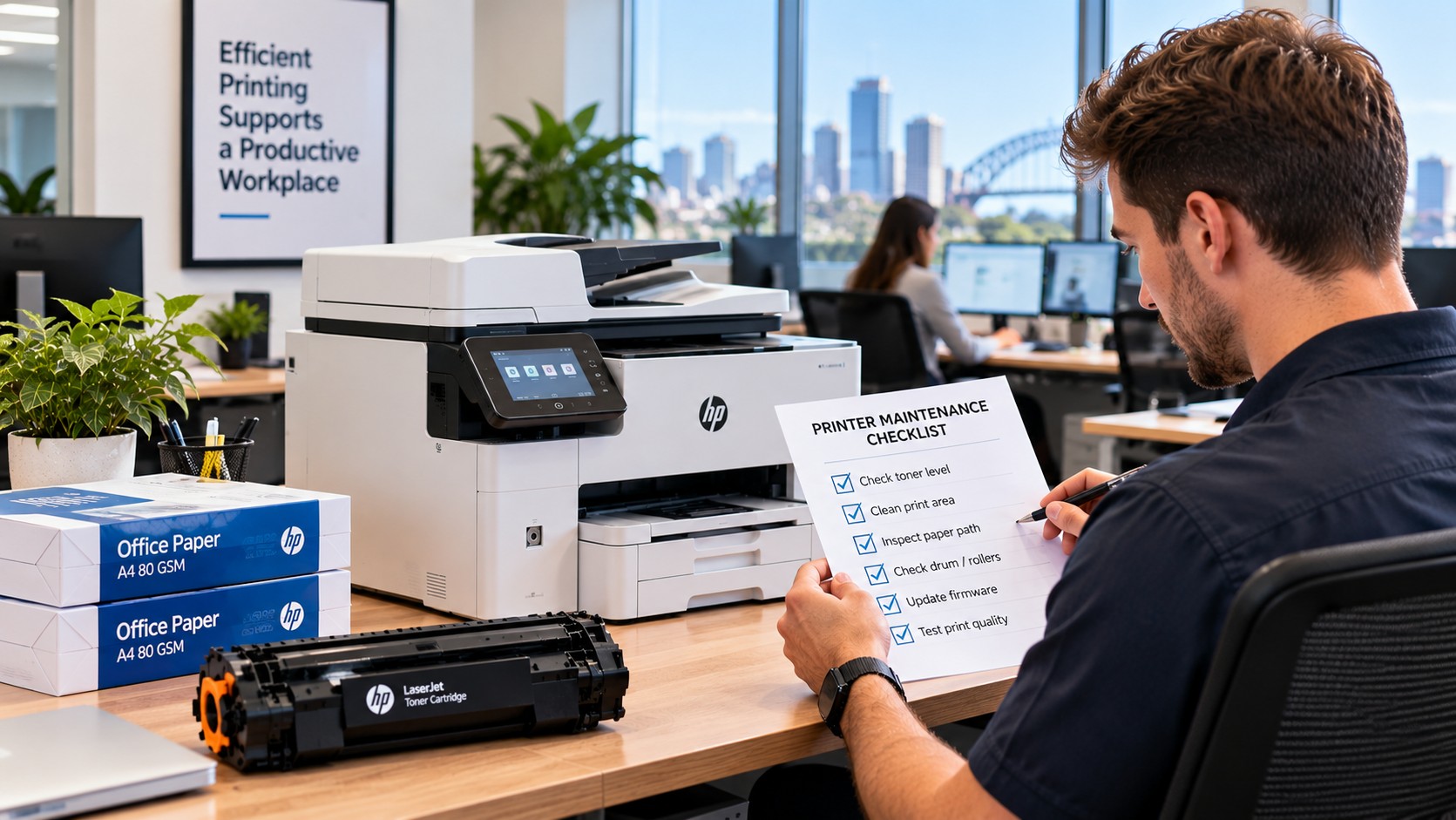
You’ve just changed the ink cartridge, printed a document and the colours still don't look right. Maybe red is coming out pink, blue looks purple, or photos have a strange colour cast.
It’s frustrating, particularly when you've already replaced the cartridge and expected the problem to disappear.
The good news is that printer colours wrong after replacing ink doesn't necessarily mean the printer is faulty. The new cartridge may not be the right one for your model, it may not be seated properly, or the issue could be related to ink flow, paper or your print settings.
Before buying another cartridge or calling for a repair, there are a few straightforward things worth checking.
Start With Your Printer Model
Before troubleshooting the print itself, find the exact model of your printer.
You’ll normally find the model number on the front, back or inside the printer. You can also find it through your computer's printer settings or the manufacturer's software.
This small detail matters because cartridges are made for specific printer models. Two printers from the same brand can use completely different cartridges.
For example, knowing that you have a Canon printer isn't enough. You need the exact model to find the cartridge designed for that machine.
The same applies to HP, Brother, Epson and other major brands.
If you're not sure which cartridge your printer takes, check the model before ordering anything. It can save you the hassle of receiving a cartridge that looks right but isn't suitable for your machine.
Check the Number on the Cartridge
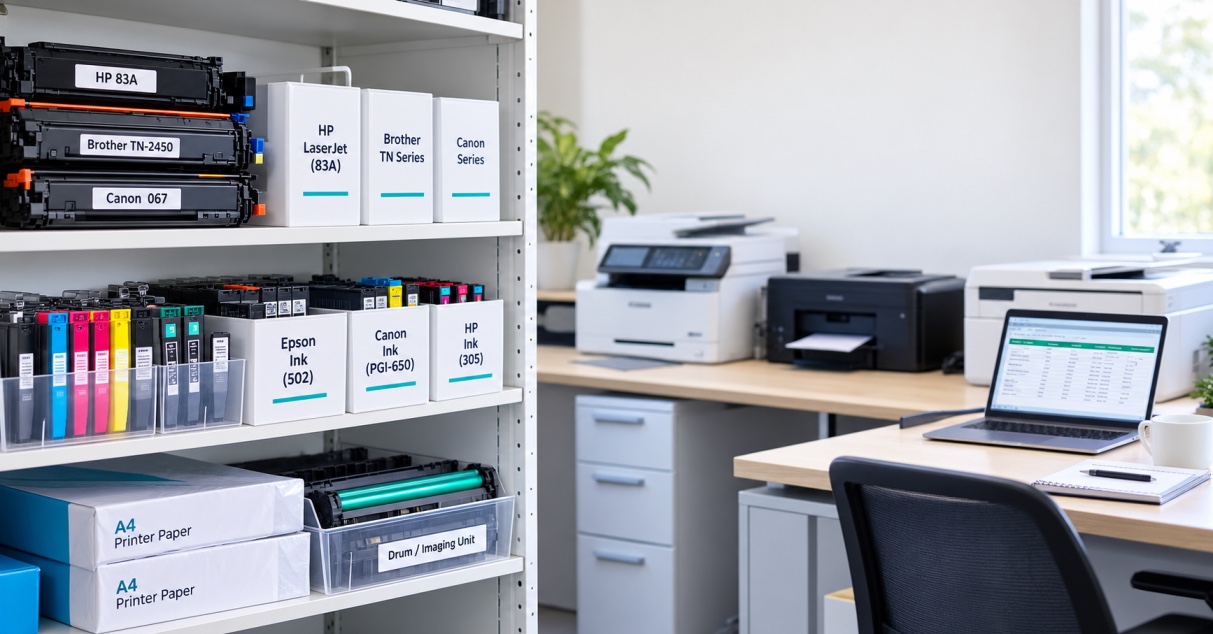
Once you've found your printer model, check the number printed on the old cartridge or its packaging.
This is often referred to as the cartridge number, part number or OEM number.
Don't rely on colour or appearance alone. Cartridges can look very similar even when they're designed for different printers.
Before ordering, compare:
- Your exact printer model
- The cartridge number
- Black or colour cartridge
- Standard or high-yield version
- Genuine or compatible cartridge
If you still have the old cartridge, keeping the packaging or taking a photo of the label can make future replacements much easier.
It is also worth checking the cartridge manufacturer's compatibility information before placing an order.
Could the New Cartridge Be the Problem?
If the trouble started immediately after changing the cartridge, it's reasonable to check the cartridge first.
Make sure it is:
- Designed for your exact printer
- Installed in the correct slot
- Properly seated
- Free from visible damage
- Fully unpacked according to the manufacturer's instructions
Some cartridges have protective strips, seals or other packaging that need to be removed before use. The exact procedure varies, so follow the instructions supplied with the cartridge.
Also check whether the printer recognises the new cartridge.
If the printer is displaying a cartridge warning or isn't recognising it properly, deal with that issue before spending time changing other settings.
Genuine vs Compatible Ink: Does It Matter?
You'll often see both genuine and compatible cartridges when shopping for ink.
A genuine cartridge is made by the printer manufacturer. A compatible cartridge is produced by another manufacturer for use with a particular printer or range.
A quality compatible cartridge can be a practical option, particularly for households and businesses looking to manage printing costs. However, quality and compatibility can vary between products and suppliers.
The important point is not simply whether the cartridge is genuine or compatible. It needs to be suitable for your particular printer.
If you're buying compatible ink, check the product description carefully and make sure your exact model is listed.
Check the Ink Levels
If you've got a colour inkjet printer, don't only check the cartridge you have just replaced.
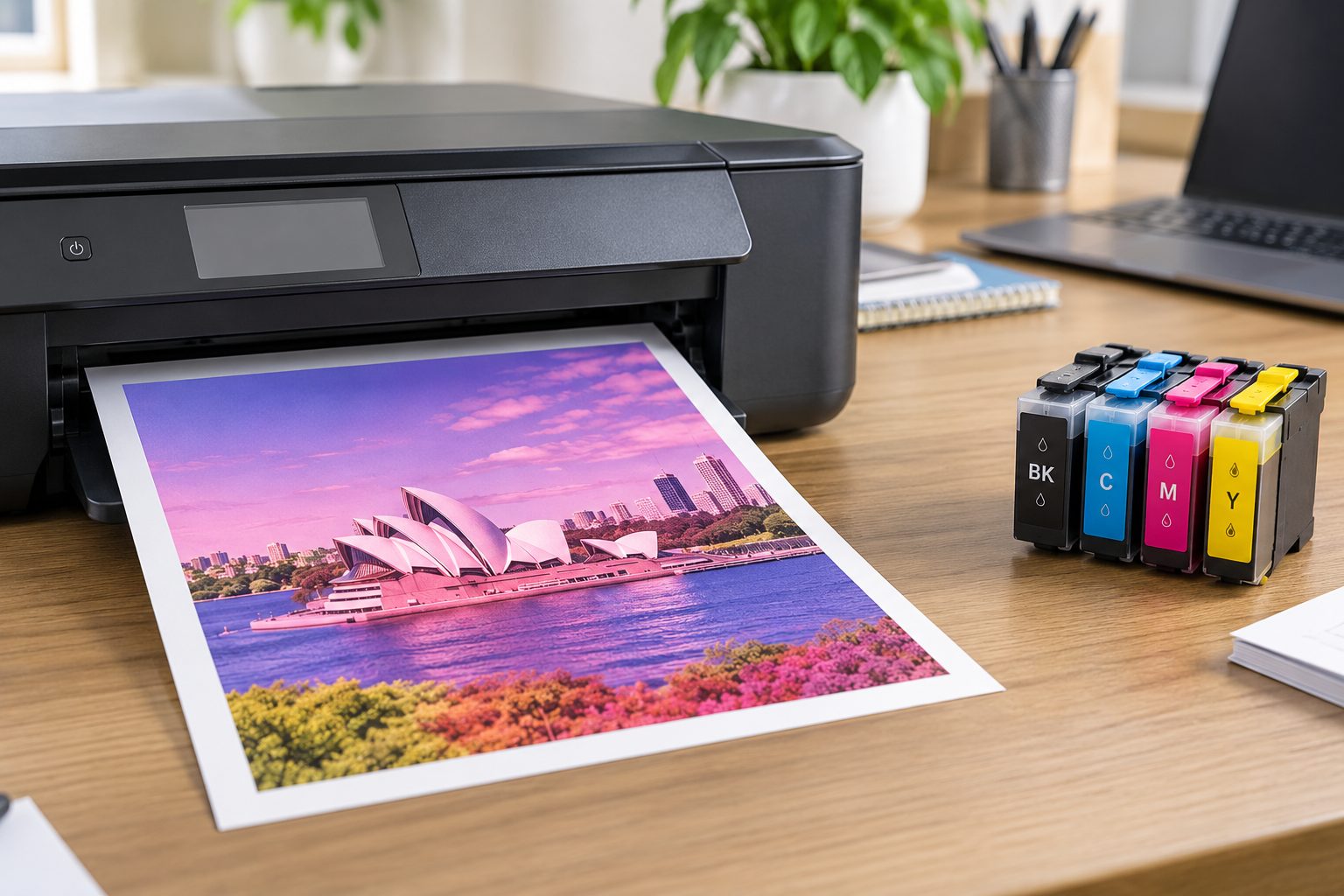
Most colour printers use several ink colours. Depending on the model, these may include black, cyan, magenta and yellow.
One low or poorly performing colour can affect the appearance of other colours on the page.
For example, you might notice:
- Red looks pink
- Green looks unusual
- Blue has a purple tint
- Photos look washed out
- Some colours disappear
- Prints have an obvious colour cast
Check the levels shown by your printer and look at the actual print as well. Ink-level readings are estimates on many printers, so the printed result can provide useful information when you're working out what's going on.
Run a Nozzle Check
If you're using an inkjet printer, a nozzle check is one of the most useful tests you can run.
It prints a small test pattern showing whether the different ink channels are working properly.
If sections of the pattern are missing or broken, the printer may not be delivering one or more colours properly.
This can happen when ink has dried around the printhead or when the printer hasn't been used for some time.
Look under your printer's maintenance options for something such as Nozzle Check, Print Quality Check or Check Print Head Nozzles. The wording will depend on the brand and model.
If the test pattern isn't complete, follow the manufacturer's recommended cleaning procedure.
Don't keep running cleaning cycles unnecessarily
Printhead cleaning uses ink.
If the first cleaning cycle doesn't solve the problem, check the nozzle pattern again before running another one. Your printer's manual or manufacturer's support information should be the guide for how many cleaning cycles are appropriate.
If repeated cleaning makes no difference, there may be another issue that needs attention.
Have a Look at Your Print Settings
Sometimes the ink isn't the culprit at all.
Your printer settings can change the way colours appear on the page. This is particularly noticeable when printing photographs, graphics or other documents where colour matters.
Check whether you've accidentally selected:
- Black and white or grayscale
- Draft or Economy mode
- A different print quality
- The wrong paper type
- Manual colour adjustments
- Application-specific colour settings
The paper setting is easy to overlook.
If you're printing on glossy photo paper but the printer is set for ordinary plain paper, the result may not look the way you expect.
It's worth checking the print settings on your computer before assuming there's a problem with the cartridge.
Test the Printer Itself
Here's a useful way to narrow down the problem.
Print the printer's own test or configuration page, if your model provides one.
Then compare it with the document that's giving you trouble.
If the test page also looks wrong
The issue is more likely to be connected to the printer, cartridge, ink delivery or printhead.
If the test page looks fine
The problem may be somewhere else, such as the application you're printing from, the document itself or its colour settings.
For example, if a PDF looks wrong but the printer's test page is fine, try printing another document. This helps establish whether the problem is specific to one file.
Check the Paper You're Using
Paper has more influence on print quality than many people realise.
Ink behaves differently on ordinary office paper, coated paper and photo paper. That's why printers often provide different media settings.
If you're getting unexpected results, check that the paper loaded in the printer matches the setting selected in the print dialogue.
Also make sure the paper is clean, dry and stored properly.
For everyday office documents, standard copy paper is usually fine. For photographs or graphics, using the appropriate paper and print-quality setting can make a noticeable difference.
What If Only One Colour Is Wrong?
If only one colour has changed, that's a useful clue.
For instance, if everything that should be red now looks pink, check the colour cartridges and nozzle pattern rather than changing every cartridge in the printer.
The same applies if blues, greens or other colours suddenly look different.
A simple test page can show whether one ink channel is missing or inconsistent.
This is much more useful than guessing and replacing several cartridges at once.
When Should You Replace the Cartridge Again?
If you've checked the model, cartridge number, installation and settings, and the problem remains, you may need to consider the cartridge itself.
A replacement may be appropriate when:
- The cartridge is empty
- It is damaged or leaking
- The printer can't recognise it
- A particular colour isn't being delivered
- The cartridge is confirmed to be unsuitable
- A known-good replacement resolves the problem
But don't automatically buy another cartridge just because the first one didn't solve the issue.
If two correctly installed cartridges produce the same result, the problem could be elsewhere in the printer.
That's particularly important for businesses that print regularly. Replacing consumables without finding the underlying cause can quickly become an unnecessary expense.
Choosing the Right Ink for Your Printer
When you do need a replacement, start with the printer model rather than simply searching for “colour ink”.
The Toner Group stocks ink cartridges for a range of popular printer brands and models, including genuine and compatible options.
For example, a printer that uses a Canon CL-586 colour cartridge needs that specific cartridge family. A different Canon colour cartridge isn't automatically suitable just because it comes from the same manufacturer.
You can also find higher-yield options for supported printers if you regularly print large volumes.
The best choice depends on your printer, how much you print and whether you're looking for genuine or compatible supplies.
Before ordering, always confirm that the cartridge is listed for your exact printer model.
Need a Replacement Cartridge?
If you've worked through the checks above and the cartridge is the likely cause, finding the correct replacement is the next step.
The Toner Group's ink range covers individual colours, black cartridges, multipacks and different yield options across a range of printer brands.
Rather than guessing which one you need, check your printer model and cartridge number first.
Find the right ink cartridge for your printer
If you're still unsure, the model number and old cartridge number are the most useful details to have when looking for a replacement.
The Bottom Line
If your printer colours are wrong after replacing ink, don't assume the printer has suddenly packed it in.
Start with the basics: check the printer model, compare the cartridge number, make sure the cartridge is installed properly and confirm that the printer recognises it.
Then move on to the ink levels, nozzle check, paper and printer settings.
If the printer's own test page still has missing or unusual colours, the problem may be related to ink delivery, the printhead or another part of the machine.
The key is to work through the checks one at a time. That way, you can find out whether you're dealing with an ink cartridge issue, a setting, a printhead problem or something that needs further attention—without spending money on cartridges you don't actually need.